· AI tooling, Modeling, Power BI as code
The Power BI Modeling MCP Server — Hands-On
Connect an AI agent to the model open in Power BI Desktop and it can document every table, column, and measure in one prompt, then hide keys, add sort-by columns, and write the measures you were missing. This guide runs four prompts against one messy model and reviews every change as a Git diff before it's kept.
What you'll learn
- Connect an AI agent to a model open in Power BI Desktop through the Power BI Authoring MCP server
- Document every table, column, and measure in one prompt, and check the result in Desktop
- Ask for a plan before a cleanup pass, and make the agent wait for your approval
- Read the agent's changes as a TMDL diff, then keep or discard them
- Build an SVG sparkline from a DAX measure
Documentation is the chore to hand off first
Nobody enjoys documenting a Power BI model. It pays off twice, though. People who build their own reports on your model see each description as a tooltip, and an AI tool that queries the model reads the same descriptions to understand what a column holds before it writes a query against it. If you work on one of my teams, you know I’m very big on descriptions: every table, every column, every measure.
An MCP server is a program that exposes tools an AI agent can call, under the open Model Context Protocol. The Power BI Authoring MCP server is Microsoft’s: its tools create, update, and delete the objects in a semantic model, such as tables, columns, measures, relationships, and security roles. Connect an agent through it and the agent edits the model directly, in place.
The Power BI Modeling MCP server is now the Power BI Authoring MCP server. The video, recorded in May 2026, uses the old name, and so do the tool prompts in its screenshots. Microsoft renamed the server in September 2026, and several things changed around the rename. The local server, the one used here, is now generally available (its v1.0.0 release is dated September 25, 2026). A Microsoft-hosted version of the same server is in preview, for models in Fabric workspaces only. The npm package now asks you to accept a license (EULA) before its tools run. The package and the VS Code extension keep the old
powerbi-modeling-mcpid, which is why it still appears in prompts and settings.
This article runs four prompts against one messy model: connect, document everything, clean up the model, and a stretch, a sparkline drawn by a DAX measure. Then it reads every change as a diff before keeping it.
The messy model
The demo is a small Power BI project named Sales Demo, built to need work. It has four tables, Sales, Product, Customer, and Date, with 19 columns between them. Its three measures lack descriptions, format strings, and display folders:
table Sales
	lineageTag: e5dd0f16-ac53-567e-9fd5-189bf2d92f14

	measure 'Total Sales' = SUM ( 'Sales'[Total Amount] )
		lineageTag: ca8c39c8-04a5-56b1-898d-0a73736c3cca

	measure 'Total Quantity' = SUM ( 'Sales'[Quantity] )
		lineageTag: 3ac4e158-858b-5e1b-8289-78d12ceb80e2

	measure 'Average Unit Price' = AVERAGE ( 'Sales'[Unit Price] )
		lineageTag: 2b5680cc-3046-5e41-bc7f-f5ff360370b2
Every key column is visible, Date isn’t marked as a date table, Month has no sort-by column, and auto date/time is on (annotation __PBI_TimeIntelligenceEnabled = 1 in model.tmdl). The project is saved as a Power BI project (PBIP) and committed to Git, so each change the agent makes can be read as a diff later. Power BI as Code covers the project format, and Put your Power BI reports in GitHub covers the repository.
To follow along, download the starting project below the article, extract it, and commit it to a repository of your own before you connect an agent.
When Power BI Desktop opens a model, it starts an Analysis Services process in the background to hold it, on a port it picks at random each session. External tools such as Tabular Editor and DAX Studio connect to that process to read and change the model. The Power BI Authoring MCP server connects the same way, through the XMLA endpoint, and Microsoft Learn says it follows the same rules for model changes as those tools.
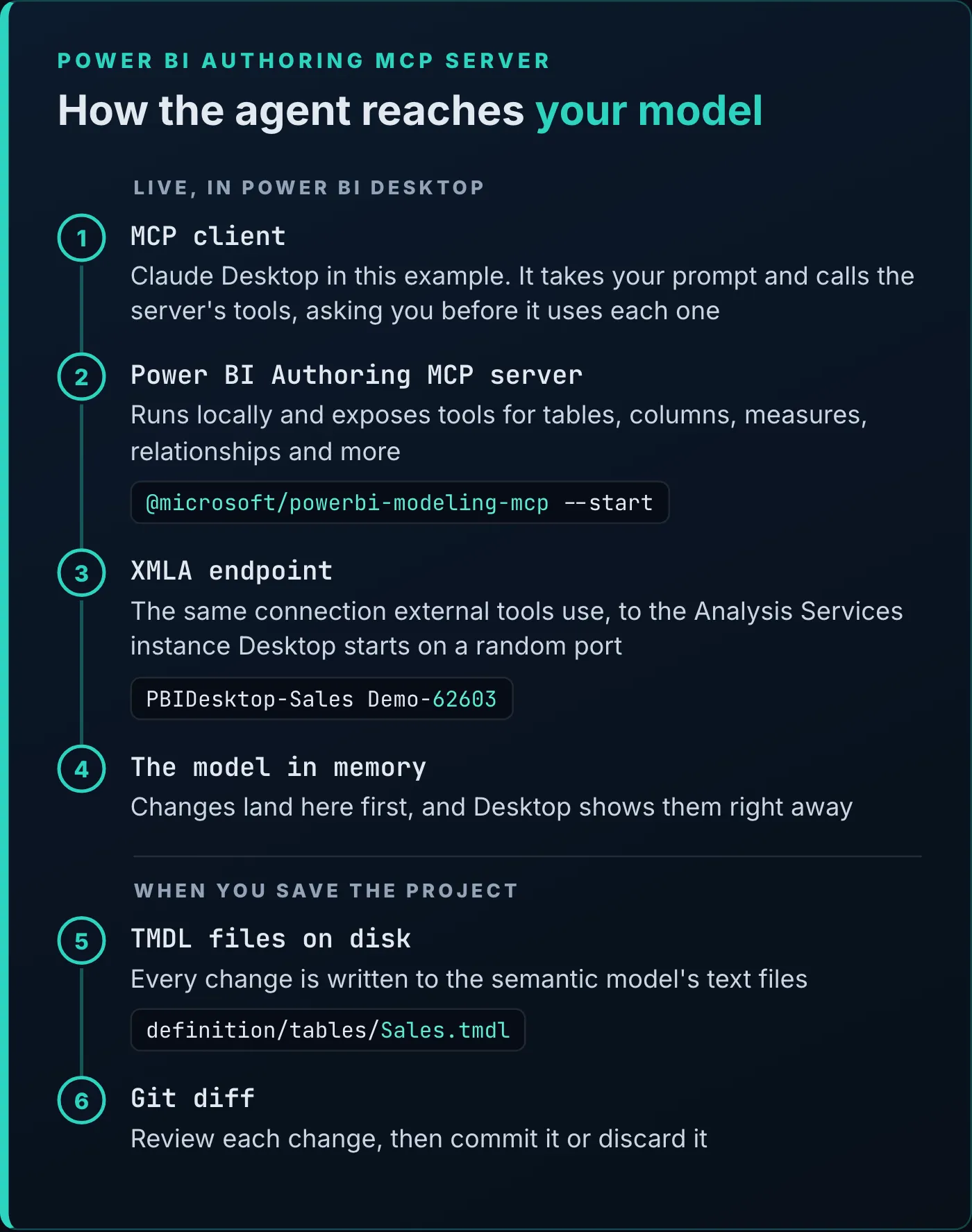
The path from your prompt to the model, and from the model to a diff you can review.
The client in this example is Claude Desktop, on Windows. The connect prompt names the model:
Please connect to the Open Sales Demo Model.The agent searched the local instances, found the open Sales Demo model, and connected to it as PBIDesktop-Sales Demo-62603, on port 62603.
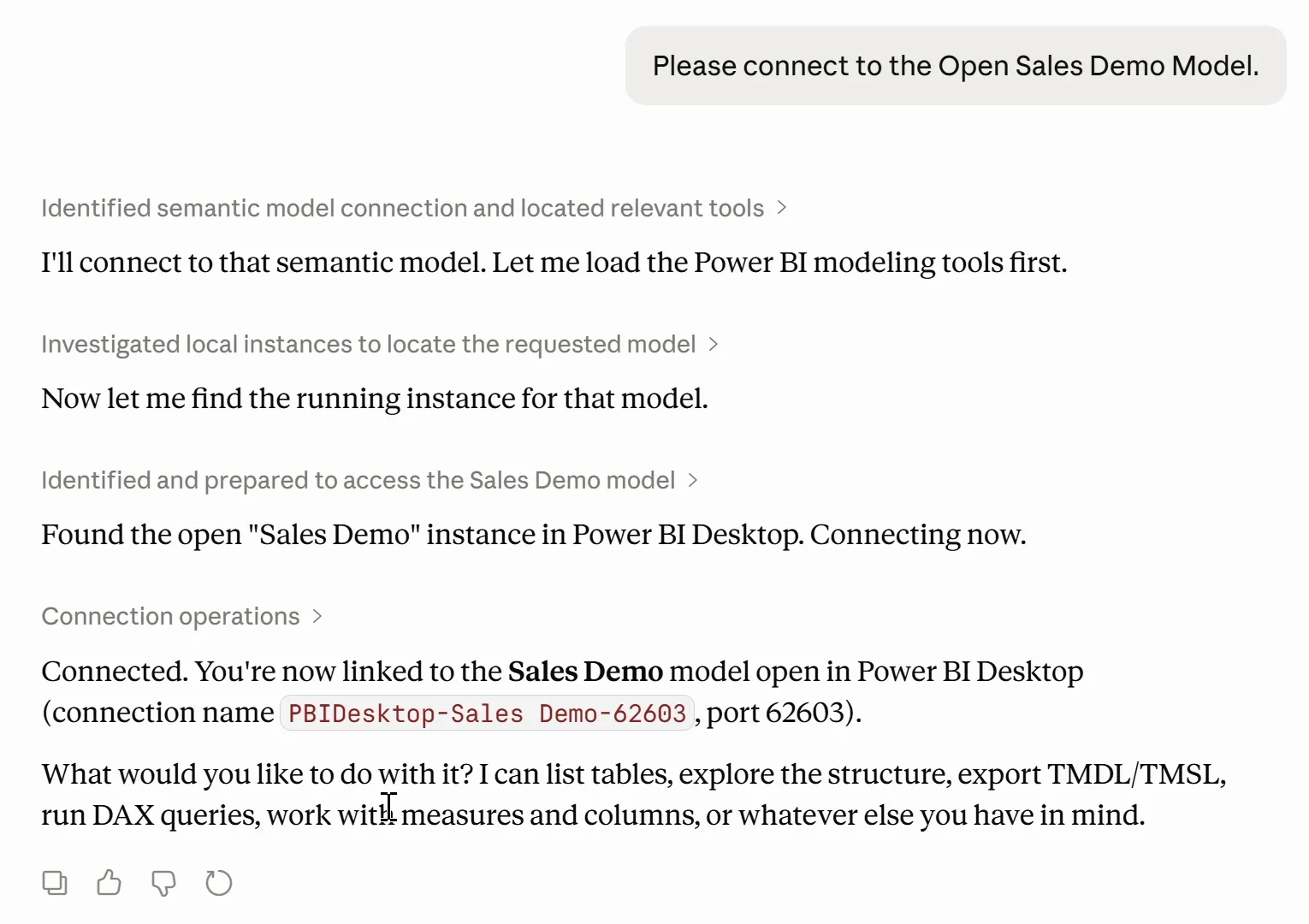
The connect prompt and its result: the agent finds the model open in Desktop and its local port.
Two places that ask permission
You approve the agent’s work at two levels. The client asks before it uses each of the server’s tools for the first time. In Claude Desktop that reads “Claude wants to use Database operations from powerbi-modeling-mcp”, with Always allow and Deny, and it asks again for each new tool. I chose Always allow, because this is an official Microsoft MCP server.
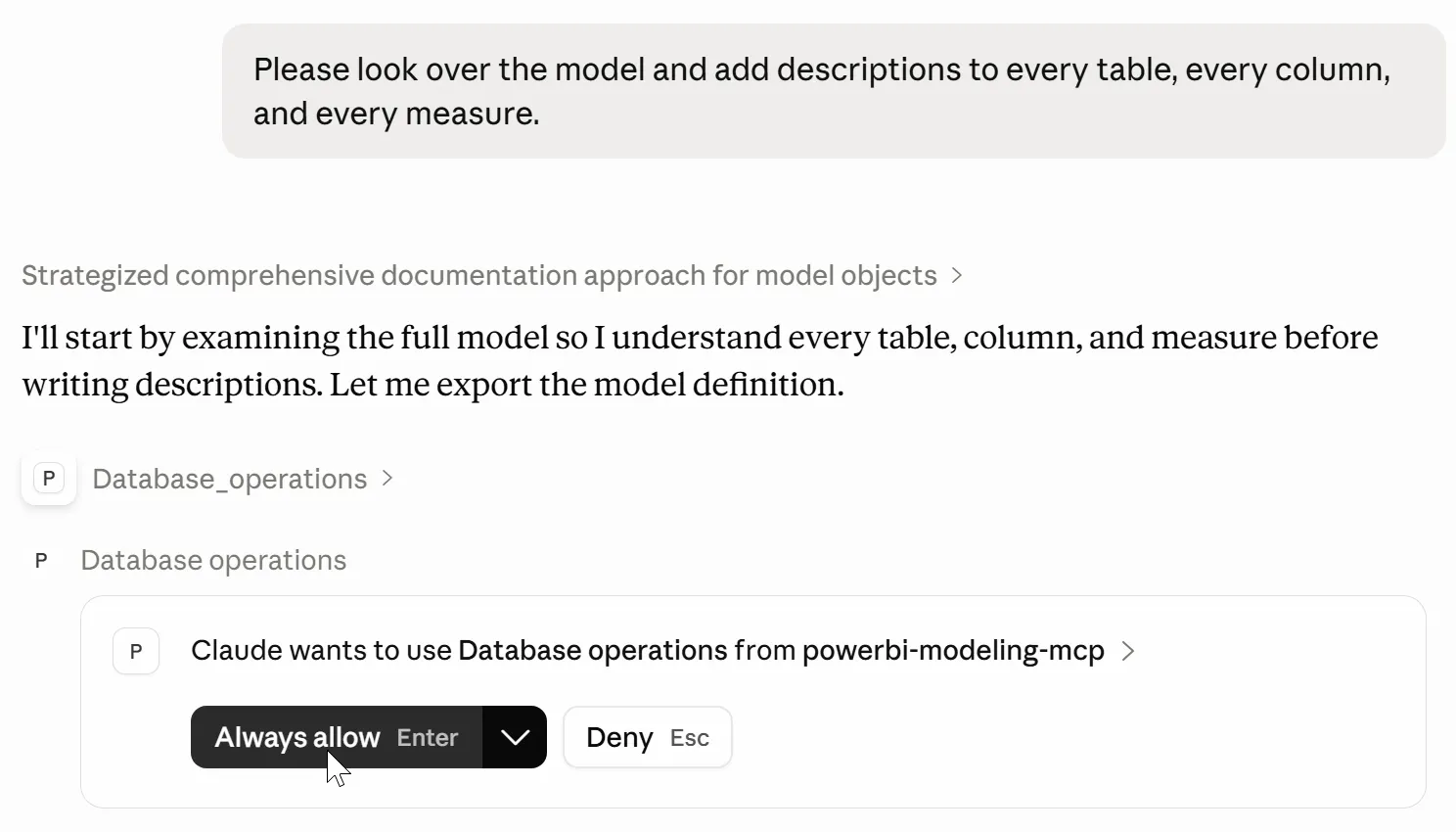
The client asks before it uses each of the server’s tools for the first time.
The server has its own switch. By default (--readwrite) it can write, and it asks for confirmation before it applies an edit to a model, once per model. Start it with --readonly and it can’t write at all, which suits a first session on a model you care about.
Set it up
Setup is short, and the Microsoft Learn page has the details:
-
Install the local server as the VS Code extension, the
@microsoft/powerbi-modeling-mcpnpm package, or a standalone executable. -
Register it with your MCP client. This is Learn’s registration JSON for the npm package; where it goes depends on your client:
{ "servers": { "powerbi-authoring-local": { "type": "stdio", "command": "npx", "args": [ "-y", "@microsoft/powerbi-modeling-mcp@latest", "--start" ] } } } -
Accept the EULA. The npm package blocks every other tool call until you do; the agent can accept it for you once you’ve told it to.
-
Use Windows. The local server doesn’t support macOS. On a Mac, the hosted server works only for models in Fabric workspaces, not Desktop.
The server also connects without Desktop, straight to a project’s TMDL folder (Open semantic model from PBIP folder '...'). This article uses the live connection.
The first job:
Please look over the model and add descriptions to every table, every column, and every measure.The agent exported the model definition first, to read every object before writing anything. Then it wrote the descriptions in batches: the tables, then the measures, then “all 19 columns in a single batch”. It finished with 4 tables, 3 measures, and 19 columns described, and zero failures.
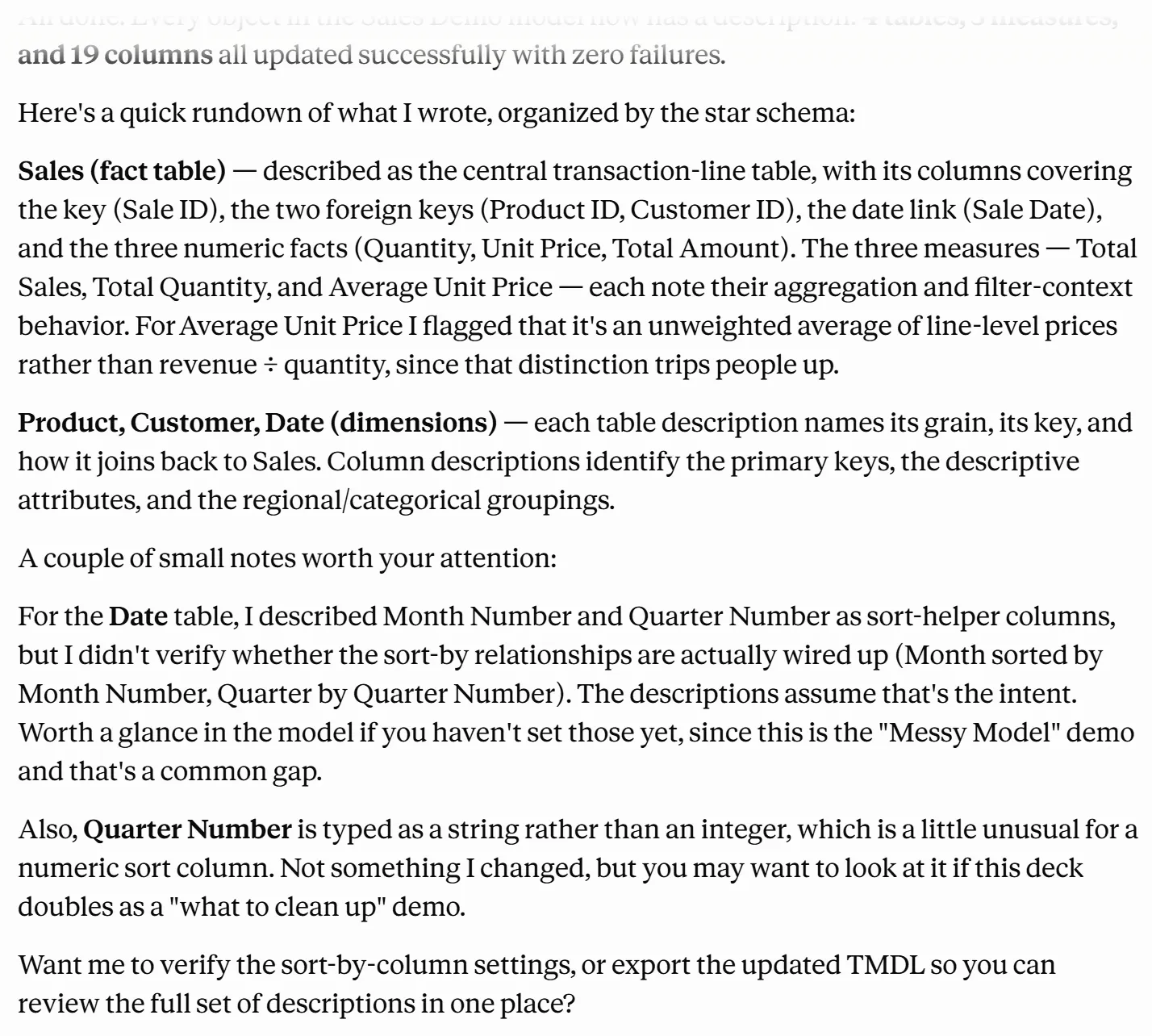
One prompt later: 4 tables, 3 measures, and 19 columns described, plus the agent’s notes.
The descriptions say what each object holds and how it behaves. This is the one it wrote for Total Quantity:
/// Total number of units sold, calculated as the sum of the Quantity column across all sales transactions in the current filter context.It also flagged something nobody asked about: Average Unit Price is an unweighted average of line prices, not revenue divided by quantity, and its description says so.
Check the result in Desktop: select a table, column, or measure in Model view and read its Description in the Properties pane, or hover over it for the tooltip.
Read the descriptions before you trust them. The agent said it described Month Number and Quarter Number as sort helpers without checking whether any sort-by column was set, and none was. A description states what the agent believes the column is for.
The second prompt asks for the chores that make a model pleasant to use:
Please hide all primary and foreign key columns and any measure backing columns. Mark the date table as a date table. Apply sort by columns where appropriate. Suggest any better measures that you might have. Lay out a concrete plan and let's get going.The agent answered with “the concrete plan before I touch anything”:
- Hide the keys:
Sales[Sale ID],Sales[Sale Date],Sales[Product ID],Sales[Customer ID],Product[Product ID], andCustomer[Customer ID]. - Hide the columns the measures are built on:
Sales[Quantity],Sales[Unit Price], andSales[Total Amount]. That leavesSalesa table of measures only. - Keep
Date[Date]visible on purpose, though it’s the date table’s key: “It’s the field users put on axes and in slicers.” That’s a good judgment call. - Mark
Dateas a date table, withDate[Date]as its date column. - Sort
MonthbyMonth NumberandQuarterbyQuarter Number, then hide both number columns. - Add format strings to the three existing measures, which the prompt didn’t ask for, and five new measures.
![Claude Desktop. The optimize prompt, then the plan: hide the key columns and the measure backing columns in Sales, Product, and Customer; one deliberate exception, Date[Date] stays visible; mark Date as a date table with Date[Date]; sort Month by Month Number and Quarter by Quarter Number and hide both helpers.](/_astro/optimize-plan.DatVaLXG_1NCSRu.webp)
The plan the agent wrote before its first change.
Make it wait for your approval
The prompt ends with “let’s get going”, and the agent took that as approval: by it’s already applying the changes. On a model you care about, the better practice is to read the plan before anything changes. End the prompt like this instead:
Lay out a concrete plan. Show me the plan and wait for my approval before changing anything.Then approve it, or edit it, in your next message.
What landed
When it finished, the agent re-exported the model and checked its own work against it. All 13 column updates landed. Date carries dataCategory: Time, with Date[Date] as its date column. Month sorts by Month Number and Quarter by Quarter Number, with both helpers hidden. The original measures have format strings: currency for Total Sales and Average Unit Price, a whole number for Total Quantity.
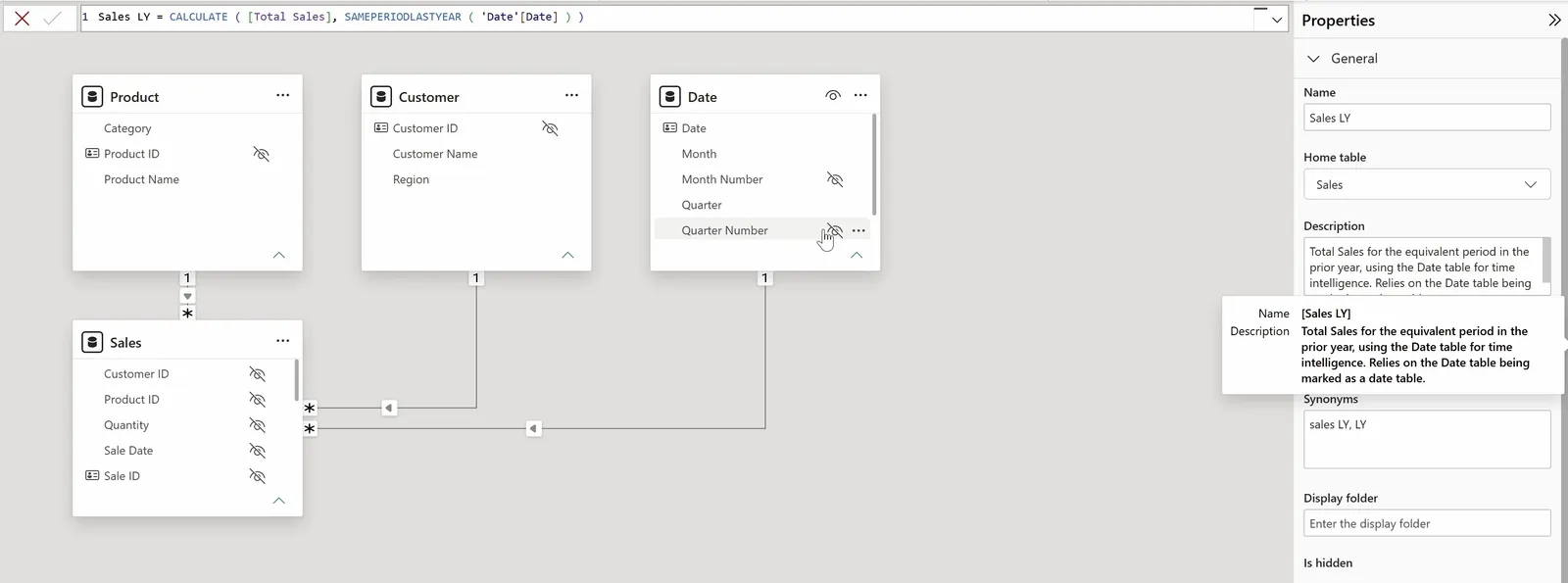
Back in Desktop: hidden keys and helpers, and a description on every measure.
The five new measures, each with a format string and a description:
Average Selling Price = DIVIDE ( [Total Sales], [Total Quantity] )
Sales Transactions = COUNTROWS ( 'Sales' )
Distinct Customers = DISTINCTCOUNT ( 'Sales'[Customer ID] )
Sales LY = CALCULATE ( [Total Sales], SAMEPERIODLASTYEAR ( 'Date'[Date] ) )
Sales YoY % = DIVIDE ( [Total Sales] - [Sales LY], [Sales LY] )
Two of them are worth reading side by side. Average Unit Price averages the price on each sales line, so a line of one unit counts as much as a line of fifty. Average Selling Price divides revenue by units sold, so it reconciles with Total Sales. The agent kept the old measure “so you can contrast them”, and its description now warns that it’s unweighted. It calls Average Selling Price the “better” answer, because it reconciles with revenue.
A setting left for you
The agent’s summary ended with two notes, neither blocking: auto date/time is still enabled, and Quarter Number is typed as text.
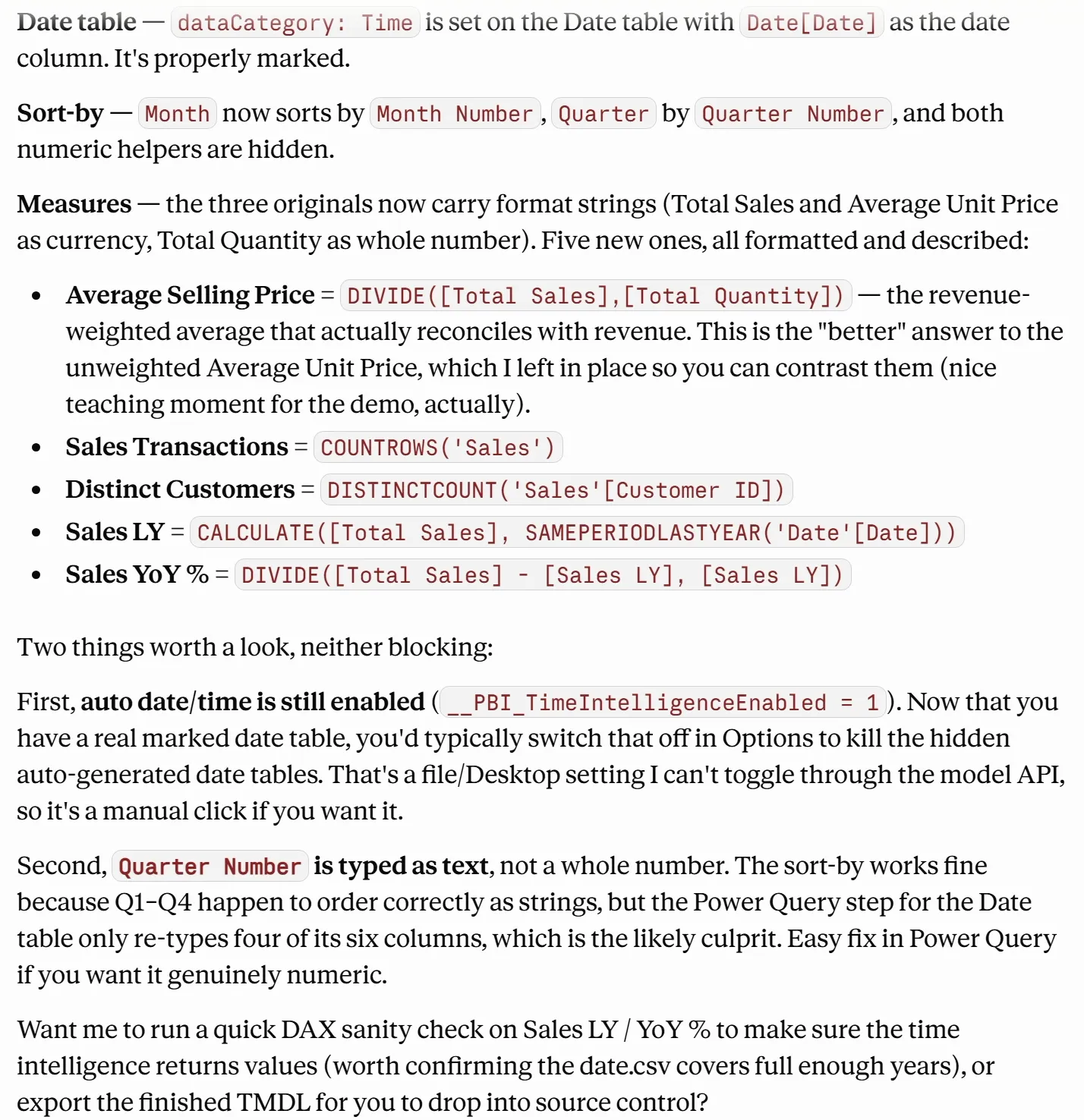
What landed, checked against a fresh export, and the agent’s two notes.
Auto date/time is the one that needs you. With a marked date table, the hidden date tables Desktop builds for every date column aren’t needed. The agent said it can’t change that setting through the model, so it’s a click for you: File > Options and settings > Options, then the Current File page, in the Time intelligence section. Turning it off removes the hidden tables, so fix any visual that used them.
SVG, short for Scalable Vector Graphics, describes a picture as text, so a DAX measure can build one as a string. You’ve probably seen people build sparklines this way. I’d never written one myself, so the stretch prompt asked the agent for a DAX measure that generates an SVG sparkline of total sales.
The agent wrote Total Sales Sparkline and described it as an “inline SVG sparkline of Total Sales by month, returned as an Image URL data string”. It draws on a 150 by 40 canvas with 3 pixels of padding, with one point for each year and month in the dates on the visual (SUMMARIZE ( ALLSELECTED ( 'Date' ), 'Date'[Year], 'Date'[Month Number] )).
Desktop shows a field as a picture in a table or matrix when its data category is Image URL, and SVG is one of the formats it accepts. In a matrix with Customer[Region] on the rows and the measure in the values, every region gets its own sparkline, and so does the total.
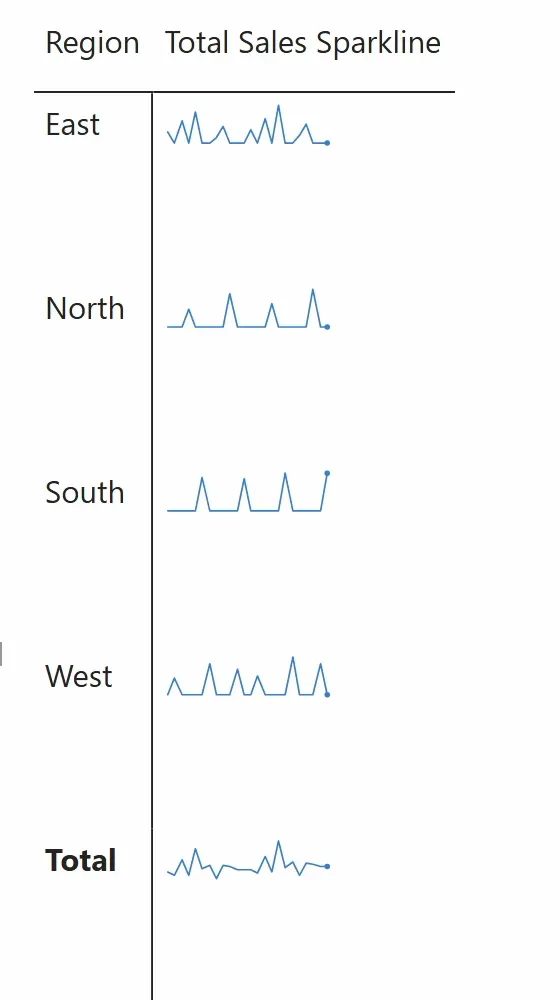
The SVG measure in a matrix: one sparkline per region.
From here you can ask for more, such as shading the area under the line.
Everything so far changed the model in Desktop’s memory. The files on disk don’t change until you save: before saving, Date.tmdl in VS Code still has no descriptions. Select Save, and VS Code’s Source Control lists seven changed files: model.tmdl, the four table files, the report’s report.json, and a new visual.json for the matrix.
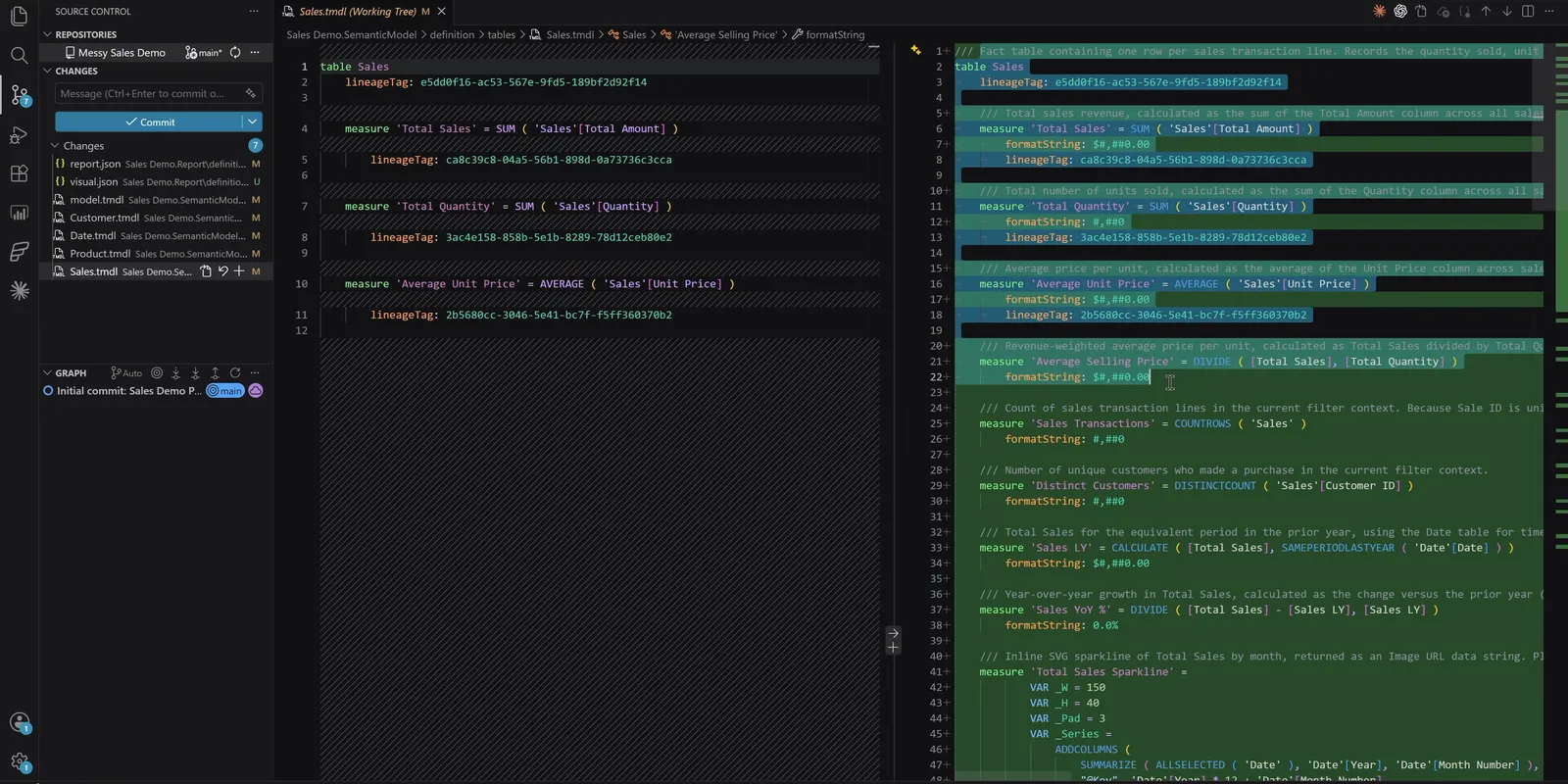
After Save: every change the agent made, as a diff of Sales.tmdl.
Here’s part of the new Sales.tmdl, after the agent’s work. Each /// line is the description of the object below it (in the code it also reads like a comment), the same property you see in Desktop’s Properties pane; Power BI as Code covers the syntax.
	/// Total number of units sold, calculated as the sum of the Quantity column across all sales transactions in the current filter context.
	measure 'Total Quantity' = SUM ( 'Sales'[Quantity] )
		formatString: #,##0
		lineageTag: 3ac4e158-858b-5e1b-8289-78d12ceb80e2

	/// Count of sales transaction lines in the current filter context. Because Sale ID is unique per line, this equals the number of distinct sales.
	measure 'Sales Transactions' = COUNTROWS ( 'Sales' )
		formatString: #,##0

	/// Number of unique customers who made a purchase in the current filter context.
	measure 'Distinct Customers' = DISTINCTCOUNT ( 'Sales'[Customer ID] )
		formatString: #,##0

	/// Total Sales for the equivalent period in the prior year, using the Date table for time intelligence. Relies on the Date table being marked as a date table.
	measure 'Sales LY' = CALCULATE ( [Total Sales], SAMEPERIODLASTYEAR ( 'Date'[Date] ) )
		formatString: $#,##0.00

	/// Year-over-year growth in Total Sales, calculated as the change versus the prior year (Total Sales minus Sales LY) divided by Sales LY.
	measure 'Sales YoY %' = DIVIDE ( [Total Sales] - [Sales LY], [Sales LY] )
		formatString: 0.0%
Compare it with the starting file earlier in the article. Total Quantity gained a description and a format string. The other four measures are new. The other files hold the rest: isHidden on the hidden columns, sortByColumn on Month and Quarter, and dataCategory: Time on Date.
Read it the way you’d review a colleague’s change:
- Does each description say what the object is, or only what the agent guessed?
- Did anything a report author needs get hidden?
- Do the new measures match what you’d have written, format strings included?
Then keep what you accept and undo the rest. Commit the files you’re happy with. For a file you don’t want, select Discard Changes in Source Control, then reopen the project in Desktop so the model matches the files again. Put your Power BI reports in GitHub covers every way back, including after a merge.
Save the model as a Power BI project and commit it before you connect an agent. Then the first diff you read is the agent’s, and any part of it can be undone. Microsoft Learn’s advice for working with an agent is the same: back up the model before you start, work in PBIP files under Git, and remember that model metadata and query results go to whichever AI provider your client uses.
In this run the agent was fast at the bulk work that follows a rule: a description on every object, keys hidden, sort-by columns set, format strings added. Some calls are still yours: whether a description is true, whether a hidden column was needed, and which of two averages to report.
The same server works from other agents. Claude Code for Power BI development sets up an agent in VS Code, and Microsoft’s Skills for Fabric plugins bundle this server with modeling and report skills (Microsoft’s Skills for Fabric, and building a report with them). To run model changes as commands instead, the Tabular Editor CLI article has an agent create, check, and deploy a model from the terminal. On the report side, the Desktop Bridge article has an agent reload the report in Desktop and screenshot it to check its own edits.
Pick a model you’ve been meaning to clean up this week, save it as a project, commit it, and give the agent the descriptions prompt.
Tools
- Power BI Desktop
- Power BI Authoring MCP server, local (formerly the Power BI Modeling MCP server)
- An MCP client in agent mode (Claude Desktop in this article)
- Visual Studio Code and Git
Prerequisites
- A Windows machine (the local server doesn't support macOS)
- Working knowledge of a Power BI semantic model: tables, columns, measures
- A model saved as a Power BI project and committed to Git
Resources
- Power BI Authoring MCP server, Microsoft Learn
- Overview of the Power BI MCP servers, Microsoft Learn
- powerbi-modeling-mcp repository (README, tools, settings), GitHub
- External tools in Power BI Desktop, Microsoft Learn
- Auto date/time in Power BI Desktop, Microsoft Learn
- Display images in a table, matrix, or slicer, Microsoft Learn
- Power BI agentic overview (the powerbi-authoring plugin), Microsoft Learn
Downloads
Related articles



Transcript
Watch it document the whole model
Check it out. One prompt, and I get all these descriptions for every table, every column, and every measure in my entire model.
Why documenting a model is worth doing
Let's face it. Nobody enjoys the tedious work of documenting a Power BI model. I get it. It's not fun. But doing that not only creates a better user experience from people who want to consume your data, say from a self-service standpoint, for example, but it also creates a more effective surface over which AI can interact with your data by adding descriptions. For example, AI can better understand the data held in the columns that it wants to query. So today, we're actually going to leverage AI to help us solve this problem and better document and optimize a model. Today, we're going to use Microsoft's official modeling MCP server to make those changes, and we're going to do it in a fraction of the time.
The four chores we will hand to AI
There are four main tasks that we're going to cover today. First of all, how do you connect AI to Power BI Desktop? Secondly, we're going to utilize AI to add bulk descriptions to your entire model. If you work on one of my teams, you know I'm very big on descriptions, every table, every column, every measure, and we're going to update the whole thing. The next thing we're going to work on is optimizing your model, some of those tedious things that maybe you either forget about or don't enjoy. Things like sort bys, hidden key columns, that sort of thing. And we're even going to get a few suggestions from AI on how we can make the model better. And as a stretch exercise, you may have seen people using SVG visuals, scalar vector graphic visuals. Well, we're going to create a DAX measure that will help us do that. So the first thing we want to
Connecting the agent to your live model
do after we've set up that MCP server is we want to connect to the model. Please connect to the open cell demo model. So the way that this works is Power BI Desktop actually spins up a little mini analysis services model on your local machine. And what the MCP server is doing is it is using AI and connecting it to the XMLA endpoint that is operating on your local device. So the first thing that it wants to know is whether or not it can use the Power BI modeling MCP server. So you see I can deny, I can allow always, or there's also this drop down here to say allow once. I'm going to go ahead and say allow always. This is an official Microsoft MCP server, so I'm going to say allow always. And you can see here that it has found the sales demo, and it is connecting to the sales demo, and now it's asking me what do I want to do.
Bulk descriptions across the whole model
So let's add some descriptions to our model. Please look over the model and add descriptions to every table, every column, and every measure. And again, you can see here that it is asking us do we want to allow it once or allow always. So again, I'm just going to say allow always. For every different command and function within the MGP server, it's going to re-ask that question. It is very permissions conscious. So you can see here that it first has examined the database, or the semantic model if you prefer, and it's found four tables, three measures, and 19 columns across those four tables. So it's going to begin the process of creating descriptions for each of those. All right, and just like that, it's done. It has added descriptions to four tables, three measures, and 19 columns, and it gives us a little bit of extra detail. So for example, it says that the date table could use some sort by helper columns, and including the quarter number and so forth. You know what? I think that's a great idea. So in fact, that's the next
Optimize pass: approve the plan, then run it
item on our list. Please hide all primary and foreign key columns and any measure backing columns. Mark the date table as a date table. Apply sort by columns where appropriate. Suggest any better measures that you might have, lay out a concrete plan, and let's get going. All right, so we're going to let that cook for a minute, and while that's going, I actually want to come back over to Power BI Desktop, and I want to show you something. If we click on the date table, you can now see the description that it added to the date table. You can see the description that it added to each of the columns here. Take my word for it that these were not there before. In fact, actually, I can show you if we come over to Visual Studio Code, I've got the semantic model open here. We can go to definition, tables, and the date.TMDL, and you can see there are no descriptions in this tmdl file. And in fact, we're going to demonstrate that here in a little bit. We're going to save this Power BI report, and you'll see those update in real time. The value of it is it becomes diffable. You can actually roll back the changes as you see fit. All right, so I did ask it for a plan. And so you can see here that it has created a plan and hasn't yet touched anything. So it's saying what it's going to do is going to hide the foreign and primary key columns, hide any columns that are backing specific measures. And that makes the entire sales measure, the entire sales table, a clean measures only table. And one nice thing is that it has the judgment to not hide the date column in the date table, even though that is a primary key. So that's a nice judgment. It's going to mark the date table as a date table. It's going to add some sort by columns, particularly month number and quarter number. And it's also proposed a few measures here that we are going to add. And you see it's already gotten underway. I love that I didn't ask it to fix the format strings on the existing measures, but it went ahead and did that anyways. That's nice. Okay, so now we're all done, and we can see everything that it has done for us. It has hidden several columns, including the sales id, sales date, so on and so forth, so those are our primary and foreign keys. It marked the date table as a date table. It added some sort bys. It's updated and created some new measures. It is pointing out the fact that the auto date time is still enabled, so I might want to turn that off. Also, for some reason, the quarter number is entered as a text and not a whole number, so that's not creating a problem right now, but probably something that we would want to
SVG sparkline via a DAX measure
fix. Okay, one last flourish. You guys have probably seen people talking about scalar vector graphics and wondered how you create those. I'll be honest, pretty complicated, never done one myself, but I I know, I know AI can make it really easy for us. Please create a DAX measure that will generate a scalar vector graphic that will give us a sparkline of total sales. All right, so we've got our SVG measure. Let's see how it did. So we're going to go back over to Power BI Desktop. I'm in the modeling view here, and you can see if we click around the data model, we've got descriptions for all of our tables, all of our measures. We've got several new measures that it created pretty quickly for us, and we're going to go over to our reporting canvas. I'm going to drop in a matrix visual. We'll give this a little space here. We're going to add customer region, and we're going to add that new sparkline measure that it just created, and there you have it. We've got a nice sparkline. You could even ask it to shade the area under the curve, for example, but that was pretty easy, and AI built the whole thing for us. Now, if I come back over to Visual Studio Code, I've got
Save the model and read the git diff
opened the date TMDL file, and you'll notice that it doesn't have any of those descriptions or any of the other modifications that we've recently made. The reason for that is that this model is loaded in memory, in RAM. So the changes are saved there. They're not yet saved to disk. So the first thing that we want to do is we're going to go ahead and click save. We'll let that spin for just a second. We'll come back over to Visual Studio Code, and there are all of our descriptions for our columns, the table. If we come to the Sales.tmdl, you'll see that now we have columns. We have all of those new measures and so on. If we come over to our source control section, you can see all of these changes. Again, if I open up the Sales TMDL file here, you can see the old Sales file, this is part of it, and then you can see the changes over here. So in particular, new lines in green. So this is the new comment, the new description for the table. This is the new description for one of the old measures, then we have entirely new measures, so on. So the value of it is that you are
Fast, but still in command
always in control. You can ask AI to do things, and it is blazing fast. It is very familiar with how to do things, and because it's using the XMLA endpoint and the modeling MCP server, it can familiarize itself with TMDL, even though TMDL is a fairly new language, and it can be very very successful and very fast doing it this way. And because we've taken the time to save our reports in Power BI project format and put them in Git, then it is completely diffable, meaning we can see what's been done in the most recent version by AI compared to a previous golden version. And we can also roll back to one of those older versions.
Go try it this week
So go try it today. Grab a report that you've been meaning to do some maintenance on, save it as a Power BI project, and put it in Git. Set up that modeling MCP server and give it a try for yourself. If you need any help with that modeling MCP server, be sure and leave me a comment down below, and I can do a video on that. Be sure to get subscribed so that you won't miss our upcoming videos. I've got more coming up on how we can leverage AI to help us do our Power BI work much faster. And if you want to know more about Power BI projects, you can check out this video right here, and I'll see you next time.
New articles and videos