· AI tooling, Modeling, Power BI as code
The New Tabular Editor CLI That AI Agents Can Run
Tabular Editor now ships as a command-line tool with JSON output and exit codes, so an AI agent can create, script, check, and deploy a Power BI semantic model from the terminal. This guide runs one messy model through the whole loop.
What you'll learn
- What the Tabular Editor CLI is, what you need to run it, and why its output suits an AI agent
- Create a new model with te init, as TMDL or as a full Power BI project
- Have an agent write a C# script, compile-check it, and run it against a TMDL folder to add a measure
- Run the Best Practice Analyzer from the command line, auto-fix what it can, and see why the fix takes two passes
- Read the agent's changes as a TMDL diff, then deploy the model to a Power BI workspace
Most semantic-model work is a series of small, repeatable steps: add a measure, check the model against best practices, fix what the check finds, deploy. Many Power BI developers already do that work in Tabular Editor’s desktop app. It now also ships as a command-line tool, te, where each of those steps is a command, and an AI agent can run commands. An agent with access to a terminal, such as Claude Code, can read the CLI’s help, run a command against your model, read what comes back, and decide what to do next. This article follows one deliberately messy model through that loop: a new measure written as a C# script, a Best Practice Analyzer run, two rounds of automatic fixes, the diff that shows every change, and a deploy to a workspace.
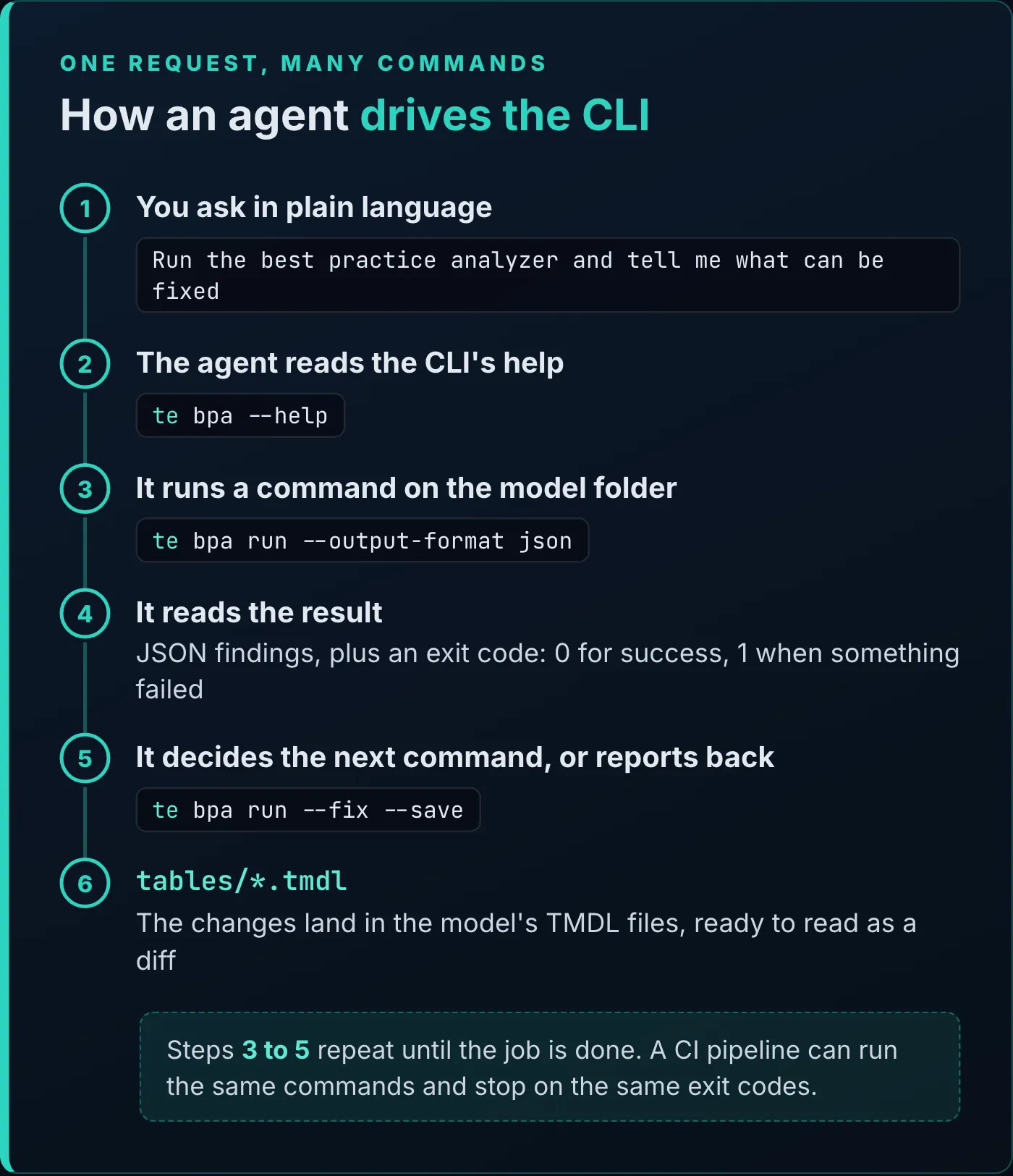
One request becomes several commands. The agent reads each result before it picks the next one.
The example is a sales model built to fail a best-practice check: one Sales fact table and six dimensions, 70 columns and 14 measures. Nothing in it has a description, its measures and most numeric columns have no format string, and every key column is visible. It’s saved as a Power BI project, so the model is a folder of TMDL files in a Git repository. The whole project is in the downloads below, along with the C# script.
The Tabular Editor CLI comes from the makers of Tabular Editor. It is a single self-contained executable for Windows, macOS, and Linux that works on semantic models: TMDL folders, .bim files, Power BI project folders, or a model already published to a workspace. Its commands cover editing objects, inspecting and searching the model, validating DAX, the Best Practice Analyzer, running DAX queries and C# scripts, deploying and refreshing, and regression tests.
The CLI was built to be run by an agent or by a release pipeline in GitHub or Azure DevOps. Add --output-format json and a command returns its results as JSON a program can read. Each command also ends with an exit code that says whether it worked: te bpa run, for example, exits with 1 when the model has a violation at error level, so an agent or a pipeline can stop on it. And --non-interactive turns off every prompt, so a command that’s missing input fails with an error message instead of waiting.
The CLI runs C# scripts with access to the Tabular Object Model, the same kind of scripts you may already run in Tabular Editor. You won’t write them yourself here: the agent does.
What you need to run it
The CLI is in limited public preview, which runs until November 30, 2026. To download it you sign in with a Tabular Editor account. Tabular Editor recommends against using the preview in production CI/CD pipelines, because commands, flags, and output can still change before general availability.
One feature is Windows-only: --local, which connects to a model open in Power BI Desktop. On macOS and Linux you work on a model folder on disk, or on a model in a workspace.
Give your agent the official skill
Tabular Editor publishes a skill for AI coding agents: a SKILL.md file plus a references/ folder that teach an agent the command families, sign-in, object paths, output formats and exit codes, and the mistakes agents commonly make with the CLI. For Claude Code, copy the te-cli folder into .claude/skills/te-cli/ in your project, or into ~/.claude/skills/te-cli/ for every project. For GitHub Copilot in VS Code, the folder goes in .github/skills/te-cli/. The skill’s docs page covers other agents. Microsoft publishes skills for Fabric and Power BI as well, and the article on Microsoft’s Fabric skills installs them in Claude Code.
The simplest thing to ask for is a new model. In an empty folder, the prompt was:
Use Tabular Editor CLI to initialize a new model in this new model folder.
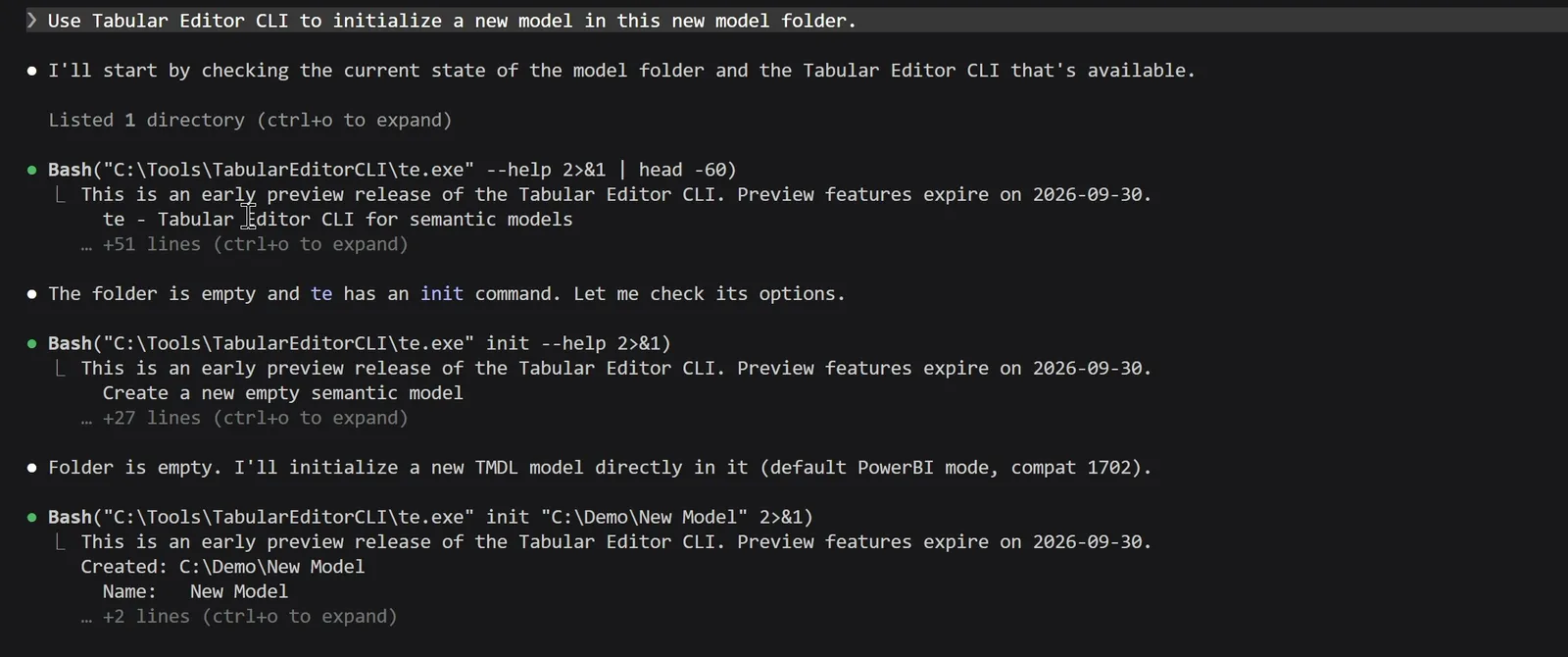
The agent reads the CLI’s own help before it runs te init.
The agent checked te --help, then te init --help, then ran te init on the folder. The result is two files, database.tmdl and model.tmdl: a blank model in TMDL, ready for tables. The same command can also create a whole Power BI project, with the .pbip file and both the semantic model and report folders:
te init ./my-model
te init ./my-model --serialization pbip
--compatibility-level picks the model’s compatibility level. Without it, te init uses the CLI’s Power BI default.
The rest of the article works on the messy sales model. The first job is a new measure, and the prompt names the result rather than the code:
Use the Tabular Editor CLI to run a C# script that will sum the total amount column in the sales table and double it. Call it double sales amount.
It’s a silly measure, but any measure works the same way. The agent started by looking at the Sales table to find the column’s real name, Total Amount. It checked the script command’s syntax with --help, wrote the script to a file, and ran it against the model’s definition folder.
![Claude Code in the VS Code terminal, asked to run a C# script that doubles the total amount column. It finds the Total Amount column in the Sales table, checks te.exe --help and te.exe script --help, writes a seven-line double-sales-amount.csx that calls Model.Tables["Sales"].AddMeasure, and runs it with te.exe script against the Sales Demo.SemanticModel/definition folder.](/_astro/csharp-script.BlNmnABy_nzxvX.webp)
The agent checks the column name and the script command’s syntax, writes the script, and runs it.
This is the whole script, double-sales-amount.csx:
// Create a measure that sums Sales[Total Amount] and doubles it.
var sales = Model.Tables["Sales"];
var m = sales.AddMeasure(
    "Double Sales Amount",
    "SUM ( 'Sales'[Total Amount] ) * 2"
);
m.FormatString = "\\$#,0.00";
Model.Tables["Sales"] finds the table, AddMeasure creates the measure from a name and a DAX expression, and the last line gives it a currency format string. The doubled backslash is C#‘s way of writing one backslash in a string, so the format string the model stores is \$#,0.00.
In version 0.7 of the CLI, the safe order is two commands, run from the project folder:
te script --file double-sales-amount.csx --validate
te script --model "./Sales Demo.SemanticModel/definition" --file double-sales-amount.csx --save
--validate compiles the script without loading the model. Without --save, te script runs the script and shows what would change, but doesn’t write anything. With --save, the change goes into the TMDL files, and the command prints what it changed: the new measure, its expression, and its format string.
When a script doesn’t compile, the CLI exits with code 1 and prints the C# compiler’s message as plain text, for example 'Table' does not contain a definition for 'AddMeasur'. That message is precise enough for the agent to fix the script and try again.
Keep scripts out of the model’s own folders. Then the model’s diff contains only model changes, and the script shows up in Git as a file of its own.
The Best Practice Analyzer (BPA) checks every object in a model against a set of rules, such as “visible measures should have descriptions” or “hide foreign key columns”. The CLI ships with built-in rules, so you don’t need a rules file to start. The prompt:
Use the Tabular Editor CLI and run the best practice analyzer against the model in the current folder, and tell me what can be fixed.
The agent read te bpa --help and ran the analyzer on the definition folder. In the preview build used here, 38 rules loaded. The run exited with code 1, because one finding was at error level: “Power BI models should use latest compatibility level”. The full table of findings was long, so the agent ran the analyzer again with --output-format json and counted the results by rule.
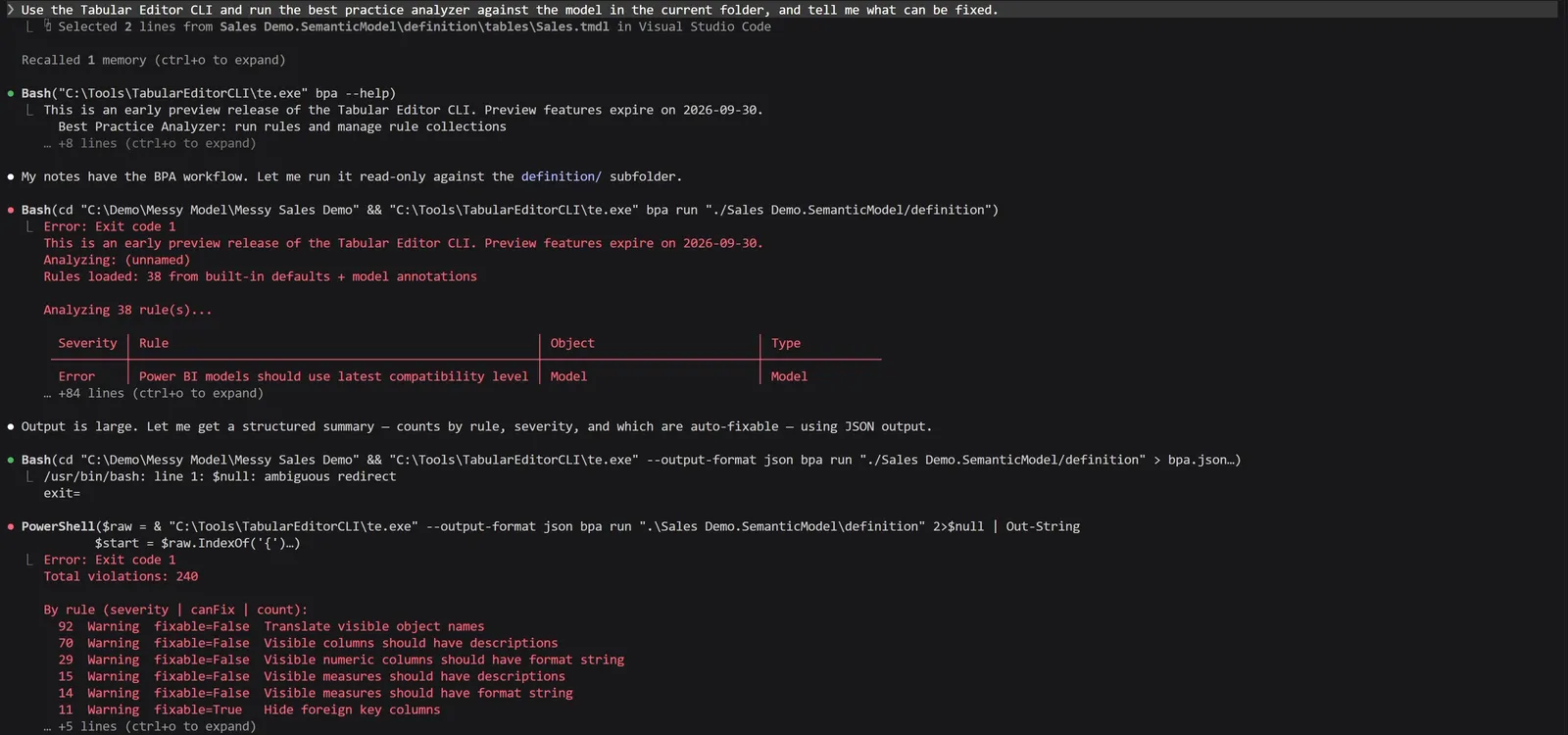
The Best Practice Analyzer’s findings on the demo model, counted by rule, with fixability.
The model had 240 violations: one error and the rest warnings. Most were about documentation and presentation:
| Rule | Violations | Auto-fixable |
|---|---|---|
| Translate visible object names | 92 | No |
| Visible columns should have descriptions | 70 | No |
| Visible numeric columns should have format string | 29 | No |
| Visible measures should have descriptions | 15 | No |
| Visible measures should have format string | 14 | No |
| Hide foreign key columns | 11 | Yes |
The compatibility-level error can be fixed automatically too. The new Double Sales Amount measure is in these counts: it has a format string, so it isn’t among the 14, but it has no description, so it is among the 15. Running the analyzer after the agent’s own work means one pass checks both the model you inherited and the change you just made.
In JSON, each finding names its rule, its severity, the object it applies to, and whether it can be fixed. Version 0.7 of the CLI uses one JSON shape for findings across te validate, te bpa run, te test run, and te query: a summary with the counts by severity, and a findings list. This is one finding, trimmed:
{
  "severity": "warning",
  "code": "TE3_BUILT_IN_VISIBLE_TABLES_NO_DESCRIPTION",
  "objectPath": "Sales",
  "ruleName": "Visible tables with no description",
  "fixable": false
}
The built-in rules are a starting point. You can pass your own rule files, or your organization’s, with -r, and --no-defaults leaves the built-in rules out:
te bpa run --model "./Sales Demo.SemanticModel/definition" -r ./my-rules.json --no-defaultste bpa run --fix --save applies each fixable rule’s fix and saves the model. The agent was told to fix the auto-fixable items, and it ran the fix until nothing fixable was left, which took two passes.
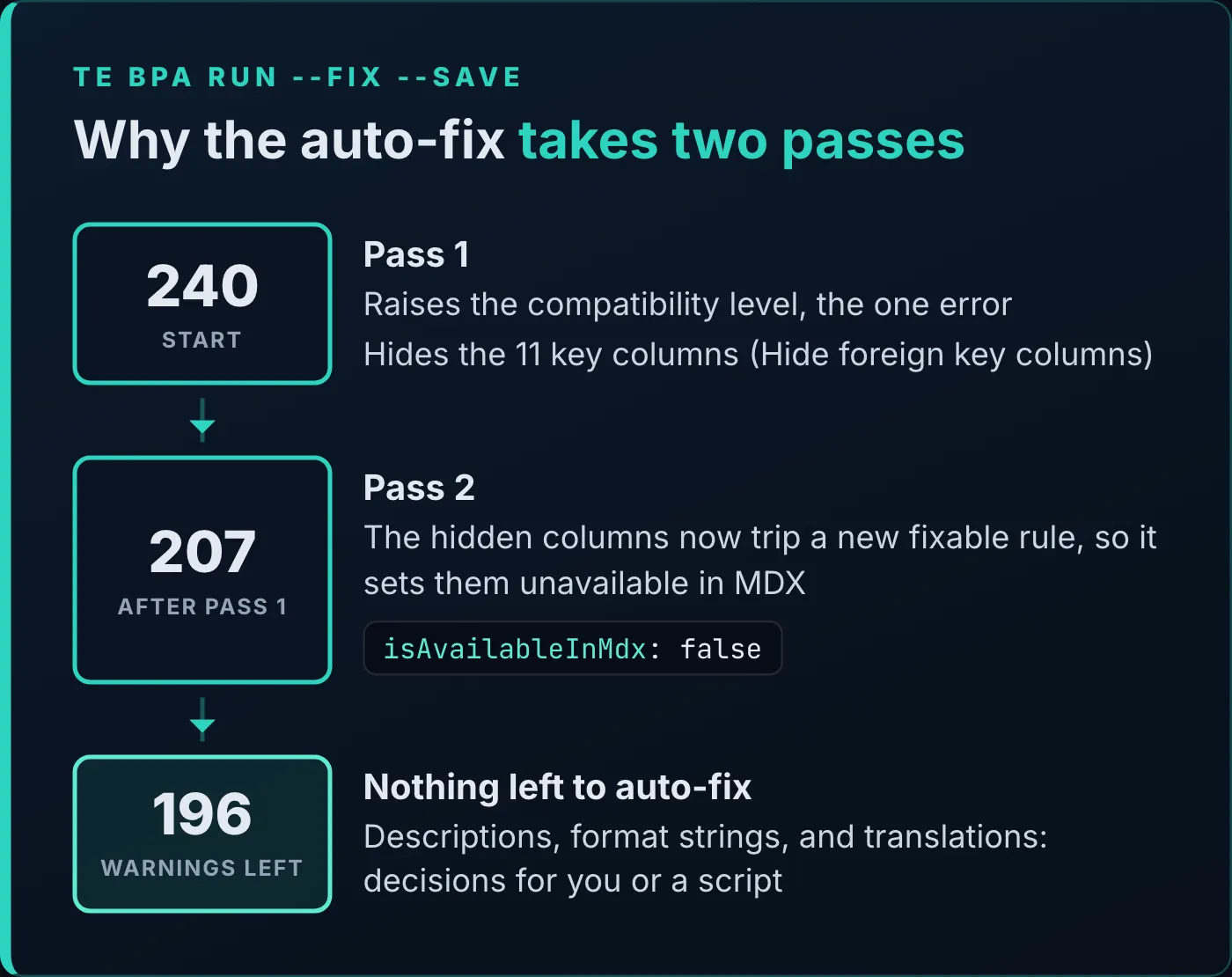
Hiding the key columns in pass 1 is what makes pass 2 necessary.
Pass 1 fixed the compatibility level and hid the 11 key columns, taking the model from 240 violations to 207. The compatibility level went from 1600 to 1702, and the key columns got isHidden.
Hiding those columns made a different rule apply to them: “Set IsAvailableInMDX to false” on hidden columns. That rule is fixable too, so pass 2 set isAvailableInMdx: false on the same 11 columns, and the count fell to 196. The totals drop by more than the number of fixes because a hidden column no longer counts against the rules for visible objects, such as descriptions and format strings.
The 196 that remain are all warnings, and none of them can be fixed automatically: descriptions for tables, columns, and measures, format strings, and translations. Those need decisions about what each object means and how it should look. An agent can still help with them, through another C# script, but that’s a job where you check its work closely.
After the fixes, the agent ran te validate, which checks the model’s DAX expressions and relationships, and it reported 0 errors.
Upgrading a model’s compatibility level can’t be undone. The level the rule asks for is the latest one your copy of the CLI knows about, so check that the workspace you’ll deploy to supports it before you deploy.
Read the changes as a diff
Because the model is TMDL in a Git repository, everything the agent did shows up as changed files: database.tmdl for the compatibility level, model.tmdl, and the six table files that hold the key columns.
![VS Code's side-by-side diff of Sales.tmdl. On the right, added lines in green: the measure 'Double Sales Amount' = SUM ( 'Sales'[Total Amount] ) * 2 with formatString $#,0.00 and a lineageTag, then isHidden and isAvailableInMdx: false added to the Sale Date column, and isHidden on the Product ID column below.](/_astro/sales-tmdl-diff.C2xhDXi6_ZgI7vh.webp)
The Sales table’s diff: the new measure, then the key columns the fixes hid.
In Sales.tmdl, the new measure is three lines:
	measure 'Double Sales Amount' = SUM ( 'Sales'[Total Amount] ) * 2
		formatString: \$#,0.00
		lineageTag: 7e74a63b-918e-48e6-b263-3258a1fcaecb
Further down, each key column gains two lines. This is Sale Date, one of the foreign keys:
	column 'Sale Date'
		dataType: dateTime
		isHidden
		formatString: Long Date
		isAvailableInMdx: false
		lineageTag: 7f4ed934-60cc-55da-9d09-443a16c75b08
The same two lines appear on the other Sales keys and on the key columns of five dimension tables, such as Customer ID in Customer.tmdl and Employee ID in Employee.tmdl. Read the diff, then commit it or discard it. The CLI can also show its own summary before you save: te script and te bpa run --fix accept --diff (the default), --stat, and --name-only.
If your model isn’t in Git yet, Get Your Power BI Reports AI-Ready with GitHub sets it up, and Power BI as Code explains the TMDL files themselves.
The same tool publishes the model. The prompt:
Use the Tabular Editor CLI to publish the model in this folder to the Power BI service, to a workspace called TE CLI Demo.
The agent checked that it was signed in with te auth status, then deployed the definition folder to the TE CLI Demo workspace as a semantic model named Sales Demo. It added --force because a deploy otherwise asks for confirmation, and a prompt would leave a non-interactive agent waiting. After a browser refresh, the model was in the workspace.

The deployed Sales Demo semantic model in the TE CLI Demo workspace.
The deploy command changed in version 0.7. It’s now a dry run by default: it prints the TMSL script it would send, and --execute actually deploys. -s and -d now name the source model, and the target has its own flags:
te deploy --model "./Sales Demo.SemanticModel/definition" --target-server "TE CLI Demo" --target-database "Sales Demo"
te deploy --model "./Sales Demo.SemanticModel/definition" --target-server "TE CLI Demo" --target-database "Sales Demo" --execute --force
Run the first to see what would happen, and the second to deploy. A few more options are worth knowing: --deploy-partitions and --deploy-roles include the model’s partitions and security roles, and the deploy can gate on the Best Practice Analyzer (--fix-bpa fixes violations first, --skip-bpa skips the check). te refresh works the same way as te deploy: a dry run until you add --execute.
These are the loop’s commands in version 0.7 syntax, run from the project folder:
| Step | Command | Exit code to watch |
|---|---|---|
| New model | te init ./ | 0 on success |
| Compile-check a script | te script --file <script.csx> --validate | 1 when the script doesn’t compile |
| Run a script | te script --model <folder> --file <script.csx> --save | Non-zero if it fails |
| Check best practices | te bpa run --model <folder> | 1 with any violation at error level (--fail-on warning to stop on warnings too) |
| Auto-fix | te bpa run --model <folder> --fix --save (twice) | Same as above |
| Check DAX and relationships | te validate --model <folder> | 1 when it finds an error |
| Deploy | te deploy --model <folder> --target-server <workspace> --target-database <model> --execute --force | Non-zero if it fails |
Download the CLI, give your agent the te-cli skill, and point it at a model you know is messy, such as the one in the downloads. Commit first, then ask it to run the Best Practice Analyzer and fix what it can, and read the diff it leaves.
The CLI is one way to let an AI work on a semantic model. Another is an agent editing the model through Microsoft’s Power BI Authoring MCP server, which the MCP server article covers. For the workspace around the model, Automate Fabric and Power BI Admin with Claude Code uses the Fabric CLI to copy reports, check who has access and read refresh history.
Tools
- Tabular Editor CLI (limited public preview), with a Tabular Editor account
- An AI coding agent that can run terminal commands, such as Claude Code
- Git, and Visual Studio Code to read the diff
Prerequisites
- Comfort working in a terminal
- Basic Git: committing and reading a diff
- Familiarity with Power BI semantic models and measures
Resources
- Introducing the Tabular Editor CLI (Limited Public Preview), Tabular Editor
- Tabular Editor CLI command reference, Tabular Editor docs
- Download the Tabular Editor CLI (sign-in required), Tabular Editor
- Tabular Editor CLI product page and FAQ, Tabular Editor
- Tabular Editor CLI AI agent skill, Tabular Editor docs
- Tabular Editor CLI 0.7.0 release notes, Tabular Editor
- Compatibility level for tabular models, Microsoft Learn
Downloads
Related articles


Transcript
Validate and fix a model from the terminal
And just like that, the Tabular Editor CLI has found 241 violations and has already fixed 12 of them.
What the Tabular Editor CLI is
So what is this? It's the new Tabular Editor CLI. It's the modeling pro tool from the makers of Tabular Editor. It is designed to run C-sharp scripts both agentically and headlessly, which means that you can give it to the AI engine of your choice. And you can also use it in things like release pipelines and GitHub, for example. It has JSON output and CI graded exit codes, which again support those agentic and headless use cases that we mentioned. It is cross-platform, so you can actually use it on Mac or Linux if you want. And so I'm going to give you a quick spin through it today.
Initialize a new model with te init
Okay, so one of the easiest things that you can do is actually initialize a new model. So let's give it a try. Use Tabular Editor CLI to initialize a new model in this new model folder. And just like that, it has given us a database.TMDL and a model.TMDL file. So there's not a lot in here right now. Of course, we did just tell it to give us a new blank model, but it's a really nice starting point to initialize a new Power BI model. I've seen this run it in a couple of different ways. So one way is that you could tell it to just simply give you a model here, and there's another way that you can run this command where it will actually give you an entire PBIP output as well, and so it'll give you both the dot semantic model and a dot report folder structure in a dot pbip, so it can actually initialize both of those for you, depending on the route that it takes. So you could specify it to initialize a new Power BI project for you if you would like.
Add a measure with a C# script
All right, so another thing that you can do with it is use C-sharp scripts to update your model. Of course, you're not going to write those C-sharp scripts. You're going to have AI write those for you. So let's have Tabular Editor run a C-sharp script that will create a new measure that just doubles the amount in the sales amount column. Use the Tabular Editor CLI to run a C # script that will sum the total amount column in the sales table and double it. Call it double sales amount. Of course, that's a little bit of a silly example, but you get the idea. You can make any measure you want, and then we're going to create a C # script that will do that and run that C # script through the Tabular Editor CLI. Okay, and so if we come over to our source control tab, you can see here the C-sharp script that it wrote, and you can also see in the Sales.tmdl file our new measure that it created, and it even gave us a format string as well, so that was nice. But let's say we want to crank it up a notch.
Run the Best Practice Analyzer
So let's have Tabular Editor run its best practice analyzer to find all the opportunities to improve this model. Tabular Editor CLI comes with about 37, 38 rules that come prepackaged with the CLI, but of course, you can also bring your own best practice rules that your organization might prefer. Use the Tabular Editor CLI and run the best practice analyzer against the model in the current folder, and tell me what can be fixed. So this is going to run BPA against this model, and it's going to give us a list of all of our violations. So you can see here that we have 241 different violations, including one error, which is the compatibility level, and there are 11 that are automatically fixable, which is these foreign key columns that are not hidden. There are several other violations that it has provided us here.
Auto-fix violations and review the diff
And since we have several that are auto fixable, so I'm just going to say that it can fix those items. I'm just actually going to hit tab down here and tell it to go ahead and fix those auto auto fixable items. All right, and just like that, it has fixed our 12 of our auto fixable problems. So one thing that it did was it upgraded our compatibility level, and it has also hidden those 11 primary key columns, which leaves us with a bunch of other errors, 196, that are not auto-fixable. So those we would have to tell the model how to fix them. A lot of those were missing descriptions, for example. So we could also have the AI use the Tabular Editor CLI to update those as well. And just to show that you are always in control of the work that you do here, because we are working in Git, if we take a look at the sales.tmdl file, you can see here in green the updates that have been made. So for example, here is that new double sales measure that was added a moment ago, but also in the sales date column, because again, that's a foreign key column, here we have hidden that column. The product ID, again, another foreign key column, we've hidden that. The customer ID, we've hidden that, and so on. We can come here to, Uh, the customer Tyndall, and the customer ID here, it is a primary key, but again, we are hiding that as well. In the employee Tyndall, or again, we're going to
Publish the model to the service
hide the employee ID, etc. Okay, something else that you can use the Tabular Editor CLI to do is to publish your model to the Power BI service. Use the Tabular Editor CLI to publish the model in this folder to the Power BI service, to a workspace called TE CLI Demo-demo. Okay, so it's telling us that the semantic model has been published. If we come back to the browser and we refresh the browser page, you can see that indeed this model has been published just very recently. And we could also have Tabular Editor refresh the model if we wanted.
Preview status and what's next
Okay, so that's a quick introduction to the Tabular Editor CLI. It is in public preview until September 30th, which means that it is free to use even without a Tabular Editor license, so we will leave a link to the download in the description below. So be sure to download it, install it, hook it up to your favorite AI, give it a try, and let me know how it works for you. And if you want to see a video on how you can use the Power BI Modeling MCP server to help with your Power BI modeling work, be sure to check out this video over here, and get subscribed for the next video on how to use AI in your Power BI work. I'll see you next time.
New articles and videos