· Power BI as code
Power BI as Code: The Setup AI Needs for Your Reports
Save a Power BI report as a project and every page, visual, measure, and security rule becomes a text file. This guide follows one report through that folder, shows which files you can safely edit, and explains why this is the format AI tools need.
What you'll learn
- Save any report as a Power BI project and know what each file and folder Desktop writes is for
- Find where any part of a report lives: a page, a visual's fields and formatting, a measure, a relationship, a security role, a description
- Tell which files are safe to edit outside Desktop, and apply those edits without losing work
- Write TMDL descriptions that Desktop reads, by hand or with help from an AI tool
- Run an impact analysis with two searches, and explain why that is what AI tools need from a report
Everything but the data is metadata
A Power BI report has two parts: the data you load, and everything you build on top of it. The second part covers the model’s tables, columns, measures, and relationships, the report’s pages and visuals, and the filters, formatting, security roles, and descriptions attached to them. All of that is metadata, and a text editor can read and change metadata, as long as the report is saved in the right format.
A .pbix keeps the metadata in a binary format that only Power BI Desktop can open. Save the same report as a Power BI project and Desktop writes it to disk as a folder of text files instead. You can read those files, and when something changes, a diff shows exactly which lines moved. A script can apply one change to every visual on every page, and an AI tool can read and edit the files the same way you do.
Three names come up throughout. PBIP, the Power BI project, is the container: a folder plus a small .pbip file that points into it. PBIR, the enhanced report format, stores the report as JSON, with one file per page and one per visual. TMDL, the Tabular Model Definition Language, stores the semantic model as indented text, with one file per table and one per security role.
When I recorded the video in May 2026, all of this was in preview. At FabCon Europe in Barcelona, at the end of September 2026, Microsoft announced that Power BI projects are generally available and that PBIR is now the default report format for both .pbix and .pbip files. Desktop converts an older report to PBIR the next time you save it, and keeps a backup of the original for 30 days.
The example throughout is a one-page sales report I built for the video. Its model is a small star schema: a Sales table with Date, Customer, and Product dimensions, a User Region table that maps people to regions, two row-level security roles, and a description on every object. The whole project is in the downloads below. Extract the zip before you open anything: opening the .pbip from inside the zip fails with “Required artifact is missing”, because Desktop can’t find the report folder next to it.
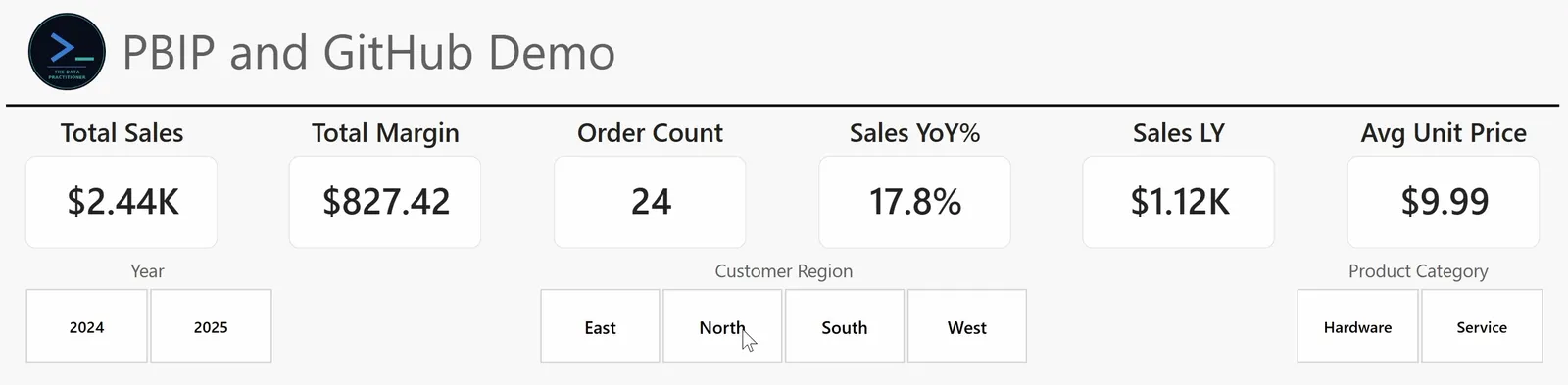
The top of the demo report. The Year slicer on the left is the visual this article follows through the files.
In the September 2026 release of Desktop, the project settings still sit under File > Options and settings > Options > Preview features, even though Microsoft announced general availability the same month. Check that the first three are on: “Power BI Project (.pbip) save option”, “Store semantic model using TMDL format”, and “Store reports using enhanced metadata format (PBIR)”. If you turn any of them on, restart Desktop.
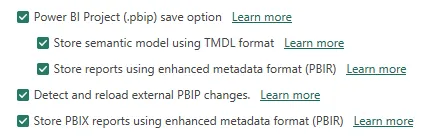
Preview features in the September 2026 release of Desktop. The fourth setting turns on the external-change reload described under “What you can edit outside Desktop”.
Then open the report and go to File > Save as > Browse this device. Set “Save as type” to “Power BI project files (*.pbip)” and save. Desktop writes four things into the folder you chose.
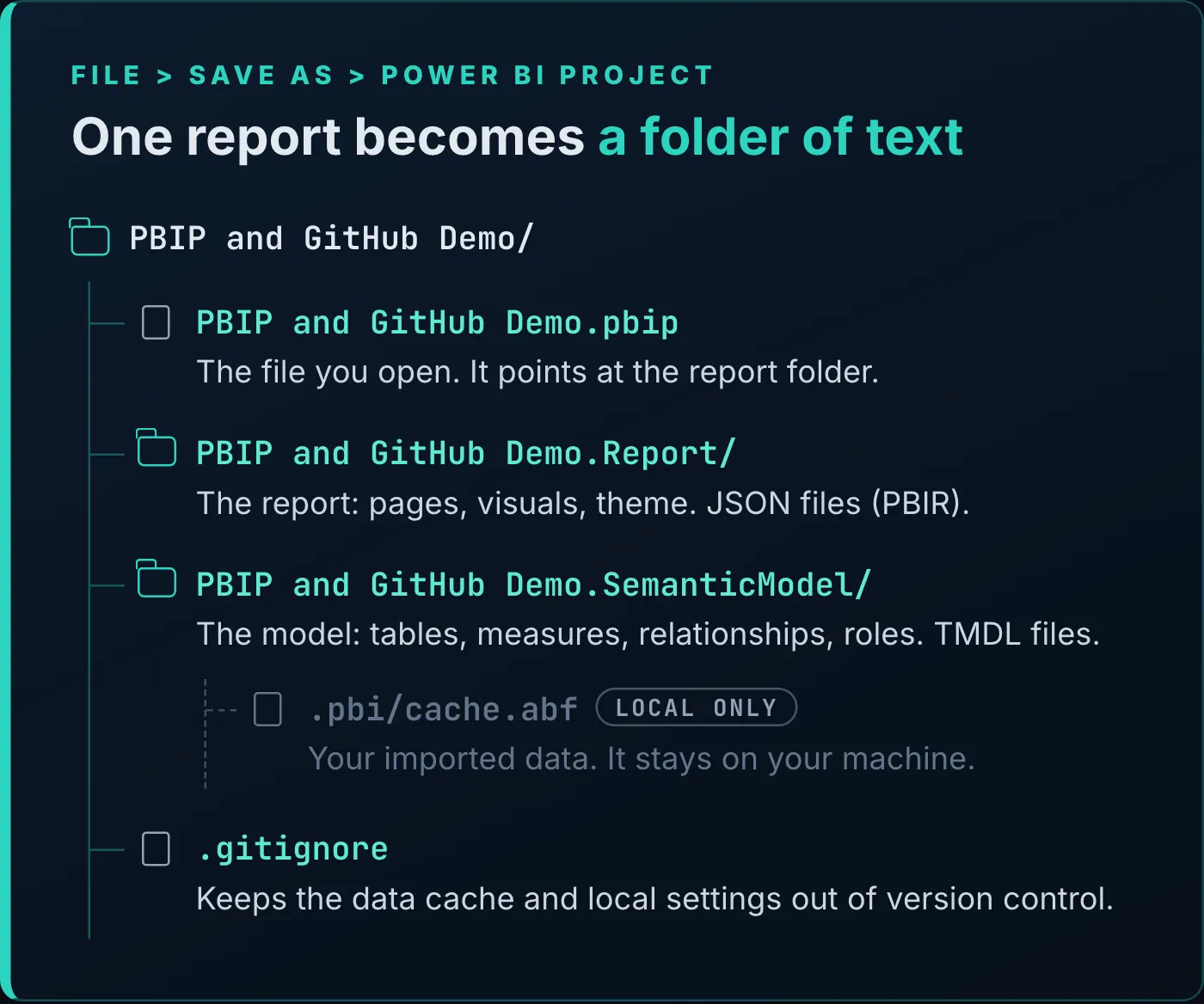
What Desktop writes when the demo report is saved as a project.
The data isn’t part of the project. Desktop keeps the imported data in .pbi/cache.abf inside the semantic model folder, and the .gitignore it writes excludes that file along with your local settings:
**/.pbi/localSettings.json
**/.pbi/cache.abf
Desktop only writes this .gitignore when the folder, or a Git repository above it, doesn’t already have one. Anyone who opens the project without your cache needs to refresh before the visuals show data.
To reopen the project, double-click the .pbip file. Opening definition.pbir in the report folder does the same thing, which helps if the .pbip ever goes missing. File > Save as turns the project back into a .pbix whenever you need one, and Desktop is the only tool that converts in either direction.
Desktop can’t save a project directly to OneDrive or SharePoint, and saving into a locally synced OneDrive folder can cause sync problems that make saves fail. Windows also limits file paths to 260 characters by default, and a project nests several folders deep, so a long root path plus a long table name can break a save. Use a short local path such as C:\PBIP Demo\. Desktop’s built-in version history needs a file saved to OneDrive or SharePoint, so it works only for a .pbix; Easy Version History Comes to Power BI Desktop covers it.
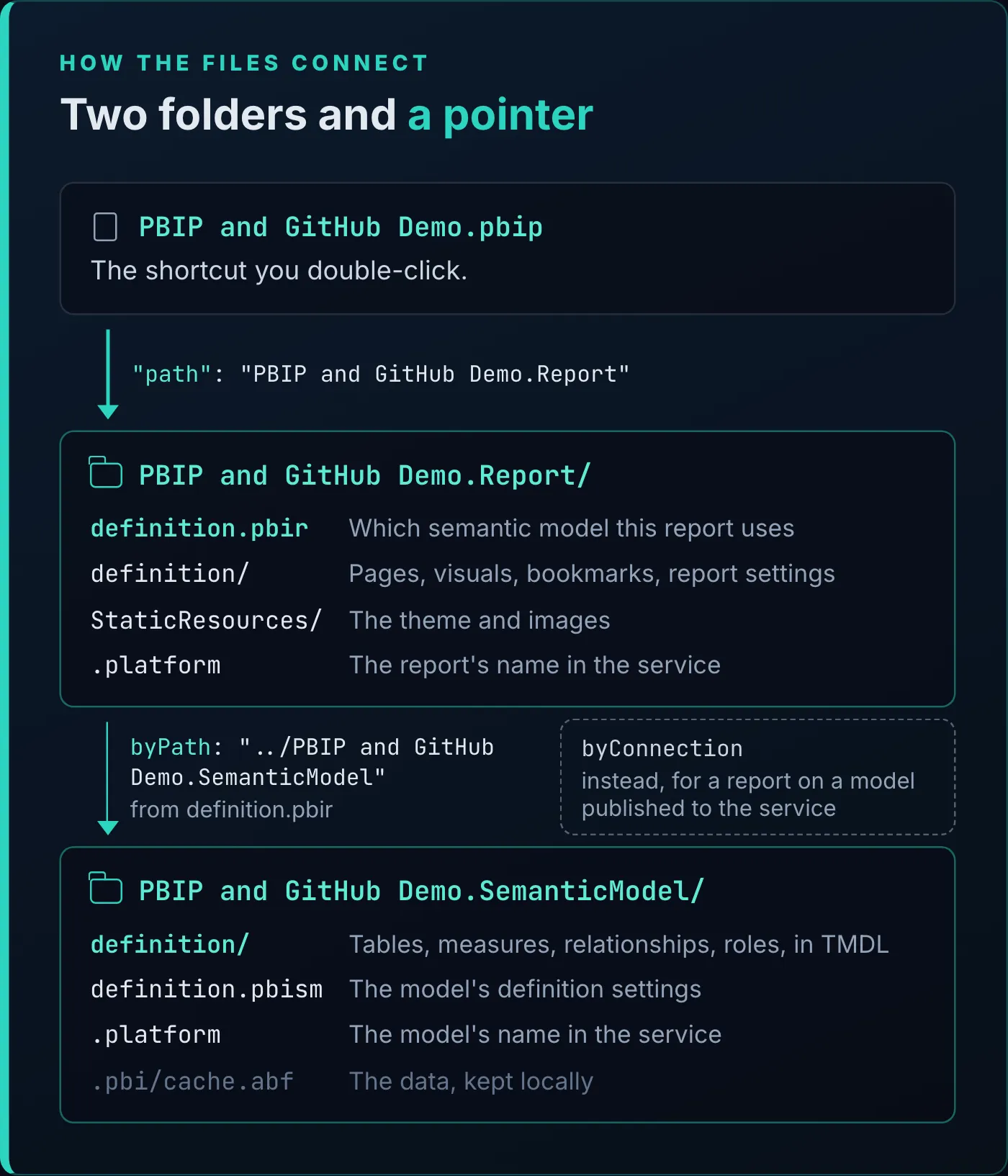
How the demo project’s files point at each other.
The .pbip file is the project’s entry point, and this is all of it:
{
  "$schema": "https://developer.microsoft.com/json-schemas/fabric/pbip/pbipProperties/1.0.0/schema.json",
  "version": "1.0",
  "artifacts": [
    {
      "report": {
        "path": "PBIP and GitHub Demo.Report"
      }
    }
  ],
  "settings": {
    "enableAutoRecovery": true
  }
}
The line that matters is the path to the report folder. Double-click the file and Desktop opens that report.
Inside the report folder, definition.pbir says which semantic model the report uses:
{
  "$schema": "https://developer.microsoft.com/json-schemas/fabric/item/report/definitionProperties/2.0.0/schema.json",
  "version": "4.0",
  "datasetReference": {
    "byPath": {
      "path": "../PBIP and GitHub Demo.SemanticModel"
    }
  }
}
byPath is a relative path: .. goes up one folder, then the path goes down into the semantic model folder. Because the reference is relative, the project keeps working when you move or copy the whole folder. A thin report, one built on a semantic model that’s already published to the service, has byConnection here instead, with a connection string that names the workspace and the model. In the video I guessed this would be a URL. It’s a connection string, and with it Desktop opens the report without opening the model for editing.
Each folder also has a .platform file. It holds the item’s display name in the service, "displayName": "PBIP and GitHub Demo", and an ID that Fabric’s Git integration uses. Select the project name in Desktop’s title bar and a flyout shows where both folders are and lets you change the display names.
StaticResources holds the report’s theme and images. The demo’s base theme, Fluent2-CY26SU04.json, is under SharedResources/BaseThemes, and the logo is under RegisteredResources. Each one has an entry in definition/report.json, which is also where report-level filters live. A file in RegisteredResources can be replaced with a new version under the same name, which is how one change to a custom theme or logo can roll out to many reports.
The report folder holds everything you see on the canvas. The quickest way to learn its layout is to take one visual and find every file that describes it. Here that’s the Year slicer, and its trail crosses into the semantic model before it ends.
![Diagram titled "The Year slicer, from canvas to model". Starting from a slicer showing 2024 and 2025, five numbered steps. In the report folder: 1, pages/pages.json, which pages exist, in what order, and which opens first, with "pageOrder": ["d3583278a4fc59eaa0d6"]; 2, the page's page.json, with its name, size, and page-level filters, "displayName": "Page 1"; 3, the slicer's visual.json, with its position, the field it shows, and formatting, "queryRef": "Date.Year". In the semantic model folder: 4, tables/Date.tmdl, where the Year column is defined; 5, relationships.tmdl, why picking a year filters the sales numbers, fromColumn Sales.'Sale Date' toColumn Date.Date.](/_astro/year-slicer.DiZvk5pG_2lEV8f.webp)
The five files that define the Year slicer and what it filters.
Page order
definition/pages/pages.json lists the pages and says which one opens first. From here on, the excerpts leave out each file’s $schema line.
{
  "pageOrder": [
    "d3583278a4fc59eaa0d6"
  ],
  "activePageName": "d3583278a4fc59eaa0d6"
}
Dragging a page tab in Desktop reorders this list, and editing the list reorders the tabs. activePageName is the page that was open when you last saved, and it’s the page people land on when they open the report in the service.
The page
Every page gets a folder named with a 20-character ID. In it, page.json holds the page’s display name and size:
{
  "name": "d3583278a4fc59eaa0d6",
  "displayName": "Page 1",
  "displayOption": "FitToPage",
  "height": 720,
  "width": 1280
}
Page-level filters would go in this file too. This page doesn’t have any.
The visual
Each visual on the page has its own folder under visuals/, again named with an ID, holding a visual.json. The Year slicer’s file is 149 lines. This excerpt keeps the parts that define it, with the nesting compacted to fit:
{
  "name": "43811631260ee3580e9a",
  "position": {
    "x": 34.481632653061226,
    "y": 222.51836734693876,
    "z": 9000,
    "height": 61.648979591836735,
    "width": 229.87755102040816,
    "tabOrder": 9000
  },
  "visual": {
    "visualType": "slicer",
    "query": {
      "queryState": {
        "Values": {
          "projections": [
            {
              "field": {
                "Column": {
                  "Expression": { "SourceRef": { "Entity": "Date" } },
                  "Property": "Year"
                }
              },
              "queryRef": "Date.Year",
              "nativeQueryRef": "Year",
              "active": true
            }
          ]
        }
      }
    },
    "objects": {
      "items": [
        {
          "properties": {
            "textSize": { "expr": { "Literal": { "Value": "10D" } } },
            "padding": { "expr": { "Literal": { "Value": "0D" } } }
          }
        }
      ]
    },
    "visualContainerObjects": {
      "stylePreset": [
        { "properties": { "name": { "expr": { "Literal": { "Value": "'Tile'" } } } } }
      ]
    }
  }
}
position is the slicer’s box on the canvas, in pixels from the top-left corner of the page, with z for stacking order and tabOrder for keyboard navigation. visualType says it’s a slicer. The query has one projection, the field it shows: the column Year on the table Date, which the file also writes as "queryRef": "Date.Year". Under objects, the items use 10-point text with no padding, and stylePreset gives the slicer its tile layout. Change a setting in the Format pane and it shows up as a property in this file.
Find a visual by name
With 20-character IDs, browsing for a visual is hopeless. This one page has 19 visual folders. Desktop can tell you the ID instead. Go to File > Options and settings > Report settings > Report objects and turn on “Copy object names when right clicking on report objects”. You only need to do that once. Then right-click any visual on the canvas, choose Copy object name, and paste the ID into the search box in File Explorer or VS Code. It works for pages, bookmarks, and filters too.
What these files can reveal
PBIR saves some data values along with the metadata. A filter on a visual stores the values it filters on, and the same goes for slicer selections, custom column widths in a matrix, and formatting applied to one specific series. The demo’s Year slicer has no selection saved, so its file only names the column. Two of its KPI cards, Sales LY and Sales YoY%, each have a visual-level filter on Year, and their files hold the year in plain text as "Value": "2025L". On a real report, a filter on a customer’s name puts that name in the project, and in every repository the project is pushed to. Check before you share one.
I don’t expect you to read report JSON for fun. I find the semantic model the more interesting folder, and it’s where the slicer’s trail goes next.
The slicer’s field, Date.Year, is defined in the semantic model folder, in definition/tables/Date.tmdl. Here is the start of that file, without the table’s description:
table Date
	lineageTag: b02a60a3-a1a2-599d-8fa0-50b1b4c3a35f
	dataCategory: Time

	measure 'Max Year' = MAX('Date'[Year])
		formatString: 0
		lineageTag: ca894948-852b-4100-a5b1-810b623e0c12

	/// Calendar year as a 4-digit integer.
	column Year
		dataType: int64
		formatString: 0
		lineageTag: 12ac3e17-614f-55a3-87c2-1f1828c8c893
		summarizeBy: none
		sourceColumn: Year

		annotation SummarizationSetBy = Automatic
table Date declares the table, and everything indented under it belongs to it. dataCategory: Time is what marking the table as a date table writes. The Max Year measure’s DAX starts right after its equals sign. The Year column carries the properties you set in Desktop: its data type, a format string, no default summarization, and sourceColumn, the Power Query column it’s loaded from. The lineageTag lines are IDs that Desktop assigns to keep track of each object, and you don’t need to touch them.
Picking a year filters the sales numbers because of three lines in relationships.tmdl:
relationship 797c5f8b-0c04-5c82-8c4b-2ad8828299b6
	fromColumn: Sales.'Sale Date'
	toColumn: Date.Date
The relationship runs from the Sale Date column on Sales to the Date column on Date. The file lists the model’s other two relationships the same way, Sales to Customer and Sales to Product. Settings left at their defaults, such as the single filter direction, aren’t written at all, so three lines describe an ordinary one-to-many relationship.
Security roles are text too, so a reviewer can read a change to one line by line, like any other edit. roles/East Region.tmdl is a static role:
role 'East Region'
	modelPermission: read

	tablePermission Customer = 'Customer'[Region] = "East"
The filter is ordinary DAX on the Customer table, and the relationship to Sales carries it to every sale. roles/Regional Manager.tmdl is the dynamic version. It keeps the customers in whatever regions the User Region table maps to the signed-in user’s email:
role 'Regional Manager'
	modelPermission: read

	tablePermission Customer =
			'Customer'[Region] IN
			    CALCULATETABLE (
			        VALUES ( 'User Region'[Region] ),
			        'User Region'[User Email] = USERPRINCIPALNAME ()
			    )
A few rules make any TMDL file readable:
- Indentation is structure. Desktop indents with tabs, and an object has at most three levels: the declaration, its properties, and a multi-line expression under a property. Wrong indentation is a parsing error.
- A name that contains a space, a dot, an equals sign, a colon, or a single quote goes in single quotes, as in
'Sale Date'and'User Region'. model.tmdllistsref tableandref rolelines. They fix the order of the tables and roles, so the order doesn’t change between saves and show up as a difference.- Measure, role, and partition expressions are plain DAX and M, starting after the equals sign. If a model has DAX user-defined functions, they go in
functions.tmdl.
Each table’s partition holds its Power Query code, and when I built the demo, every partition read its CSV file from an absolute path on my machine. The video didn’t mention it, but anyone else who opened that project would have hit a refresh error on every table. The downloadable project fixes that with a parameter, declared in expressions.tmdl:
/// Folder that holds the five CSV files. Change it with Transform data > Edit parameters, then refresh.
expression DataFolder = "C:\PBIP Demo\data\" meta [IsParameterQuery=true, Type="Text", IsParameterQueryRequired=true]
Each partition now builds its path from the parameter. This is the first step of the Customer table’s query:
Source = Csv.Document(File.Contents(DataFolder & "customer.csv"),[Delimiter=",", Columns=3, Encoding=65001, QuoteStyle=QuoteStyle.Csv]),Before you share a project, search the semantic model folder for File.Contents. Every hard-coded file path turns up in one pass.
In TMDL, lines that start with /// directly above an object are that object’s description. In the video I called them comments, which is what they look like. Each one is the Description property you can type into the Properties pane in Desktop, and Desktop shows it as a tooltip in the Data pane and the model view. Here’s the Customer ID column from tables/Customer.tmdl:
	/// Surrogate key. Hidden because consumers should filter by Customer Name or Region, not by the internal ID.
	column 'Customer ID'
		dataType: int64
		isHidden
		isKey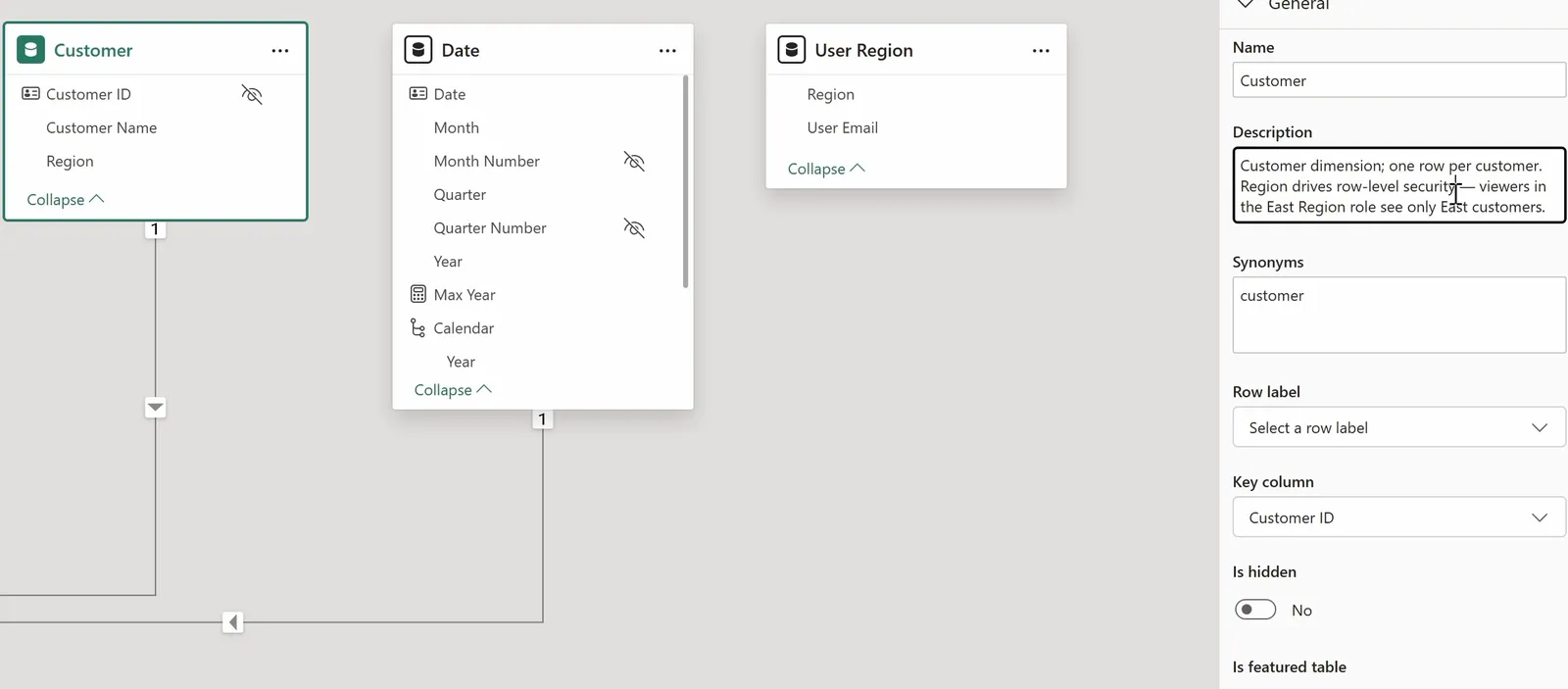
The Customer table’s description in the Properties pane is the /// text above table Customer in Customer.tmdl.
The rules come from Microsoft’s TMDL reference:
- The
///lines go immediately above the object they describe. Nothing can sit between the last///line and the object, not even a blank line. - They use the same indentation as the object’s own line.
- A description can span several
///lines.
A blank line between the description and the column breaks the first rule:
	/// Surrogate key. Hidden because consumers should filter by Customer Name or Region, not by the internal ID.

	column 'Customer ID'
Indenting the description a level deeper than the column breaks the second:
		/// Surrogate key. Hidden because consumers should filter by Customer Name or Region, not by the internal ID.
	column 'Customer ID'
In both cases the text doesn’t become the column’s description.
Check for both when a chat model writes descriptions for you. I’ve pasted a table’s TMDL into ChatGPT or Claude and asked for descriptions on every column. Sometimes it does a good job and sometimes it doesn’t. TMDL is new enough that models haven’t seen much of it, so tell it the /// syntax up front, and it can usually write the descriptions correctly.
In TMDL view, right-click a table in the Data pane and choose Script TMDL to > Script tab. Desktop opens the table’s full definition, wrapped in a createOrReplace command. Edit a description, or paste in the version your chat model wrote, and select Apply to write the change to the model. TMDL view also runs in the browser, on a model already published to the service; How to Fix Your Live Power BI Model Straight from the Browser fixes a measure that way without republishing.
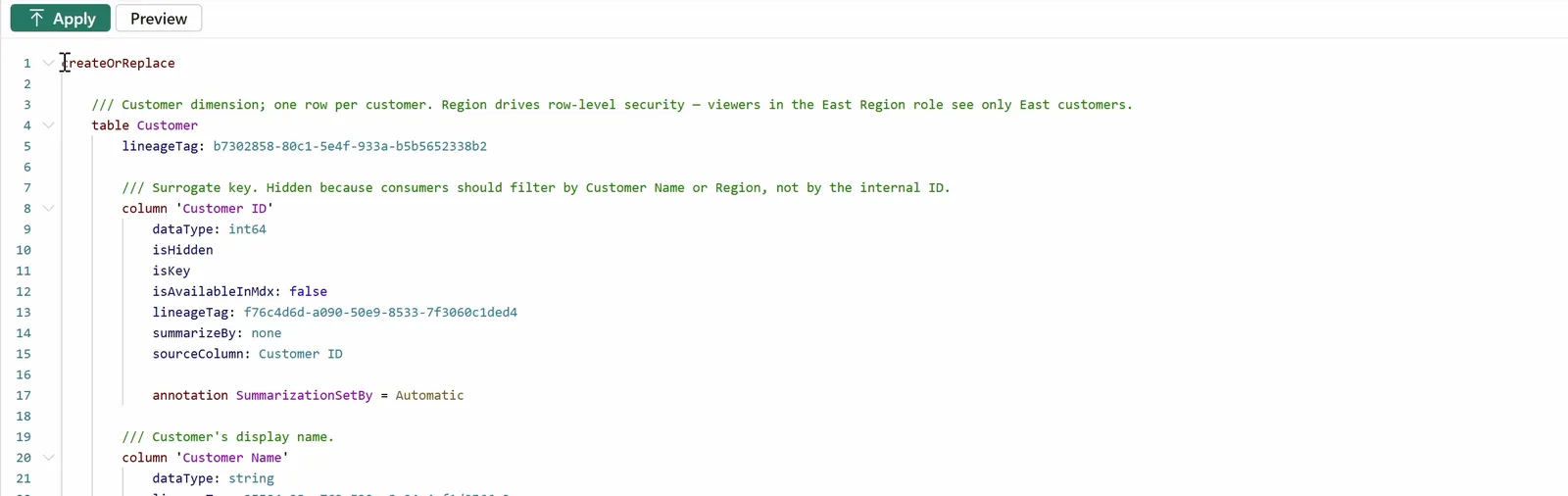
The Customer table scripted to a tab in TMDL view. Apply runs the script against the open model.
Descriptions are also the context a person, or an AI tool, reads before changing the model. A column’s name says what it is. A description can say why: the Customer ID description says the column is hidden because people should filter by name or region instead. An AI tool asked to build a visual on this model can’t work that out from the column name, but it can read it in the file. An agent can also write the descriptions for every table, column, and measure and apply them to the model itself; the Power BI Modeling MCP server article walks through it.
What you can edit outside Desktop
Most of the files in a project are documented: the report files have public JSON schemas, and the model files follow Microsoft’s TMDL reference. A few aren’t documented, and Microsoft doesn’t support editing those outside Desktop.
In the report folder:
| In Desktop | File | Edit outside Desktop? |
|---|---|---|
| Page order, and the page that opens first | definition/ | Yes |
| A page’s name, size, and filters | definition/ | Yes |
| A visual’s position, fields, formatting, and filters | definition/visuals/ | Yes |
| Bookmarks | definition/ | Yes |
| Report filters, and the list of themes and images | definition/ | Yes |
| Custom theme and image files | StaticResources/ | Yes, for files already registered |
| The semantic model the report uses | definition.pbir | Not while the reload preview is on |
In the semantic model folder:
| In Desktop | File | Edit outside Desktop? |
|---|---|---|
| Tables, columns, measures, hierarchies, and their Power Query | definition/ | Yes |
| Relationships | definition/ | Yes |
| Security roles | definition/ | Yes |
| Parameters and shared queries | definition/ | Yes |
| Descriptions | / lines in the TMDL files | Yes |
| Model diagram layout | diagramLayout.json | No |
| Imported data | .pbi/ | No |
A report that hasn’t been converted to PBIR yet keeps its whole definition in a single report.json at the top of the report folder. That file isn’t documented either, and neither are mobileState.json and semanticModelDiagramLayout.json, which some report folders contain.
Desktop’s August 2026 release added a preview that picks up edits made in other tools while the project is open. Turn on “Detect and reload external PBIP changes” in Preview features, the fourth box in the screenshot above, and restart Desktop. Then:
- Save in Desktop. Desktop doesn’t write its latest changes to the files until you do.
- Select the project name in Desktop’s title bar and choose Visual Studio Code. VS Code opens the project folder.
- Edit a file and save it.
- Back in Desktop, select Apply external changes in the banner that appears.
If Desktop has unsaved changes when you apply, it warns you that they’ll be overwritten. Apply discards them, and Cancel keeps them while your edits wait on disk. A reload also resets filters and some parts of the interface, and it doesn’t reload the data in cache.abf. If the project has a .pbi/unappliedChanges.json, meaning Power Query edits you haven’t applied yet, apply them in Desktop before you edit queries elsewhere, or Desktop discards your outside edits when it applies its own. Without the preview, close the project and reopen it to pick up outside edits.
Two formatting rules apply to any file you edit. Save it as UTF-8 without a byte-order mark, and keep the Windows line endings (CRLF) that Desktop writes. If the project is in Git, set up line-ending handling (autocrlf) so a diff doesn’t show every line as changed.
Why this is the setup AI needs
Suppose you want to rename the Year column on the Date table. In a .pbix, finding everything that uses it means clicking through every visual and every measure. In a project, it takes two searches.
Search the report folder for "queryRef": "Date.Year" and two files come back: the Year slicer and the combo chart of sales and margin by year and quarter. That search misses two visuals. The Sales LY and Sales YoY% cards filter on Year, and a filter names its column as "Property": "Year" with no queryRef. Search for "Property": "Year" and all four files turn up. Only the Date table has a Year column in this model, so every match is the column you’re renaming.
Then search the semantic model folder for 'Date'[Year]. Three measures use the column: Max Year, plus Sales YTD and Sales LY, which both check HASONEVALUE ( 'Date'[Year] ) before they return a value. The Calendar hierarchy’s Year level also points at it, as column: Year in Date.tmdl. That’s eight references in six files, besides the column’s own definition.
An AI tool works the same way. It searches the files, reads what it finds, and reads the descriptions to understand why each object exists. Then it can make the change in every file and show you the result as a diff.
After any edit, whether you made it in Desktop, ran a script, or let an AI tool do it, the changed files show exactly what moved. Putting the project under version control is the next step, and the subject of Get Your Power BI Reports AI-Ready with GitHub. Handing the edits themselves to an agent is covered in How To Use Claude Code for Power BI Development. The Tabular Editor CLI article has an agent change the model’s TMDL files with command-line tools.
Save your next report as a project, even if you never plan to use Git. You still open it in Desktop with a double-click, and the next article starts from that folder.
Tools
- Power BI Desktop, September 2026 release or later
- Visual Studio Code, or any text editor, to read the files
Prerequisites
- Working familiarity with Power BI Desktop: building a report and using the model view
- No experience with JSON, TMDL, or version control
Resources
- Power BI Desktop projects (PBIP), Microsoft Learn
- Power BI Desktop project report folder (PBIR), Microsoft Learn
- Edit PBIP files outside Power BI Desktop, Microsoft Learn
- Tabular Model Definition Language (TMDL), Microsoft Learn
- Power BI September 2026 Feature Summary (the FabCon Europe announcement), Microsoft Fabric Community
Downloads
Related articles


Transcript
Text vs. binary
AI can now read and write your Power BI reports, but only if they're saved as text files and not as binary files. It's easier than you think, and I'm going to show you how.
Why this matters for Power BI developers
Well, if you're anything like most of us, you are looking at a world that is changing faster every single day and wondering how it is that you stay on top of this rapidly evolving world and how you stay relevant in a changing marketplace. How you apply all of these new techniques and technologies that are coming out to the work that you do in Power BI to stay more relevant every day? So what I want to do is walk you through some of that. I've got some really interesting videos coming up of how we can leverage AI to do our work much more quickly. And I'm not just talking about having Copilot write some DAX measures or some M query for us. It can certainly do that, but it's going to do so so much more. We're going to have it write entire Power BI reports from scratch, and they're going to be meaningfully effective. But the first thing we have to do is to get away from the idea of a Power BI report as a black box or a binary file that you just shove data into, and you don't really know what's happening under the hood. We have to take responsibility for how all of the things that we put into this report, how are they actually stored and maintained? Turns out, other than the actual data in the tables, everything in the report is metadata. You can look at it, it can be seen and edited by a text editor, but only if you save it in the right format. And when you can look at it in a text editor, that means that AI can read it and write it and operate over it, which is going to unlock a tremendous amount of capabilities for us.
What we'll do today
So what I want to show you today is how we can save a Power BI report in the right format so that we can take advantage of those capabilities.
Enable the PBIP preview features
So the first thing that we want to do is open up a Power BI report, so I've got a basic one page Power BI report here, and we are going to save this Power BI report as a Power BI project. Very easy to do, but quick note, the first thing you want to do is enable this functionality. So you're going to go to File, Options and Settings, and Options. And then we're going to go to Preview Features, about halfway down the global settings here. And you do want to turn on this Power BI Project.pbip Save option. And you want to store semantic model using TMDL format and store reports using enhanced metadata format. These are crucial, not just for the Power BI project, but also for AI being able to operate over these reports. So we're going to hit OK. If you have not enabled this before, you will have to restart Power BI Desktop and then just reopen the file.
Save the `.pbix` as a PBIP project
Next, we're going to hit File and Save As. We're going to browse our local machine here, and I'm going to save it to this Sales Demo folder here. We're going to click this type dropdown, and we will save it as a Power BI project PBIP. And we're just going to keep this sales demo file name here, and we will hit save. What we've done is we have serialized the PBIX file out into multiple files and into actually a hierarchical folder structure with multiple subfolders. So what I want to do now is walk you through what that folder structure looks like. So my favorite way to do that actually is in a tool called VS Code, or Visual Studio Code. I've got that open right here, and I've already got this folder open, the Sales demo folder, into which we save that Power BI project. And so you see we have the Power BI project right here. In order to open it, all you have to do is you just go to file, open folder, but I've already done that for you. And what I want to do is I want to walk you through the structure
What landed on disk: project root tour
structure that we get when we save a report as a pbi project. All right, so we have in our root directory three things here. So we've got a PBIP extension file here. We're going to take a look at that in a moment. And then we've got a folder for the semantic model and a folder for the report, and you can see here that all three of these start with the same name. This happens to have been the name of the pbix file that we opened. And so let's take a look at what is in this PBIP file. There are two basic formats that the code is going to be in. One is in TMDL, which we will get into some more detail in a moment. The other one is in json. So even though this is not a json file extension, this is laid out in a json format. So if you've ever seen that, you'll be familiar with it. If you're not familiar with JSON, that's perfectly fine. You can still kind of skim this and get a sense of what is going on. So here we have our pathway to the report folder. You notice that this is the folder here that the report is pointing towards. So basically, if you were to open up this folder in Windows Explorer and you double clicked on the PBIP file, it would open this report back up in Power BI Desktop, and essentially this is sort of saying where is the report content.
Walk the `.Report` folder (PBIR + JSON)
So let's go ahead and dive into the report structure. So we expand this folder. This is what is inside the report folder. You see the first thing here is definition.pbir. If for any reason you should happen to lose this PBIP file, you can also open up this PBIR file as well, and it will also open the Power BI project in Power BI Desktop. So that's another way to do it. And basically what this is saying, again, in JSON format, is this is saying the relative path to the semantic model. This dot dot just simply means go up one level in the folder hierarchy. This slash means go down one level to this folder. And so it is simply saying that the dataset is in this relative path. Sometimes if you have what we call a thin report, or what is using a live connection, this will instead, instead of path here, this will have, I think, URL, and it will have a URL to the semantic model that is in the Power BI service. So next we're going to look at this platform file here. This simply has the display name of the report. So this is what will be shown in the Power BI service when you publish it. If you wanted to change the display name, this is where you would find that. There are some static resources here. For example, this is the logo that I used in the report. This is the JSON theme that I am using. So if you want to know where those are stored, they are stored here in the static resources. And then this is information on the report as a whole. So in here, you're going to see things like the theme that has been imported, the name of the theme, the location where you would find it under the shared resources where we were just looking a moment ago. You're also going to have the images that I showed you, so any images that are in the report. You would also have, if there were any report level filters, they would also show up here in this file as well. You also see another subfolder for pages, and if we expand this, you see a pages.json, and you're going to see a subfolder for every page in the report. This particular project only has one page, so it only has one subfolder. If you open this pages.json, you'll see here that this has a list of all of the pages. Again, there is just one, and it also shows the order of the pages. So if you ever wondered why one page shows up before the other, not just that you put them there, but how does it remember what order they should be in? Well, this is where that order is stored, and you can actually change this yourself right here if you wanted to. The active page, so if you remember, you want to open a page when you hit the Save button. That's the page that will, that a user will go to whenever they open their report in the Power BI service. This is where you define that right here, and it is defined by this random hexadecimal nonce here, and you'll see it is the same as the name for the folder. So if we expand that folder, you'll see that there is a page dot JSON. So this is the definition for that particular page, and you can see we have things like the height and the width. You can see that we have a page name. I didn't give it a very meaningful page name, but you can obviously name it whatever you want. This is where that is stored. Um, and you also, if there were any page-level filters, that detail would be here as well. You'll see that there is a visual subfolder. We can open that. And then there's a subfolder for every one of the visuals. We're not going to go through all of these, but let's just maybe pick one of these at random. And there's a visual.json. And you have various details here. Like for example, you have the X and Y coordinates. You have a Z axis coordinate as well. You've got height and width dimensions, a tab order, which is sort of, as you can see, sort of similar to that z-axis. This one happens to be a text box, so this is probably the page title, for example, and in fact you can see here what is in it. So yes, indeed, that is our page title. Let's try and maybe see if we can find one a bit more interesting. And you can tell here from the visual type that this is a slicer. Again, we've got our height and width, x and y up here, and the field comes from the date table, and it is the year column in that. And you can see here some of the properties, like the text size is a 10 point font, for example. The padding is set to zero. The layout is set to a tile, for example, so on and so forth. So all of these bits of information are right here in this JSON file. Now, I'm not for a moment suggesting that you spend a lot of time perusing this report. I just wanted you to see that it is here, and this is where all of your metadata is stored. To me,
Walk the `.SemanticModel` folder (TMDL)
I think the semantic model is actually considerably more interesting. So let's take a look at that. Under the semantic model folder, you've got a diagram layout. So this literally just, if you go to Power BI Desktop, and you go to your data model view, and you know, so this is in one position, this is in another position, how high and wide each of these tables looks in this layout, all of that is governed by all of this detail here. So here's your height and width, so on and so forth, and your x and y position, so on and so forth. It's not the relationship, that comes in a different place. It's just simply the layout of that data model. The dot platform gives us the the name of the semantic model. Again, this is what it would show in the Power BI service once you publish it. So I'm going to move straight into the definitions here. You'll see that there is a databasedot TMDL. T M D L. So this is our first TMDL file that we've seen. And so this will be written in the TMDL language. So TMDL stands for Tabular Model Definition Language, and it is a really useful tool and actually fairly easy to read. So I'm going to start with this model dot TMDL file here, and the first thing I want to point out is you've got this triple slash notation. So this is how you describe a comment in TMDL. So you put triple slashes, and then customarily, though not a requirement, we add a space, and then we write a description following that. So here we have, we define a TMDL object that is a model, and we're going to call it model. We're going to move on to the relationships .TMDL file. So there are a number of relationships here. In fact, there are three of them, one from the product table to the sales table, one from customer to sales, one from date to sales, and those are all listed right here in the from and to columns. And you'll see it's using that same sort of table dot column notation that we saw earlier. You'll see here that there is a subfolder for cultures, a subfolder for roles, and a subfolder for tables. Let's check out the tables first. And I'm going to start with the customer table. And again, you'll notice that we are using the triple slash notation for a comment. There's an interesting trick here that I'll show you in a little bit, but then we define a table, and then the table called customer. Then the next thing we're going to do is define a column called customer ID. We assert the data type as an Int64. This column happens to be hidden. It is also a key column. And the source column is customer ID, so this is actually the source coming out of Power Query. Another one is customer name. This is a string data type. We have specifically assigned there to be no summarize by, and the source column coming out of Power Query is called customer name. There's also a partition called customer that is of a type of M, meaning that is an M Power Query partition, and the mode it is set to import, and here is the definition for that partition, and you should recognize this as standard M query script. Let's just take a look at one more. If we look at the date table, so again we have a comment for our date table, and we're defining a table called date, and in this one we are saying data category time. What this means is that this has been marked as a date table. This one happens to have a measure in it called max year. Again, we're defining a column here called date. Data type is date time. This is a key, and the format string is as a long date, so on and so forth. We can also take a look at the row level security roles here. So we can open up this East region role here, and so this model permission read means that this is a a row level security role, and the table permissions are on the customer table and the region column.
TMDL descriptions are triple-slash comments
All right, one more interesting note that I want to point out. Coming back to these descriptions in this text here, you'll notice that we're using a lot of descriptions here, and there's a reason for doing that. If we come back to Power BI Desktop, you will notice here, if I click on this customer table, for example, there is a description for the table. If I expand this, click on customer ID, there is a description for the column. If I come to my TMDL view, for example, and I come to the customer table and I say right-click, script TMDL to script tab, this will give me that exact same TMDL script. Now one addition, though, is that that it adds this create or replace statement here at the beginning. And you'll notice that the description that we saw for the table a moment ago, so the description for the table is customer.dimension, one row per customer, etc. You'll notice that is the exact comment in the TMDL code right here. So in fact, actually, this is how that description gets stored. A comment and a description are one and the same. One note is that the description has to be written immediately preceding the object that it is describing. So this is a description for the table customer, so the description has to come right before that line. And the indentation in TMDL does matter, kind of like YAML or some other tab-sensitive languages. languages. You'll see here is the description, or the comment, if you will, for the customer ID column. And again, it has to be immediately preceding, and it has to be on the same tab indentation as the beginning of the column line. And so if we read this description here, surrogate key, hidden because, etc., we come to the model view and we click on
Proof-of-concept: pasting TMDL into a chat model
customer ID, there is the description. So you have one more way that we can add detail to our Power BI models. One thing that I've done in the past is I have taken a model, and I've scripted out this TMDL, and I've taken this and thrown it into a chat bot, into, say, ChatGPT or Claude Chat, and I've said add descriptions for all of these columns. Now sometimes it does a good job, sometimes it doesn't do such a great job, but it'll give it its best try. You might also have to tell it this triple slash notation here, because TMDL is a pretty new language, so it isn't deeply mature in writing TMDL. But if you tell it how it should be written, it can usually do that pretty easily, and it'll just spit this TMDL script back at you. You just copy and paste this into this window, you hit this Apply button, and it will make all of your changes. So for for example, if I were to make an addition here and say, uh, TMDL is awesome. And I just say apply. Well, then that will be reflected pretty quickly. So you'll see it here at the end of our new description. So that is the start of how we get all of our model metadata into code. And in
Wrap-up and what's next
the next video, I'm going to show you how we can create a GitHub repository, put this code into a GitHub repo, which again will make it that much easier for AI to interact with it, particularly when you're not around. So that's the next thing that we're going to do. I hope that you get subscribed so you won't miss that video. And there are even some other way cooler things than that. So get subscribed so you won't miss a thing. And I'll see you in the next video.
New articles and videos