· Power BI Desktop
Easy Version History Comes to Power BI Desktop
Save a .pbix to OneDrive or SharePoint and Power BI Desktop keeps every save as a version you can open, compare, and restore. This guide walks one report through four versions and a rollback, then draws the line where file snapshots stop and source control begins.
What you'll learn
- Check the three things version history needs, including a work or school account and a .pbix file
- Open the version history list from the file name in Desktop and read each column
- Open an older version beside the current one and find what changed
- Restore an older version from Desktop or from OneDrive on the web, and know what happens to the newer ones
- Recognize where file snapshots stop and source control with Git and a Power BI project begins
If your reports folder holds Sales_final.pbix, Sales_final_v2.pbix and Sales_final_final_v3.pbix, you’re versioning by renaming files. The May 2026 update of Power BI Desktop gives you a way out that doesn’t involve learning Git. Save the .pbix to OneDrive or SharePoint, and every save becomes a version you can open, compare, and restore from inside Desktop. This article follows one report, Sales.pbix, through four versions and a rollback, then marks where file snapshots stop and source control begins.
Renaming files costs nothing to start and causes the most confusion later. Nobody knows which copy is the latest, or who changed what, where, and why. Publishing adds a problem of its own: a renamed copy published to the Power BI service can get a new URL, which breaks links and people’s favorites.
At the other end is full source control: the report as a Power BI project in Git, often with deployment pipelines on top. It shows exactly what changed between two versions, with added lines in green and removed lines in red. It can also be intimidating if you’re new to it, and it’s hard to set up when your organization doesn’t already provide it.
Version history sits in the middle. You keep one file and get a new version every time you save, with a record of who saved each one and when, and you can go back to any of them, all with tools you already have.
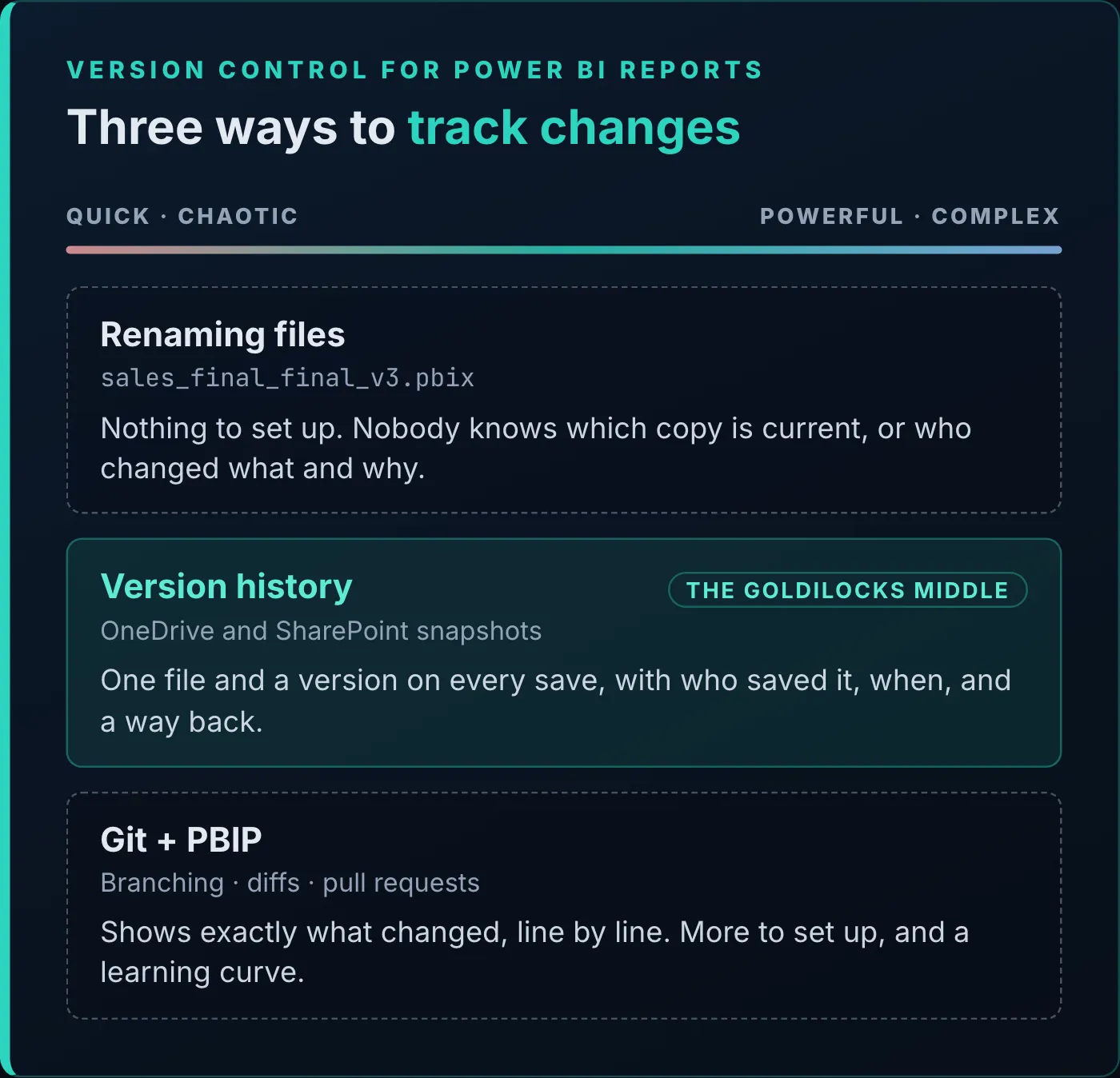
Version history is the middle option: more control than renaming files, far less setup than Git.
- Power BI Desktop from the May 2026 update or later, the release that brought version history to Desktop.
- The Save to OneDrive and SharePoint option, which is a preview feature. Select File > Options and settings > Options > Preview features and make sure Save to OneDrive and SharePoint is checked. It’s on by default, so you’re usually just confirming it. If you do change it, restart Desktop.
- The
.pbixsaved to OneDrive or SharePoint, because a file on your local disk has no version history. To move a report, select File > Save as, choose OneDrive, pick the folder, and select Save.
Two limits from Microsoft Learn apply to the third step. Saving to OneDrive and SharePoint from Desktop doesn’t work with personal OneDrive accounts, so save with your work or school account. And only .pbix files can be saved there, so a report saved as a Power BI project (.pbip) doesn’t get this feature. A project’s history belongs in Git, which the last section comes back to.
The versions themselves live in the OneDrive or SharePoint library, so the library’s settings decide how many are kept. Admins and site owners can limit versions by count or by age, and versions past the limit are deleted. An admin can also turn versioning off. If the list is empty or shorter than you expect, ask whoever manages your SharePoint.
With the report open, select the file name at the top of the Desktop window. A flyout shows the file’s name, its location in OneDrive, its save status (when it was last saved and last uploaded), a View your file in OneDrive link, and a Version history button at the bottom.
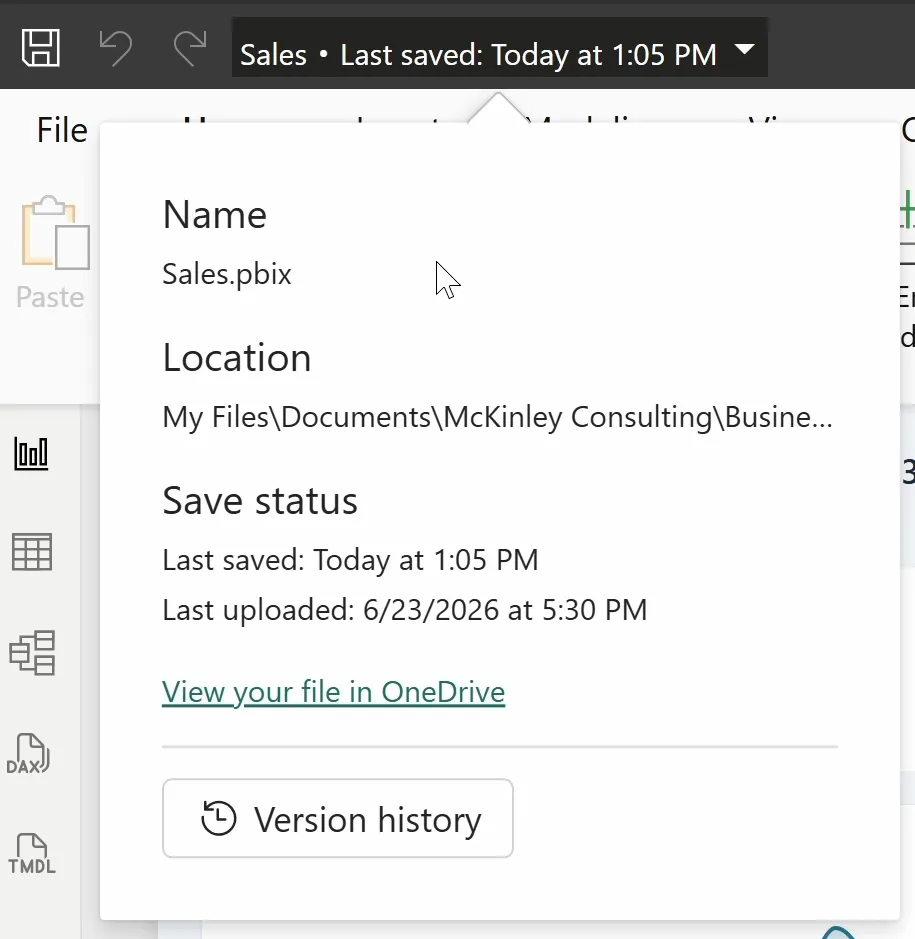
Select the file name in the title bar, then Version history at the bottom of the flyout.
Select Version history. A dialog opens with the line “Select a version below to open the file in a new window” and four columns: Version, Size, Modified, and Modified By. The current version comes first, tagged Current, and the earlier versions follow, newest first.
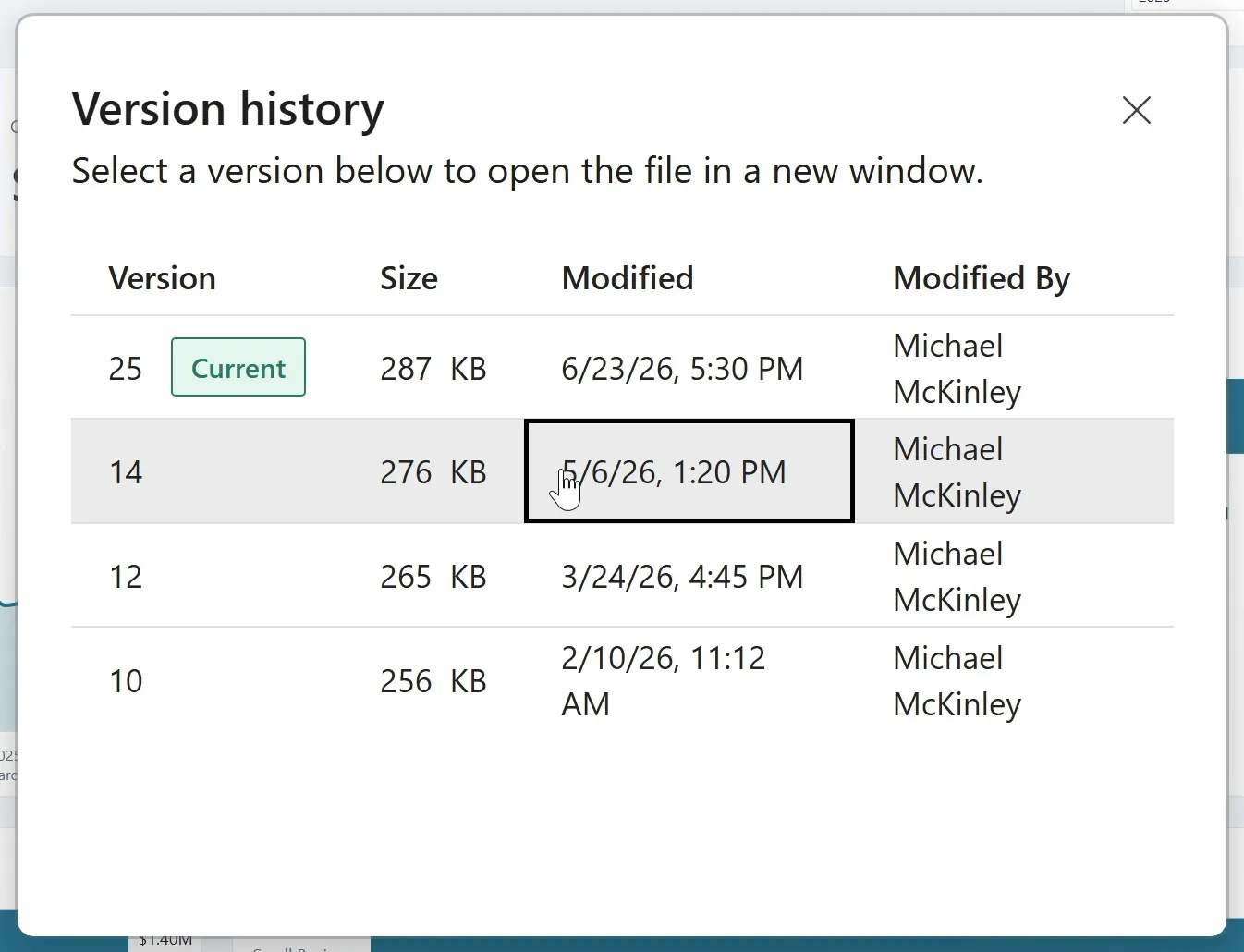
The Version history dialog: the current version first, then every earlier one with its size, date and author.
Sales.pbix has four versions in the list. Each one added a page: version 10 has Executive Overview, version 12 adds Geographic Performance, version 14 adds Product Performance, and version 25, the current one, adds Customers & Commercial.
Size hints at how much changed: in this report, each version that added a page grew by 9 to 11 KB. Modified By shows who saved each version, so on a team you know who to ask about a change.
The same history is in OneDrive and SharePoint on the web: select the three dots beside the file, then Version history. That’s also where you can restore a version without opening Desktop.
Select a row in the dialog to open that version. Desktop downloads it from OneDrive and opens it in a new window, so give it a moment. The title bar tells the windows apart: version 14 opens as Sales (v14).
Snap the two windows side by side, the current version on one side and the older one on the other. Here the current version’s status bar reads Page 1 of 4, and version 14’s reads Page 1 of 3. The extra page is Customers & Commercial, the last tab in the current version, which version 14 doesn’t have.
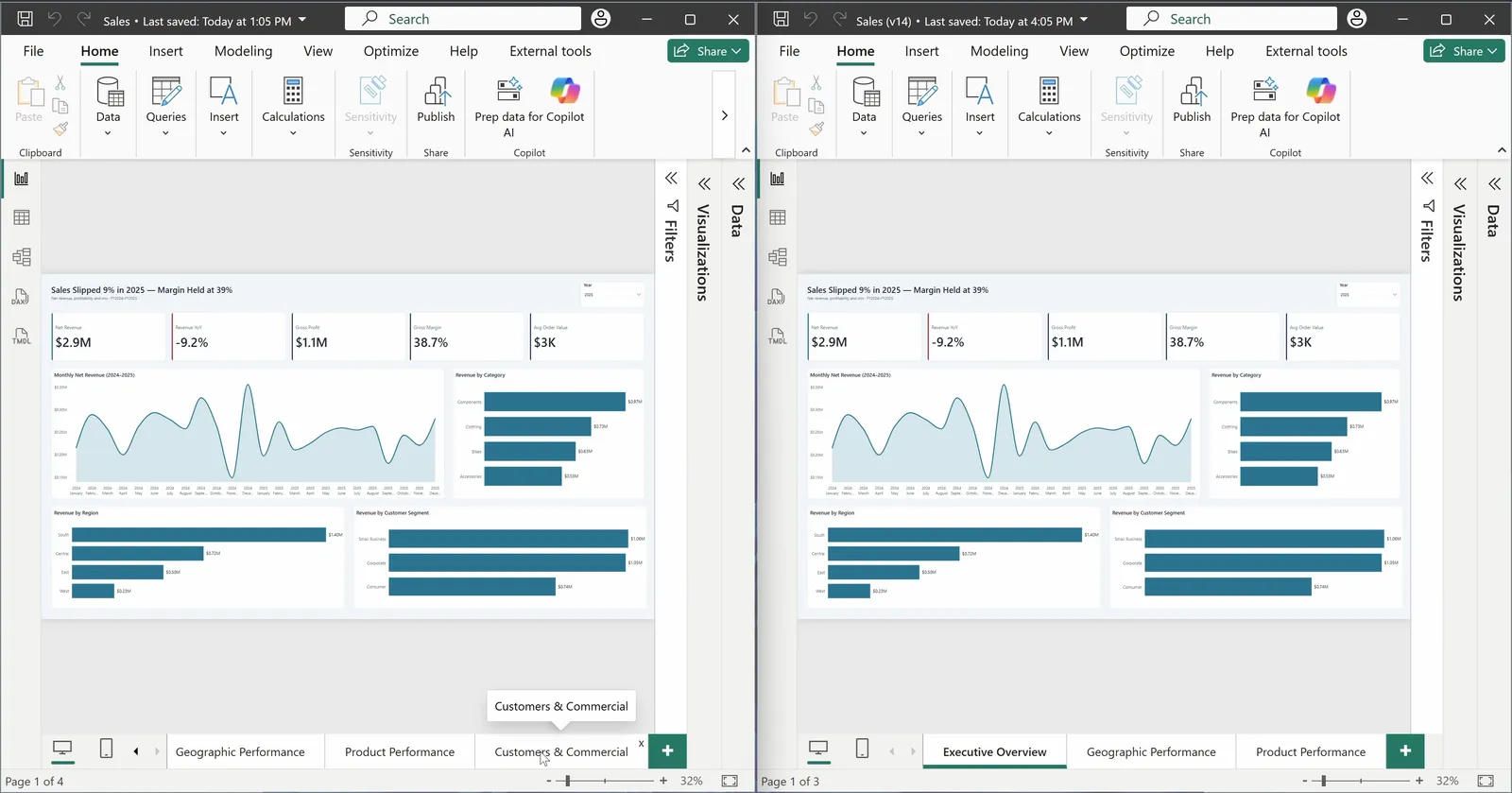
The current version (left) and version 14 (right). Only the current one has the Customers & Commercial page.
Desktop gives you both versions, but it doesn’t show you what’s different between them, so you find the change yourself. A new page is easy to spot. A new DAX measure, or an edit to an existing one, isn’t, and you’d have to click through both files to find it.
Say the people who use the report don’t like the new Customers & Commercial page and want the previous version back.
With version 14 open in its own window, select Save. The title bar reads “Uploading ‘Sales (v14)’ to OneDrive.” while the upload runs. Open the version history list again, and there’s a new current version, 26, at 276 KB, the same size as version 14. Versions 25, 14, 12 and 10 are all still listed below it.
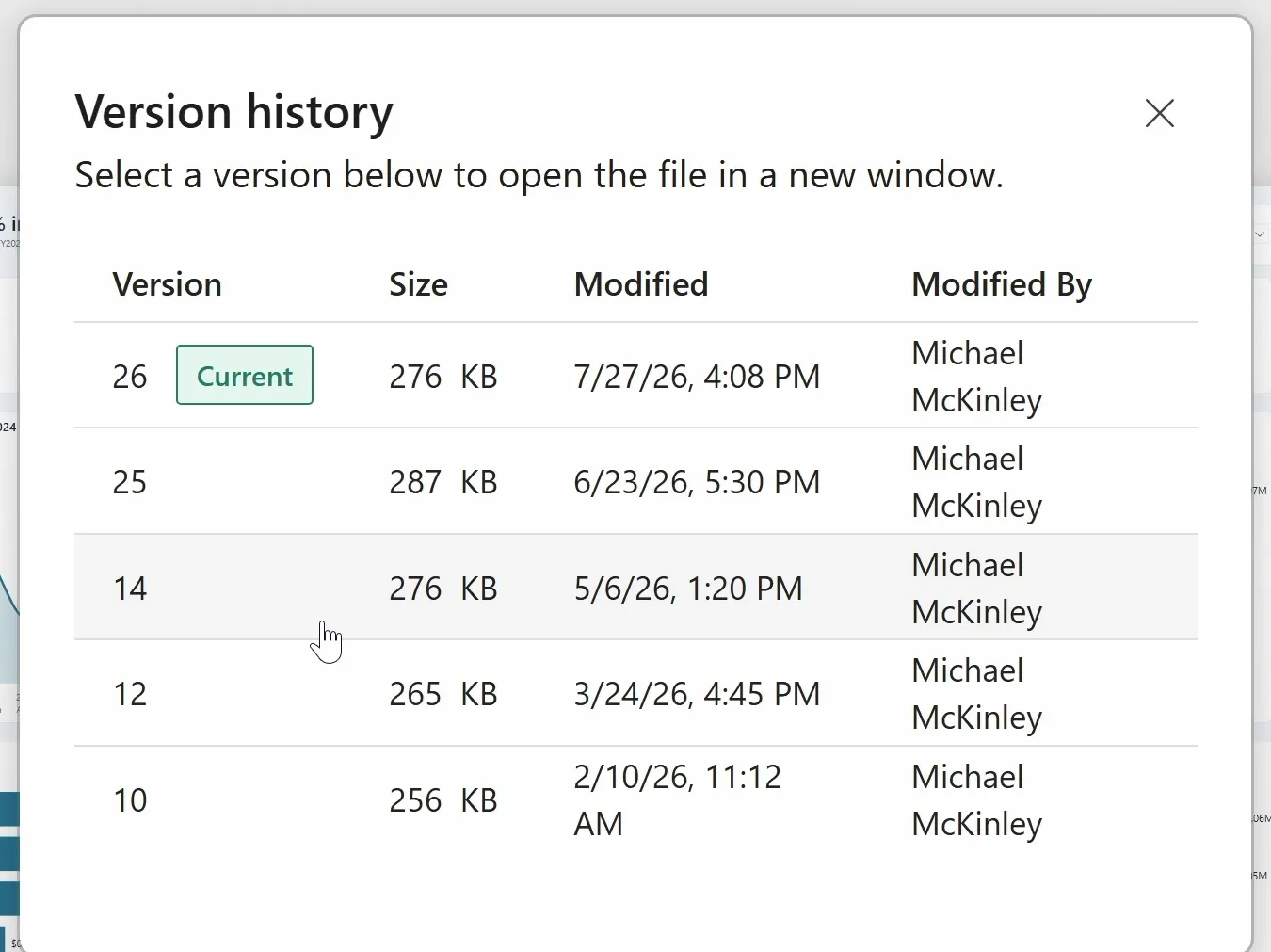
After the save, version 26 is current at version 14’s size, and every earlier version is still in the list.
Restoring adds a version: version 26 has the same content as version 14, and version 25, with its Customers & Commercial page, is still there if anyone wants it back.
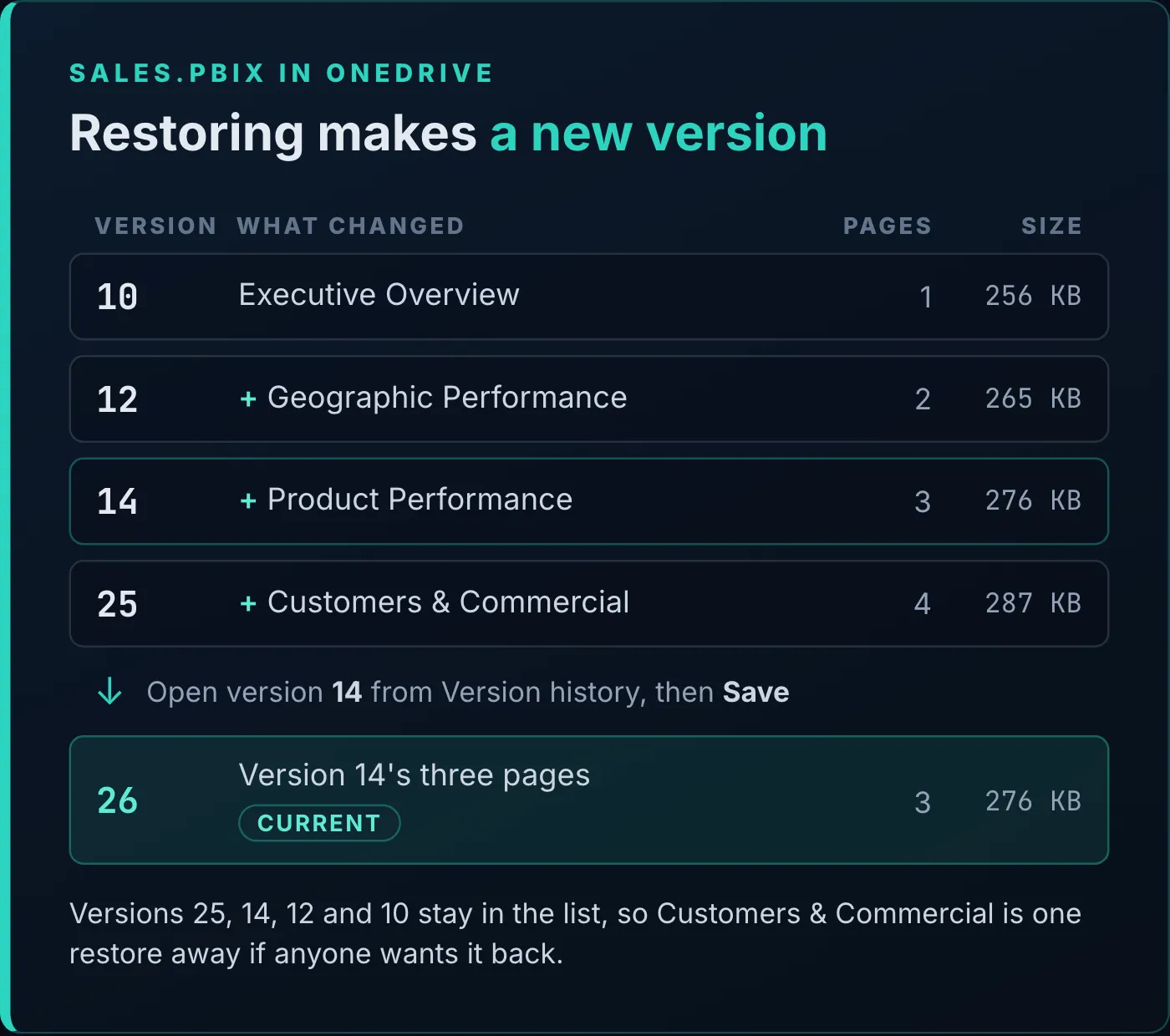
The version trail, from the first page to the restore.
Saving in an older version’s window is what restores it. If you opened an old version only to look, close its window without saving.
Restoring changes the file in OneDrive. If the report is also published to the Power BI service, publish it again from Desktop as you normally would.
You can also restore without Desktop. The steps differ a little between OneDrive and a SharePoint library:
- In OneDrive on the web, right-click the file and select Version history. In the Version History pane, select the three dots next to the version you want, then Restore.
- In a SharePoint document library, select the three dots next to the file, then Version history (it’s under More if you don’t see it). In the dialog, point to the date of the version you want, select the down arrow, select Restore, and confirm with OK.
Either way, it works like the restore in Desktop: the version you pick becomes a new current version, and the one that was current stays in the list.
Version history is file snapshotting, powered by OneDrive and SharePoint. Every save keeps a whole copy of the .pbix with who saved it and when, and you can open or restore any of them. If you’ve used version history on a Word or Excel file in OneDrive, this is the same idea for reports. A semantic model published to the Power BI service has a separate version history of its own, up to five versions of the model; How to Fix Your Live Power BI Model Straight from the Browser uses it to roll back a change.
It suits a solo developer, or a small team working on one another’s reports. For a team, Microsoft Learn recommends keeping shared reports in a SharePoint document library that every coauthor can reach: other people can’t save changes to a file in your OneDrive unless they have edit access to its folder.
It has none of Git’s tools: branches, line-level diffs, merges, or the side-by-side view of code changes, additions in green and removals in red, that you may have seen in deployment pipelines, Azure DevOps or GitHub.
| Version history in Desktop | A Power BI project in Git | |
|---|---|---|
| What you need | Desktop (May 2026 or later), a work or school account, and a .pbix in OneDrive or SharePoint | A report saved as a project (.pbip), Git, and a repository |
| What it keeps | A whole copy of the file on every save | Each commit, with its author and a message |
| What a change looks like | Two versions in two windows, compared by eye | Lines added in green and removed in red |
| Going back | Open an older version and save it | Revert the commit or the pull request |
| Working together | Coauthors save to one file in a shared library | Each person works on a branch, merged after review |
You’ll feel the boundary the day you go looking for one changed measure, or one visual that moved slightly, by clicking through two windows.
Git takes more to learn, set up and maintain. When you’re ready for it, you build on the report you already have: save it as a Power BI project, which Power BI as Code covers, then put the project in a repository, which Get Your Power BI Reports AI-Ready with GitHub walks through from setup to the first merge.
Until then, make sure Save to OneDrive and SharePoint is on, save your reports there, and stop keeping renamed copies.
Tools
- Power BI Desktop, May 2026 update or later (version history is in preview)
- OneDrive for work or school, or SharePoint (where the versions live)
Prerequisites
- Comfortable building and saving .pbix files in Power BI Desktop
- A work or school account with a OneDrive or SharePoint location you can save to
- No Git or source control experience needed
Resources
- Power BI Desktop OneDrive and SharePoint integration, Microsoft Learn
- Restore a previous version of a file stored in OneDrive, Microsoft Support
- Restore a previous version of an item or file in SharePoint, Microsoft Support
- Version history limits for document library and OneDrive overview, Microsoft Learn
Related articles



Transcript
The final_final_v3 file graveyard
Come on, be honest. Have you ever had a Power BI report with underscore final in the file name, or final v2, or final final v3? Yeah, me neither. But, I mean, come on, we all know that guy, right? Well, now the May 2026 version of Power BI Desktop has a solution that will make that problem go away, and I'm going to tell you all about it right now.
Three ways to version your reports
Well, let's face it, broadly speaking, there are basically three main options when it comes to versioning your Power BI reports. On one end of the spectrum, you've got that file saving and renaming that we just discussed, the final, final V3 option. And that can produce a lot of chaos. You never know which version is the latest one, or who made what changes where and why. When you publish a file to the Power BI service, it can create new URLs and links, and favorites can break. It can cause a lot of problems. And on the far other end of the spectrum, full-blown CICD with deployment pipelines and version diffing with red and green code that lights up showing exactly what's changed between two different versions. It offers a lot of great functionality, but it can also be a little intimidating for the novice developer. And it can also be a bit of a challenge to set it up if your enterprise doesn't offer that for you. So what we want is a Goldilocks middle where we can have the best of both worlds. We can have that versioning, see who made what changes, and the ability to roll back those changes if we need to, but without all the added complexity and the overhead, and have a simpler topography without the steep learning curve.
Three things you need first
So in order to take advantage of this feature, you need three things. First of all, you need Power BI Desktop version May 2026 or later. Number two, you need to enable this feature. Currently, it is a preview feature, and you need to check this Save to OneDrive and SharePoint option. It should be enabled by default, but you just want to make sure that it is turned on, and you might need to restart Power BI Desktop. And third, indicative of the name, you do need to save yourPBIX file to either OneDrive or SharePoint to take advantage of this feature. So once you've got
Open the version history list
your file in OneDrive or SharePoint, and it's open in Power BI Desktop, how do we see our past versions? Well, all you got to do is come up here to the file name, click this drop down, and then hit this version history button here, and this will bring up a littledialogue box with all of our version histories. You can see here that that this top line is our current version. You see file sizes, when they were changed, and who last changed them. You can imagine that if you had a team of developers, this would be a nice thing. So you could go ask someone, Hey, what did you change on such and such date?
Compare a prior version side by side
So let's say that I wanna open up one of these previous versions. So all I have to do is just click on this line from a previous version, and it will proceed to download that file from OneDrive. It is downloading that file, so you might need to give it a second to open up, and it'll open up this new version in Power BI Desktop. So I've taken the liberty of putting this V14 version of our sales file on the right side and our current latest version over here on the left. And you can see here, ifwe look at the number of tabs, there is a new fourth tab, Customers and Commercial, down here on the bottom, that is not in our latest version. So this is our new change from the previous version to the current version. One caveat to be aware of is that you kind of have to find the change for yourself here. So it does keep the different versions and allow you to get access to them, but it doesn't necessarily show you all the things that are different. For that, you might need a real Git solution. So for example, if you've gota DAX measures and somebody adds a new one or updates an existing one, finding that could be a bit of a challenge.
Restore an older version
So let's say that something changed between the old version and the new. Something has broken. The customers really don't like this new version, and they want to roll back to the old version. Well, no worries. All I have to do is just come up here and hit the save button, and then I can publish this report back up to the Power BI service. And in fact, if we click this drop down and go to our version history now, you'll see the old versions that were there, and you see now we've got this new version that is newly current. And if you look at the file size, this is the same as the version 14 that we had opened a moment ago. In fact, this is actually byte identical to this earlier version. It keeps all the old versions and just resurfaces the version that we had opened up to the top and restores that to the current live version for this file.
What it is and what it is not
Let's talk for a minute about what this is and what this is not. This is a file snapshotting tool that is powered by OneDrive and SharePoint, and it lets you access snapshots of yourPBIX files on OneDrive or SharePoint sothat you can access and restore old versions of those files. It is perfect for a solo developer or for a small team of developers where where you might be interoperating on one another's reports. What this is not is a full-blown Git solution with branching and line level diffs and code merges, for example. It's not gonna give you that red and green side-by-side code change between two different versions that you maybe have seen in, say, the Power BI deployment pipelines or in videos on ADO or GitHub.
When you're ready for Git
That is a really great solution and a little bit more difficult to get into and set up and maintain, but when you're ready for that, I've got a full video on it, and you can see that right up here, and I will see you next time.
New articles and videos