· Power BI as code, AI tooling
Get Your Power BI Reports AI-Ready with GitHub
Put a Power BI project in a GitHub repository and every change, whether you made it, a colleague did, or an AI tool did, arrives as a diff you can review and undo. This guide sets up the tools, commits a real project, and takes one measure from branch to merge and back out again.
What you'll learn
- Install Visual Studio Code and Git, and set the name, email, and line-ending settings every commit depends on
- Create a private GitHub repository and clone it to a folder that nothing else syncs
- Put a Power BI project in the repository without committing its data cache
- Take one change from a branch to a merged pull request, and read its diff the way a reviewer would
- Undo a change before you commit it, before you push it, and after it has been merged
Why a repository makes AI safe to try
You might let an AI tool change a Power BI report if you could see exactly what it changed, and take the change back when it got something wrong. A Git repository gives you both, for every change, whoever makes it.
Git is a tool that records versions of a folder of files. A repository is that folder plus its full history. Each saved version is a commit: a set of changes with a short message and the name of the person who made them. GitHub is a service that hosts repositories online, so several people can work on the same one. Azure DevOps and Atlassian’s Bitbucket do the same job, and all three are built on Git, so what follows carries over to them.
For a Power BI report, that means every change is a commit with an author and a date. Before you accept a change, you see the lines it added in green and the lines it removed in red, and you can undo any change later, even one that’s already been merged. Teammates, and an AI tool, can each work on a branch of their own until their change is reviewed and merged. If you’re not ready for a repository yet, Easy Version History Comes to Power BI Desktop covers the version history Desktop keeps for a .pbix saved to OneDrive or SharePoint.
Git compares text, so all of this depends on the report being text. Power BI as Code covers saving a report as a Power BI project (PBIP), which turns its pages, visuals, and model into folders of JSON and TMDL files. This article starts from that kind of project and follows one change all the way through: a new measure, Total Sales East, added on a branch, reviewed as a diff, merged, and then undone.
You need three things, and all of them are free.
- Visual Studio Code, Microsoft’s open-source code editor. It’s where you’ll see the project’s files and commit your changes, and later where you’ll run AI tools. Download it from code.visualstudio.com, or get it from the Microsoft Store or your company’s software portal.
- Git, from git-scm.com (on Windows, that’s Git for Windows). It does the versioning, and it syncs your local copy of a repository with the copy on GitHub.
- A GitHub account, from github.com, or one your company gives you.
The video signs VS Code into GitHub the first time it opens . That step is optional. Git asks you to sign in separately, in the browser, the first time you clone or push a private repository. Git for Windows includes Git Credential Manager, which stores that sign-in so Git doesn’t ask again.
Next, tell Git who you are. In VS Code, open a terminal (Terminal > New Terminal) and run these two commands with your own name and email :
git config --global user.name "Your Name"
git config --global user.email "[email protected]"
Every commit you make carries this name and email, and that’s how the history shows who made each change. If you’d rather not publish your personal email address in a repository’s history, GitHub gives every account a private noreply address, in the form [email protected]. You’ll find yours under the email settings of your GitHub account. Use it in the second command.
One more setting is worth making before your first commit. Power BI Desktop writes Windows line endings (CRLF), and Microsoft recommends configuring Git to handle line endings so they don’t cause problems in your diffs. GitHub’s recommendation for Windows is one command:
git config --global core.autocrlf trueOn github.com, create a new repository. The video names it Sales-Demo. Repository names can’t contain spaces: type Sales Demo and GitHub turns it into Sales-Demo. Add a description if you like, and change the visibility from Public, the default, to Private, so only you and the people you invite can see it.
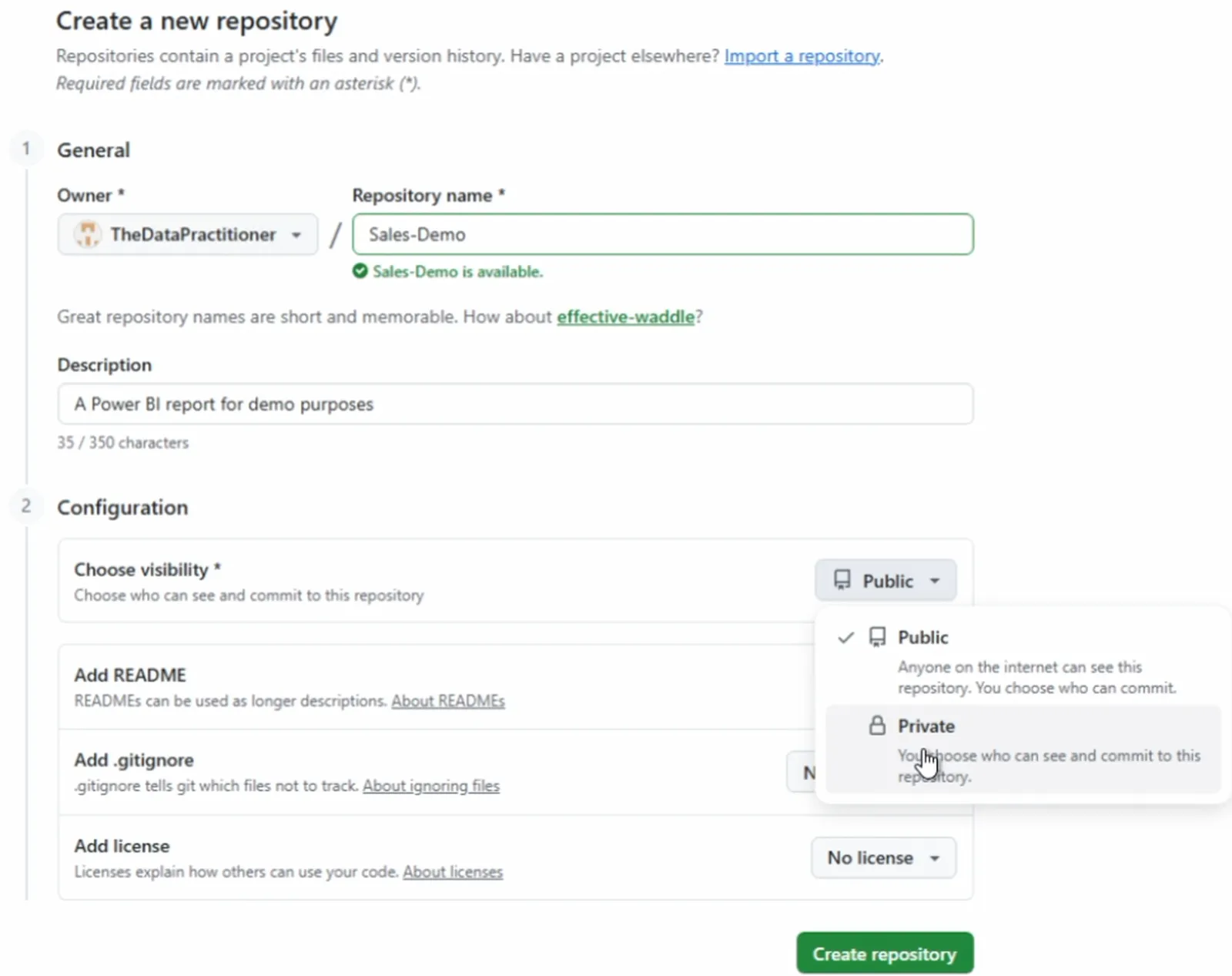
Creating the Sales-Demo repository. Private keeps it visible only to you and the people you invite.
Turn on Add README. GitHub creates the repository with a one-file first commit, so there’s a main branch to clone. The no-spaces rules come from GitHub, for repository names, and from Git itself, for branch names.
Leave Add .gitignore set to none. A .gitignore file lists files Git should leave out of commits, and Power BI Desktop writes its own when you save a project, but only when the folder, or the Git repository it sits in, doesn’t already have one. If you pick a template here, Desktop won’t write its file, and unless the template happens to include Desktop’s two rules, your data cache goes into the first commit. If you already have a .gitignore, add the two rules from the next section to it yourself. The video skips the license as well, since this is a report in a private repository.
Select Create repository. Then clone it, which copies the repository to your machine :
- On the repository page, select Code and copy the HTTPS URL.
- In VS Code, open the Source Control view and select Clone Repository.
- Paste the URL and press Enter.
- Pick the parent folder. VS Code creates a
Sales-Demofolder inside it and offers to open it. When it asks whether you trust the authors of the files, say yes; you’re the author.
Put the repository somewhere local that nothing else syncs, so Git is the only thing managing it. The video uses C:\Projects. Avoid OneDrive and other synced folders: Microsoft notes that saving a project into a locally synced OneDrive folder can cause syncing issues that make saves fail. Keep the path short, too. Windows limits file paths to 260 characters by default, and a project nests several folders deep, so C:\Projects\Sales-Demo is a good shape.
If your report is a .pbix, open it in Power BI Desktop and go to File > Save as > Browse this device. Navigate into the cloned folder, set “Save as type” to “Power BI project files (*.pbip)”, and save. If your report is already a project, copy all of its files into the cloned folder, including its .gitignore.
The folder now looks like this:
Sales-Demo/
├── Sales Demo.Report/
├── Sales Demo.SemanticModel/
├── .gitignore
├── README.md
└── Sales Demo.pbip
There’s also a hidden .git folder, where Git keeps the history. Leave it alone.
The .gitignore, and why the cache stays out
Desktop’s .gitignore has two lines :
**/.pbi/localSettings.json
**/.pbi/cache.abf
localSettings.json holds settings for your user and computer only. cache.abf is, in Microsoft’s words, “a local cached copy of the model and data when it was last edited”. There are three reasons to keep it out. It’s binary, so a diff can’t show you anything useful about it. It’s large. And it holds your data, while a code repository is for the report’s definition. Desktop opens a project without it: you get the full report and model with no data, and a refresh loads it.
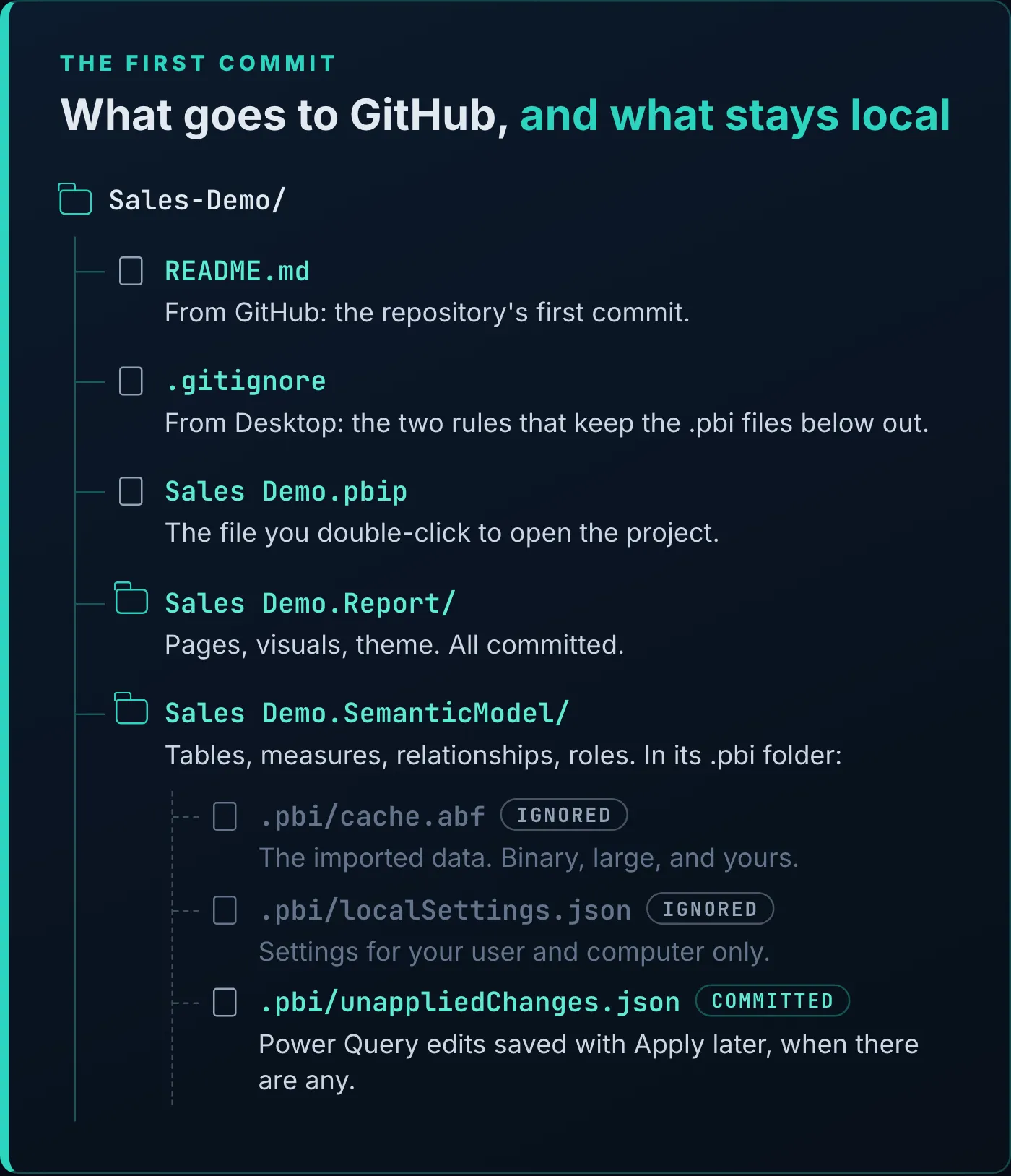
What the first commit holds. Only the two files the .gitignore names stay on your machine.
The video doesn’t mention a few files that do get committed. If you save Power Query edits with Apply later, Desktop writes them to .pbi/unappliedChanges.json, and Git commits that file by default. That lets you back up unfinished query work on a branch. If you’d rather teammates never see it, add **/.pbi/unappliedChanges.json to the .gitignore. Saved tabs in DAX query view and TMDL view are committed too, as files in the semantic model’s DAXQueries and TMDLScripts folders.
To be certain the cache is excluded before you commit, run this in the terminal from the repository folder:
git check-ignore -v "Sales Demo.SemanticModel/.pbi/cache.abf"Git prints the .gitignore rule that matches the file. No output means the file isn’t ignored.
The Source Control view now counts every file Git sees as new: 44 in the video.
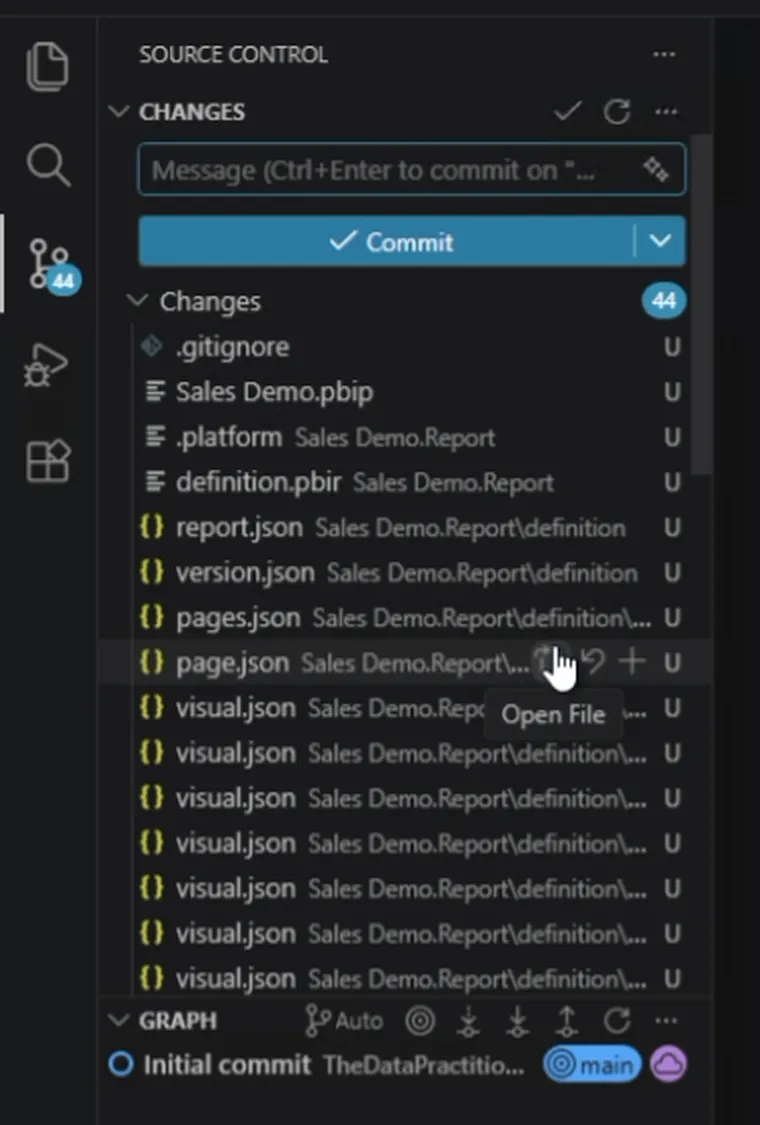
After saving the project into the clone: 44 new files waiting for the first commit, and no cache.abf among them.
Type a short commit message (the video uses “Instantiating repo”) and select Commit. Because nothing is staged yet, VS Code asks whether to stage all your changes and commit them directly. Staging picks which changes go into the next commit, and committing records them. The video answers Always, which stages everything on every commit from then on. If you want to choose files one at a time, stage them yourself with the plus icon next to each file.
A commit stays on your machine until you push it. Select Sync Changes: VS Code pulls anything new from GitHub, then pushes your commits. Refresh the repository page on GitHub and the project’s files are there, next to the README.
Say someone asks for a new measure: total sales for customers in the East region. The change goes through six steps before it reaches main.
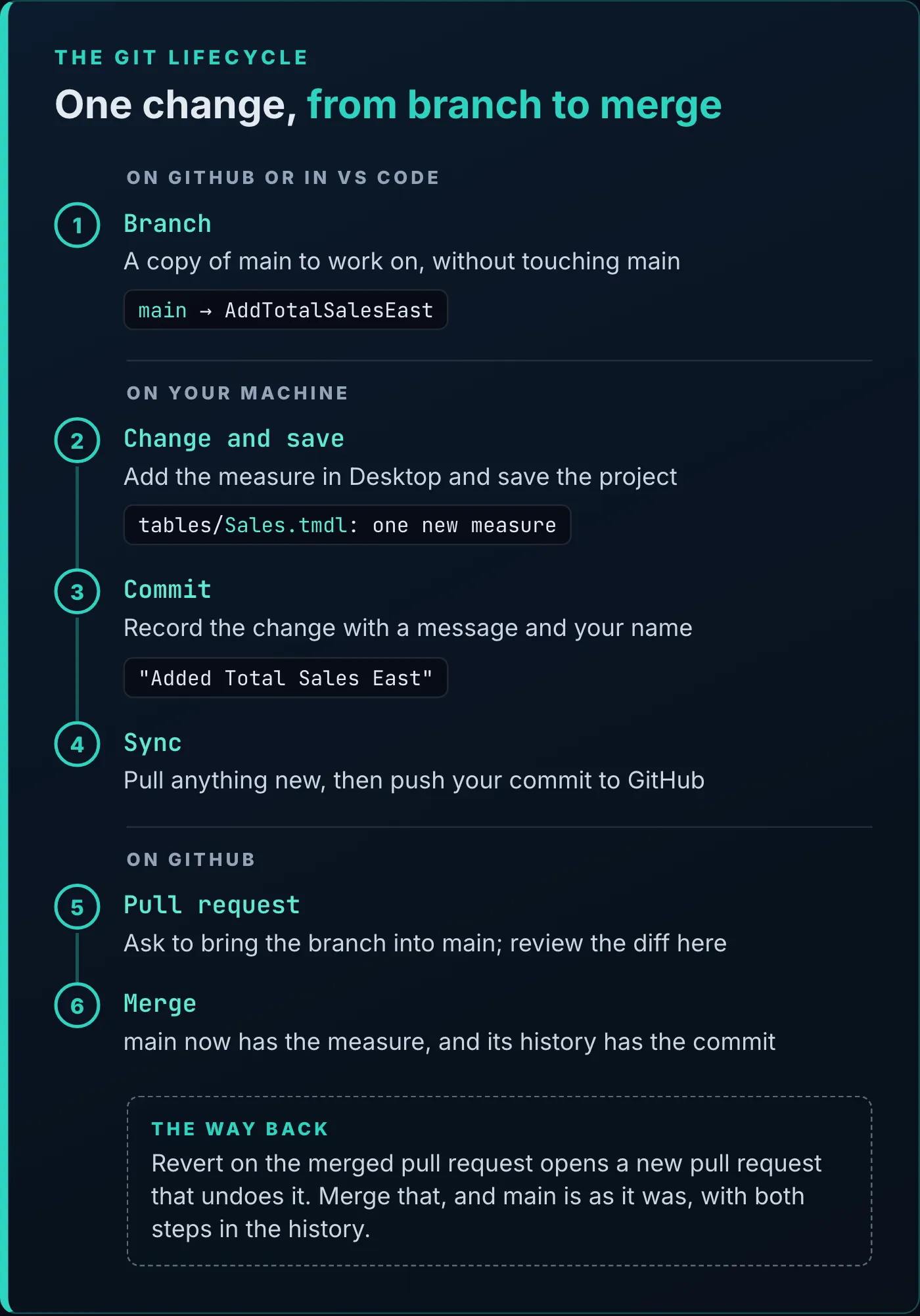
The lifecycle this section follows, and the way back that the next section covers.
Make a branch
A branch is a separate line of commits that starts from main. You work on the branch, and main stays as it is until you merge.
The video creates the branch on GitHub. Open the branch menu at the top left of the repository page (it shows main), type a name, and select Create branch … from main. Git doesn’t allow spaces in branch names; the video’s branch is AddTotalSalesEast.
Back in VS Code, select the branch name in the bottom-left corner of the window. The list shows your local branches and the ones on GitHub, which start with origin/. origin is the name Git gives the repository you cloned from, so origin/AddTotalSalesEast is the branch on GitHub. Pick it, and VS Code creates a local branch that follows it. You can also create the branch in VS Code, from Create new branch in the same list; it goes up to GitHub the first time you sync.
Switching branches changes the files on disk. The video closes Desktop before switching and reopens the project afterwards, which is the safe habit. If you’ve turned on the “Detect and reload external PBIP changes” preview, Desktop offers to apply the changed files instead; see what you can edit outside Desktop for how that works.
Add the measure and read the diff
Open Sales Demo.pbip, right-click the Sales table, select New measure, and enter :
Total Sales East =
CALCULATE(
    [Total Sales],
    'Customer'[Region] = "East"
)
Save the project. In VS Code, Source Control now lists one changed file, Sales.tmdl, the file that defines the Sales table and its measures. Select it to open a side-by-side diff of the last committed version against the version on disk.
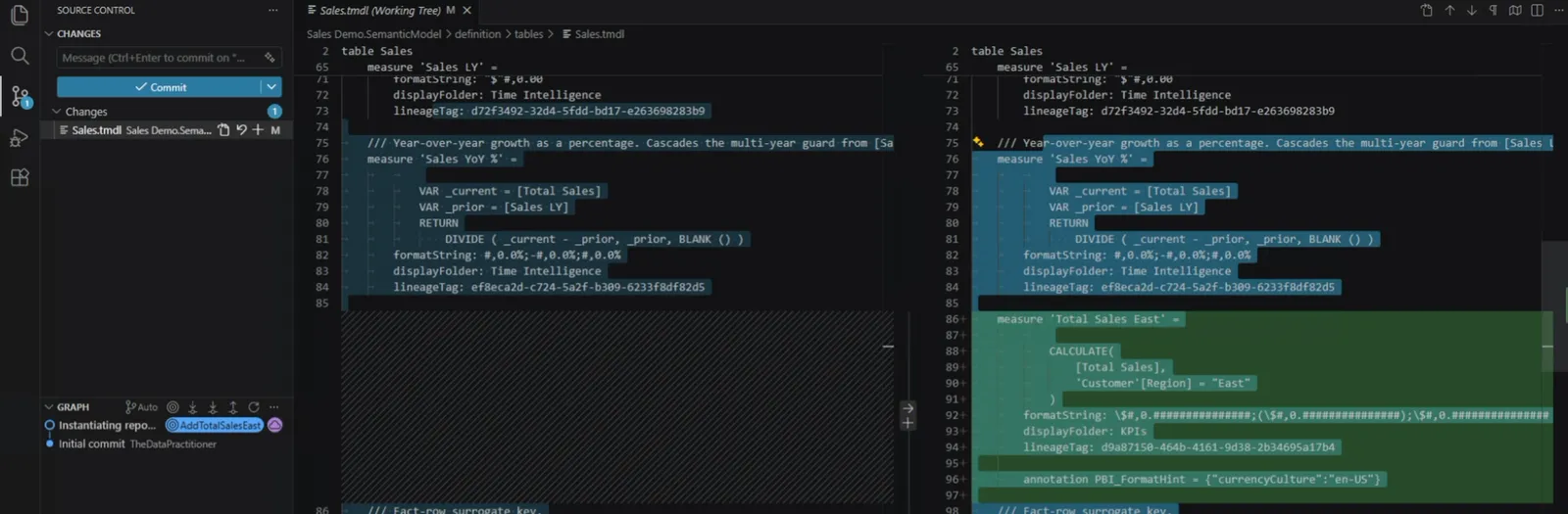
One changed file. The green block is the new measure, exactly as Desktop wrote it.
Green lines were added and red lines removed; a changed line shows as both. This change only adds lines, and here they are:
	measure 'Total Sales East' =

			CALCULATE(
				[Total Sales],
				'Customer'[Region] = "East"
			)
		formatString: \$#,0.###############;(\$#,0.###############);\$#,0.###############
		displayFolder: KPIs
		lineageTag: d9a87150-464b-4161-9d38-2b34695a17b4

		annotation PBI_FormatHint = {"currencyCulture":"en-US"}
Now read it the way a reviewer would, next to the Total Sales measure higher up in the same file:
	/// Total sales revenue in filter context. Aggregates Sales[Total Amount].
	measure 'Total Sales' = SUM ( 'Sales'[Total Amount] )
		formatString: "$"#,0.00
		displayFolder: KPIs
		lineageTag: 2247408f-cf0d-5824-9116-4c10006ebed2
The new measure differs from its neighbours in two ways. Every other measure in the Sales table has a description, the /// line above it, and the new one doesn’t. And its format string allows up to 15 decimal places where its neighbours use two. Neither breaks the report, and both are easy to fix on the branch before merging: set the description and format in Desktop, save, and commit again. This is the same review you’d give an AI tool’s change.
Commit, push, and merge the pull request
Commit with a message such as “Added Total Sales East” and select Sync Changes . On GitHub, a banner offers to compare the branch you just pushed.
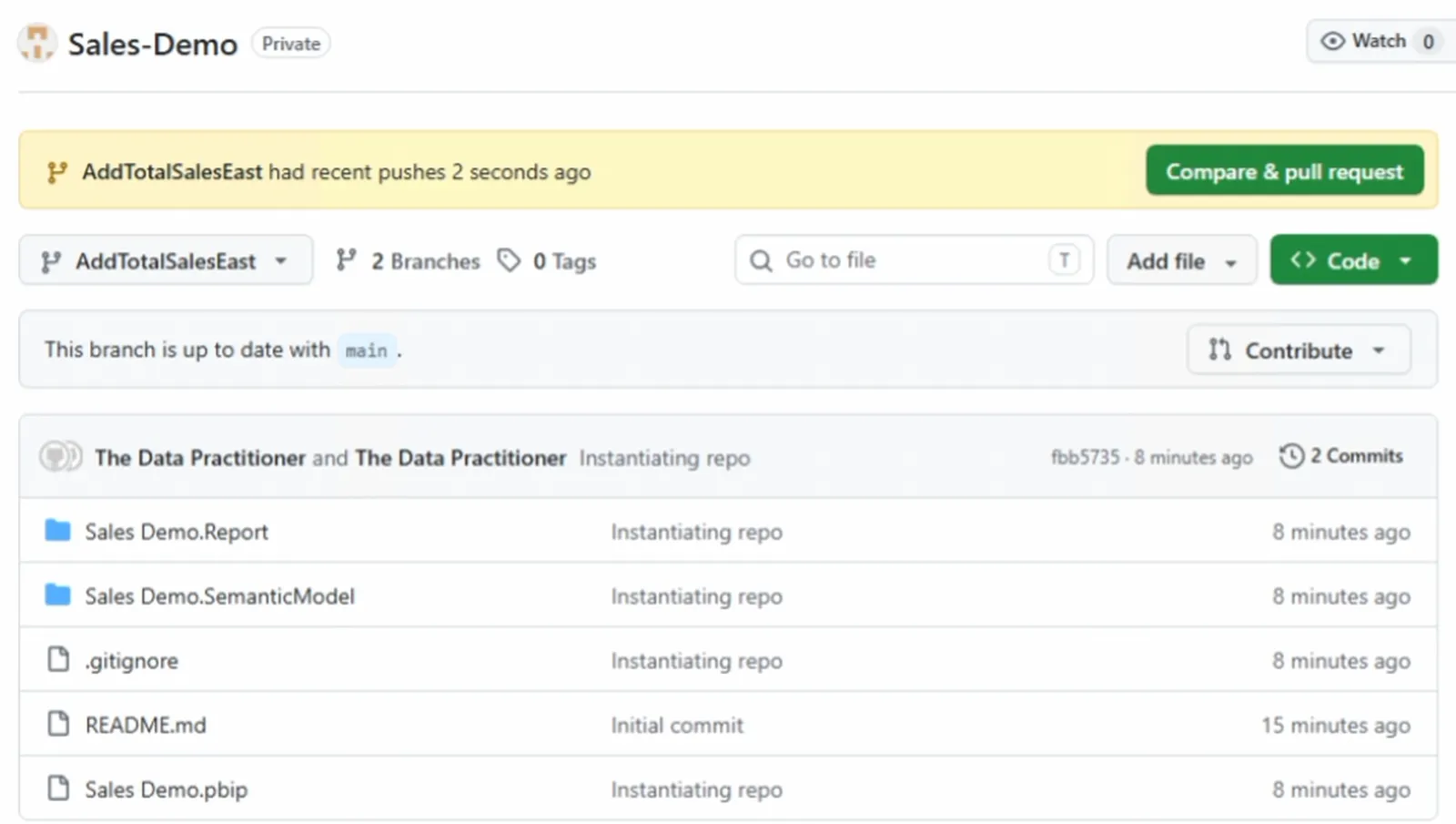
GitHub notices the pushed branch and offers to open a pull request.
A pull request asks to bring one branch’s commits into another, here AddTotalSalesEast into main, and it’s where a reviewer reads the diff before anything lands. Select Compare & pull request, give it a title and a description (the video’s says “Added DAX measure total sales east”), and select Create pull request. GitHub checks whether the branch merges cleanly into main. Select Merge pull request, then Confirm merge.
To see the result, open the Code tab, go through Sales Demo.SemanticModel, definition, and tables to Sales.tmdl, and select History.
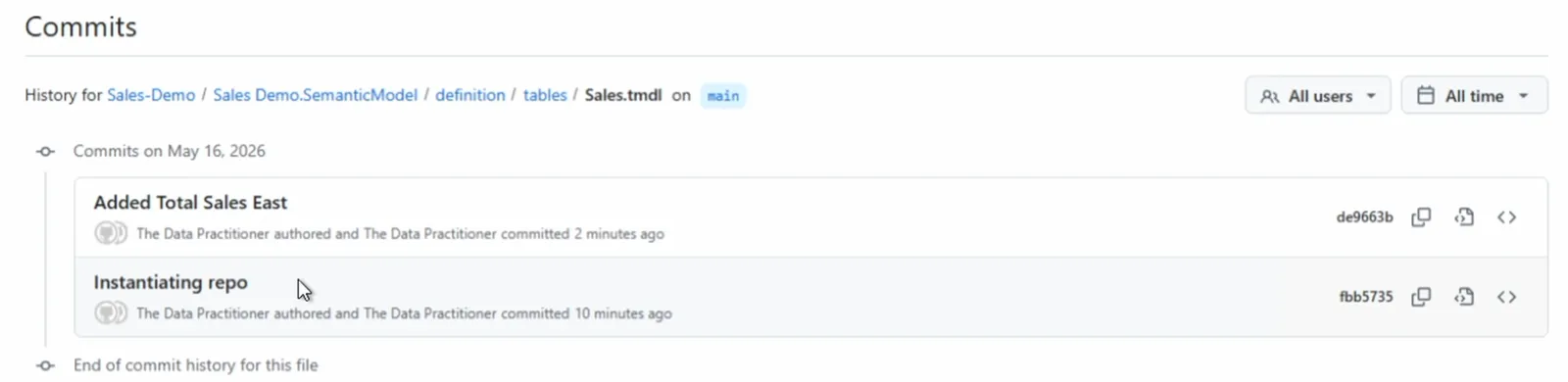
The history of Sales.tmdl after the merge. Each commit carries its author and opens its own diff.
Last, bring the merge back to your machine. In VS Code, switch to main and select Sync Changes, so the next branch you make starts from the version with the new measure.
Undo a change
A repository’s promise is that you can take a change back, and the video stops before showing it. Which undo to use depends on how far the change has travelled.
You haven’t committed it yet. In Source Control, select Discard Changes (the curved arrow) on the file. Git restores the last committed version. There’s no copy in the Recycle Bin afterwards, so be sure. Then reopen the project in Desktop, or apply the external changes, because a Desktop session that still holds the measure writes it back the next time you save.
You’ve committed it, but haven’t pushed. Open the … menu at the top of Source Control and select Commit > Undo Last Commit. The commit disappears from your branch, and its changes come back staged, so you can fix them and commit again. Don’t use this on a commit you’ve already pushed.
It’s been merged. On GitHub, open the Pull requests tab, find the merged pull request (it’s under Closed), and select Revert near the bottom. GitHub opens a new pull request that reverses the original merge. Merge that one, and main is back to where it was, with both the change and its reversal in the history. You need write access to the repository for the Revert button to appear. Then switch to main in VS Code, sync, and reopen the project.
Every click in this article has a Git command behind it. Here’s the branch-to-push part of the lifecycle as commands you could type:
git switch -c AddTotalSalesEast
git add -A
git commit -m "Added Total Sales East"
git push -u origin AddTotalSalesEast
git switch -c creates the branch on your machine and switches to it, and push -u publishes it to GitHub. To undo a commit that’s already shared, git revert followed by the commit’s ID creates the reversing commit. GitHub’s own command-line tool, GitHub CLI, is a separate install that covers the GitHub side: gh pr create opens the pull request from the terminal.
These are the commands an AI tool runs in your terminal when you ask it to do the work, and as the video puts it, you don’t have to run them yourself. Claude Code for Power BI development shows one way to set that up. Your part doesn’t change: read the diff and the pull request before you merge, and revert when it got something wrong. VS Code can also draft a commit message for you from the staged changes, with the sparkle icon in the message box. Read it before you commit, the same as any other change.
Put the project in a repository before you let an AI tool change it. Then every change it makes arrives as a commit you can read, and one you can revert. The Power BI Modeling MCP server article follows an agent’s changes to a model through to that review. The Tabular Editor CLI article reviews an agent’s command-line changes the same way.
Tools
- Power BI Desktop
- Visual Studio Code
- Git for Windows
- A free GitHub account
Prerequisites
- A report saved as a Power BI project, or a .pbix you can save as one
- A Windows machine where you can install Visual Studio Code and Git
- No source control experience
Resources
- Download Visual Studio Code
- Download Git
- GitHub
- Power BI Desktop projects (PBIP), Microsoft Learn
- Power BI Desktop project semantic model folder, Microsoft Learn
- Staging and commits, Visual Studio Code documentation
- Setting your commit email address, GitHub Docs
- Configuring Git to handle line endings, GitHub Docs
- Reverting a pull request, GitHub Docs
- gh pr create, GitHub CLI manual
Related articles

Transcript
Why source control makes AI safe to use
If you actually want AI to help with your Power BI reports, this is the one setup you need to make it safe, and it only takes like 10 minutes. The thing that holds most people back when they want to work with AI in their Power BI reports is that they're a little worried that it could do something that they don't trust or that they don't understand. And so this is one of the reasons why I want people to move to a code forward understanding of what they're doing in Power BI, and that's why in that last video we converted our Power BI report into a Power BI project, so you yourself can see that code. But also what it allows us to do is that we can now see changes in that code from one version to another as we make changes in it, as a coworker makes changes in that code, or even as AI makes changes in our codebase, we can see those changes over time. We can compare one version to another, and that's really instrumental in being able to interoperate as a team and also having AI on your team as a fellow Power BI developer. So what it can give us is the ability to roll back changes. We can see diffs, or basically differences between two versions of our code, and it'll even light up in green and red as we can see those differences. We'll see that in a little bit.
What we'll build in this video
And by the end of this video, we are going to have a a setup where we can do all of those things. We're going to take a Power BI report, convert it into a Power BI project, and put that into a GitHub repository. And we're going to do a full lifecycle where we can make a change to a DAX measure and see how that change gets presented to us in green and red in a diff, and hopefully that'll
The three tools you need
make everything come to life a little better. So in order to do this, you're going to need three main things. The first thing you need is Visual Studio Code. VS Code is what is called an IDE, or an integrated development environment. There are others, and people have their preferences. I'm not saying that this is the only one that will serve our purpose, but for right now, just do yourself a favor, get VS Code. It It's free, open source, is created by Microsoft. Most every major enterprise in the world trusts it and will make it available to the people who work there. We'll put a link in the description to where you can go download VS Code. You can also grab it from the Microsoft store, or your enterprise may have a software portal that you can download this from, or you might also have to put in a ticket with IT to to get this software. The next thing that you're going to want to get is a tool called Git. So Git is a source code management system, or an SCM, and you can get Git at at git-scm.com, you'll notice it's spelled with an I. And so this is a protocol and a toolset that will allow you to sync code between a remote repository and your local repository. So essentially we have a remote repository, typically in the cloud, and we're going to sync code back and forth between that and our local repo. The other thing that Git will allow us to do is see those differences and light up in green and red any changes that we made between one version and the next. So you'll want to get get installed. Again, we'll put a link to this website in the description, but also your enterprise might make this available in other means. And the third thing that you're going to need is an account on some SCM platform. There are several of them out there. I'll name three of them. The one that we're going to use today is called GitHub. It is free, widely available, and very well known. It's a very popular SEM tool. Another one is Microsoft's Azure DevOps, and there's a third very popular one by Atlassian called Bitbucket. If you've ever heard of Jira or Confluence, those are sister products also made by Atlassian, and they all interoperate very well. All three of those tools are predicated on the Git technology, so they're all going to operate very similarly. They're both fine products. Typically, your enterprise will make the decision for you in some regard which one of those tools that you're going to use. Today, just because it's free and openly available, we're going to use GitHub. So what you want to do is get an account. Either you can sign up through a local account, or your enterprise might make one
Signing into VS Code with GitHub
available to you. Okay, so I have got a fresh VM, and we're going to set up Git and our whole environment from scratch. So the first thing I've done is I've gone ahead and installed VS Code. I've installed that Git protocol. I've signed up for my account with GitHub. And so now we're in Visual Studio Code. I've opened this for the first time, and I'm going to sign in to VS Code with my GitHub account. So we're going to click on continue with GitHub. You'll see that it's opened up GitHub. I'm already signed in to GitHub with my account. And so I'm going to say continue as the data practitioner, and we will say authorize Visual Studio Code. And it's just going to say, do we want to go back over to VS Code? Yes, I do. So we will say open, and we will, I'm going to go with light, with dark 2026. I like dark mode, so we're going to go, I'm sorry, with that. Yep, plan, I think, is fine. We'll just go ahead and get started. And there we go. Okay, so I'm going to close out this chat window here. And close out this welcome scene. I think we are good to go.
Introducing yourself to Git: user.name and user.email
Now, the first thing that I want to do is we're going to go to terminal and say new terminal. And we are going to type in two commands. So the first command that you want to type in is git config dash dash global user dot name, and then type in your name. So I'm going to say the data practitioner in double quotes. So this is just simply telling Git what your name is. We will hit enter. And the next one is the same thing, but for your email address. So basically, we're just introducing ourselves to Git. We're going to say what our name is, what our email address is. We're going to say git config dash dash global user dot email. And then we'll type our email address in. Okay, so we've installed VS Code and Git, and we basically introduced ourselves to Git, who we are, and what our email address is.
Creating the GitHub repository
So now what we want to do is create a repository in GitHub. We can have a bunch of repositories, and you'll see we actually have a list of our repositories over here. Of course, we don't have one yet, so we can say create repository, or if you have some, there would be a little new button. You can also click the menu, click on all repositories, and there's a new repository button here, so we'll just click on that. We're going to give this repository a name, and so I'm going to call this sales demo. Now, one quick note is that Git is based on the Unix kernel. It was actually created by Linus Torvalds, who created Linux, also based on the Unix kernel. And so consequently, there are a few eccentricities that you need to observe. One thing is these repo names really do not like spaces. So if I were to say sales demo, it would basically, it's not going to throw an error. It's just going to replace that with Sales-demo. So rather, I will just simply do that myself, say Sales-demo, and it will be just fine with that. So we are going to give this a description. You can set whether you want this to be a public or private repository. So private just means that it's only visible to you, or public means it's available to the entire world. There are absolutely reasons why you might want to make a repository public, but you know, in case you don't know, we're just going to go with a private repository. I am going to add a readme. Basically, going back to that whole Unix kernel thing, if that didn't make any sense, don't worry about it, but one of those eccentricities is folders, which a repository is basically just a folder. Folders in Unix don't like to not have anything in them. You kind of need to have a file inside of a folder for it to exist, and so people just sort of by convention stick a blank readme file, or nearly blank readme file, into that folder, and that will instantiate that. Sometimes you will see a a file called .gitkeep, and again, just simply exists for the purpose of instantiating and retaining an otherwise empty folder. We're not going to put a .gitignore file in here, because when we convert our Power BI report into a Power BI project, it will actually create its own .gitignore. And we're also not going to add a license, because this is just a Power BI report in a private repository for us. So we're going to say click, we're going to say create repository. And I'm going to click this code dropdown here, and this is the URL to our repository, and I'm going to copy this to my clipboard.
Cloning the repo into VS Code
I'm now going to go back to VS Code, and I'm going to go to my source control button over here on the left. I'm going to say clone repository, and you'll see the focus is up here on the left, and I'm going to paste in that URL. You see it's got the data practitioner Sales-Demo.git, and we will hit enter. It's going to ask us where do we want to put this. Now, a quick note on where we want to put this repository. Again, where on our local machine do we want to put this repo? So one place I would recommend against storing this is in, say, like OneDrive, for example, or another synchronized location. Put this somewhere where it's not going to fight with something else that's trying to back it up. Someplace that's not monitored in that fashion. So I've actually got a folder on my root directory called projects, and I'm going to place the sales demo in here and select that as the repository. You'll see that it is cloning the repository, so that will just take a moment, and we can sign in with our browser and authorize our Git ecosystem, and again, it will ask us if we want to go back to VS Code. So we can just click over to VS Code, and I'll go ahead and open it in this window, and it's asking me do I want to trust this. So yes, I'm going to say trust the authors of all the files in the sales demo, and yes, I trust these authors. I'm going to close this welcome screen again, and you'll see that we have our one readme file in here. This .md file extension stands for markdown. We're going to be dealing, not today, but in future videos, with a lot of markdown. Markdown is actually a really useful tool. It's kind of like .txt files, but on steroids. So now what we're going to do is we're going to come over to Windows Explorer, and we're going to open up this sales demo folder, and you can see the same thing here in Windows Explorer that we see in our Explorer pane in Visual Studio Code. So what I can do is I can open up
Saving the report as a Power BI project
a sales demo report in Power BI Desktop, and this is just your traditional .pbix file, and what I'm going to do is I'm going to save this into that folder as a Power BI project. So we're going to click on file, save as. We're going to navigate to that location. We're going to change the save as type to a Power BI project and hit save. So now when we come back over to Windows Explorer, you'll see all of these new files here. So we've got this Sales Demo.pbip, folders for the report and the semantic model, and this .gitignore file. We already talked about these in the last video, and so we'll put a link in the description to that.
The .gitignore and why cache.abf stays out
Before we move on, I do want to show one of those files, and that is the .gitignore. One thing I want to call out is this second line in the .gitignore. What this is saying is it is telling the Git protocol, these are the files I want you to ignore. In other words, these are the files I don't want you to sync up to the global repository. The reason why we want to exclude specifically this cache.abf in an import model, this is the local cache of your data. It is actually binary, so if you try to do a diff on this or look at the contents of the cache.abf, it's not really practical to look at it. It's not exactly easy, so it doesn't really have a lot of value for us storing that. GitHub is not exactly a data repository so much as it is a metadata or schema or a code repository. So that's one reason, is that it doesn't add a lot of value and takes up a lot of space. But there's another reason, which is that the data contained in the cache.abf, while not exactly accessible, also isn't exactly secure. It's not necessarily encrypted. So you want to be very careful about what you do with that data. You might not want to put that in a repository where people can access that.
First commit and sync to GitHub
If we come back over to our source control, you'll see that we have the number 44. That is telling us that there are 44 files that are uncommitted. So these could be new files. In fact, in our case, they are all new files. They might be updated or changed files, or it could even be deleted files as well. So we're going to come in here and give it a commit message. So this is basically some message that will inform what it is that we've changed since the last commit. So we're going to say instantiating repo, and you could give it whatever message you want. Typically, these are pretty brief, a few words, a sentence or two, doesn't have to be too long, and we're just going to click on commit. You'll see here that this is asking me, would you like to stage? Technically, staging and committing are two different things. You can stage without committing, but I'm just going to go ahead and say always. I tend to just always stage in commit, even though these are two separate thandgs. So you'll see here that there actually is an initial commit. This is when we created the repo and put that readme.md file in here, and then this is our most recent commit here, where we instantiated the repo. You'll see that there's a button now, an option to sync our changes. So if we come back to the repo, and we can close this tab and refresh the browser, in our repo, the only thing that we see here is that readme.md, and that's because we haven't synced the file. So now if we come back and we sync these files, it'll say this action will pull and push. So yes, that's fine. So we're going to hit OK. It should just take a moment to refresh, and there, looks like we are done. So we can come back to GitHub in the browser, and we can refresh this page, and we will see that now all those files that we were looking at a moment ago are now in our code repository.
Branching to make a change in isolation
Okay, so let's say that somebody has asked you to add a new measure. And so for us, we're going to imagine somebody has asked us to create a measure that calculates the total sales measure when the customer region is East region. All right, so here's what we're going to do. So we're going to come up to the top left. You see this main, and it's got this sort of branching symbol here. This tells us that we are on our main branch. And if we click this drop down, we can see under the branches tab, in fact, there is only one branch called main. And so what we can do is we can create a new branch. We just simply type in a name for that branch. Again, the branches cannot have spaces. So we're going to call this branch add total sales East, for example. You'll see that when I do that, there's an option here for create branch add total sales East from main. So we're going to click on that, and this essentially will create a duplicate of our main branch, and right now those two branches are completely in sync, because we haven't changed anything to it. So now we're going to go back over to Visual Studio Code, and now in the bottom left is a button with a similar branching icon, and it says main. If I click on this, this will show me the branches that I have, and this origin, this is the term for the cloud repository, whereas main here, this is just on my local environment. You'll notice here that it has origin main. Again, that's the main branch in the cloud repository, and then I have the add total sales East in the cloud repository. So that's what I want to switch over to, is I want to switch over to that add total East branch. And now if we come over to Windows Explorer, everything looks the same, because we haven't really changed anything yet. So what I want to do, I've
Adding a DAX measure and viewing the diff
gone ahead and closed Power BI Desktop, and so I want to reopen this Power BI project here in Power BI Desktop, and we're going to do that by double clicking on this PBIP file. Okay, and so what I want to do is I want to create a new sales KPI, and we're going to right click here and say new measure, and we're going to call this total sales east. Calculate total sales where the customer region is. And so that's all I'm going to do for right now. Let's just create the measure. Obviously, you would probably want to display that measure somewhere, but this is enough for us. So what I'm going to do now is save this Power BI project, and so now if we come back over to Visual Studio Code and we come to our source control, we will see that there is one changed file, the sales.tmdl file. So the sales.tmdl file defines the sales table and everything that's in it, including the measures that are in the sales table. So if I click on the sales.TMDL, it will show me all of the tmdl, both what it used to look like as well as what it looks like now. And it will give me a side by side comparison, or a diff, between the two. Over here, you can see visually at a reference where there are changes anywhere in this script. And unsurprisingly, there basically is just one change, because we just changed the one measure. And this green means that it has been added here in the newer version. Sometimes you might see red where something has been subtracted, for example, or something has simply been updated. You might see a combination of red and green, but for us, this is just simply a new addition here. So we are defining a measure called Total Sales East. This is the DAX measure for it. The DAX definition for that measure is in the display folder KPIs. This is the format string, which is to say it's generic. Yeah, so we're going to go with this, and I'm just going to close this guy.
Commit, sync, and merge the pull request
We're going to add a commit message before we commit it. So we're going to say added total sales east. We will commit, and we will sync the changes, and I'm going to say OK, and don't show again. And just like that, we've synced that up. We can come back to our browser, and we don't even have to refresh. We'll see that we just had a recent push two seconds ago, and we can compare and create a pull request. And so you'll see here what we're doing is we are pulling from this branch add total sales east into our main branch. We'll give us the title. We can add a description. We can say added DAX measure total sales east. You can add the DAX measure logic in here if you wanted to. You can be as verbose as you'd like, and I'm going to say create pull request. So this is checking for any potential merge conflicts, which in more complicated scenarios there might be, but we are good to go. So we're going to click on merge pull request and confirm the merge. Again, you can add as much detail and description here as you as you'd like, and basically our merge request is complete. So now if we click on code up here in the top left, this will actually take us back to our files, to our code, and we can actually open up the semantic model, definition, tables, and we can click on our sales dot tmdl, and we can click on history over here in the top right, and you can see two commits: first where we instantiated the repo a little while ago, and then this most recent one where we added our total sales east measure. We can click on that, and we can get again a diff of exactly what has changed.
Letting AI run the git commands for you
All right, so basically in a nutshell, that is the Git lifecycle. It can certainly get a bit more complicated, but the beauty of it is that there are bash or terminal commands that can be run. You don't have to run them. You can actually have AI run them for you. And so in the future, we're going to start using AI to do more of that work for us and just simplify our lives even more. So get subscribed so you won't miss any of that. And if you want to know more about Power BI projects and how that's all laid out, be sure to check out this video up here. And I'll see you next time.
New articles and videos