· AI tooling, Power BI as code
How To Use Claude Code for Power BI Development
Claude Code and Codex are AI agents that work in a terminal: they read your Power BI project's files, make the change you describe, and ask before they act. This guide installs Claude Code, adds one real DAX measure with a single prompt, and covers the permission prompts, modes and skills you need to stay in control.
What you'll learn
- Open the terminal in VS Code and run your first commands
- Install Claude Code and Microsoft's Skills for Fabric, and start a session in a Power BI project folder
- Read a permission prompt and choose yes, yes and don't ask again, or no
- Add a DAX measure to a semantic model with one plain-English prompt, and review what the agent wrote
- Choose a permission mode on purpose, and know how bypass permissions gets turned on
- Point the agent at one file with @, call skills with /, and vet third-party skills before you install them
If you use AI in your Power BI work today, the loop probably looks like this: you ask ChatGPT or Claude for a DAX measure, copy the answer into Power BI Desktop, check that it works, and go back for a fix or the next measure. The AI writes the code, and you carry it between two windows, every time.
An agent does the carrying. Claude Code from Anthropic and Codex from OpenAI run in a terminal, read your files, make the change you describe, and ask before they act. This guide walks through my setup as it was when I recorded the video in August 2026: Claude Code in the terminal inside Visual Studio Code, Microsoft’s Skills for Fabric, and a Power BI project. One plain-English prompt adds a New Customer Revenue measure to the model. The rest of the guide covers what keeps you in control of a tool like that: permission prompts, permission modes and skills.
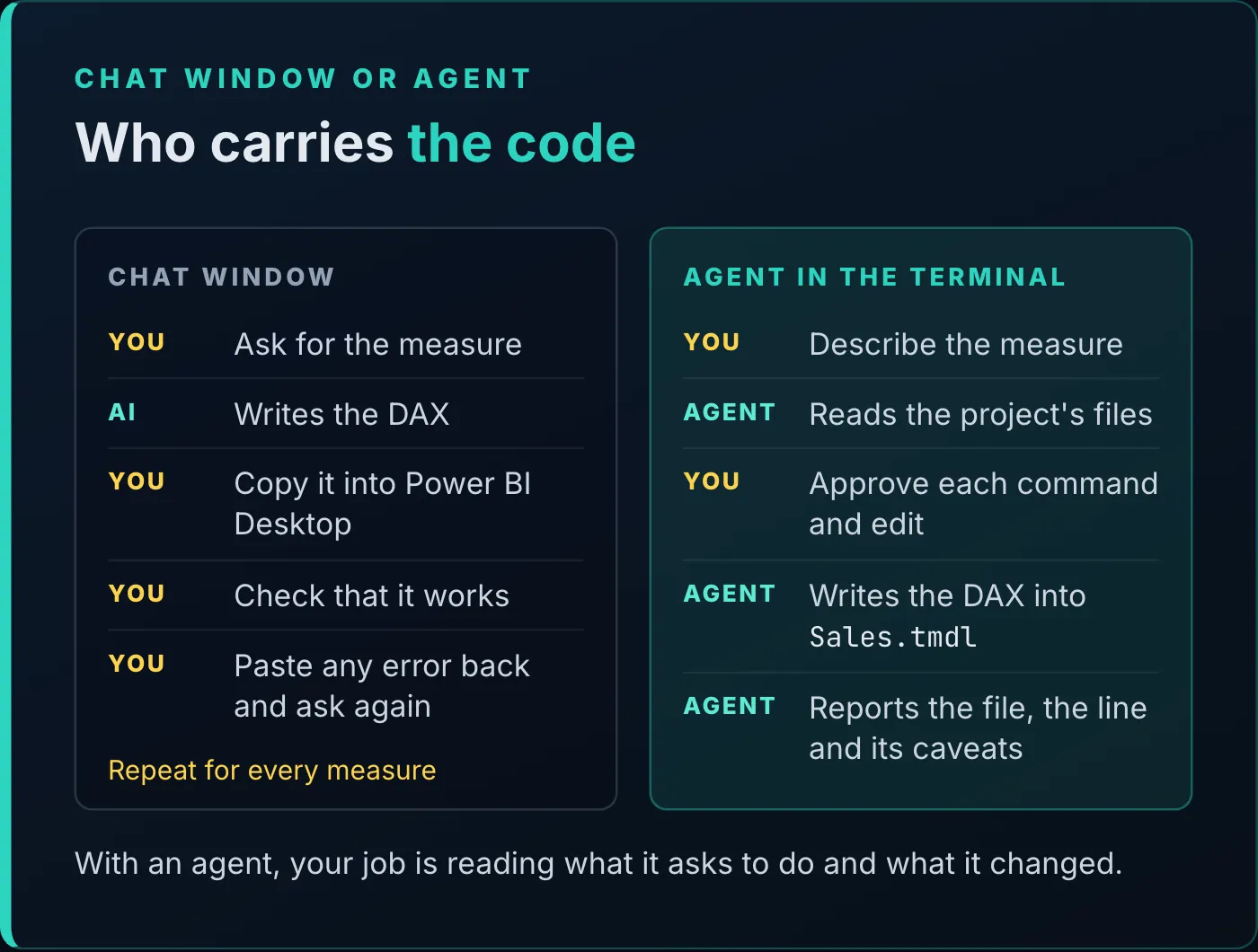
The same measure two ways: in the chat loop you move the code, and the agent edits the file after asking you.
This works on Power BI because of how a Power BI project is saved. Save a report as a Power BI project (PBIP), and the semantic model and the report become folders of text files, with the model written in TMDL. An agent that can edit text can edit those files. Power BI as Code covers the format.
A terminal is a text box where you type an instruction and your computer does something. Windows has one called PowerShell, and a Mac has one called Terminal.
The terminal I like best is the one inside Visual Studio Code. VS Code is a text editor with a strong terminal built in. Open it with Ctrl+J on Windows or Cmd+J on a Mac; VS Code’s keyboard shortcut sheet also lists Ctrl+` for showing the integrated terminal. When you open a folder with File > Open Folder, the terminal starts in that folder.
Two commands to start with:
ls
clear
ls lists what’s in the current folder. In the demo that folder is C:\Demo\Sales, a Power BI project, and ls shows its folders and files. It goes one level deep: it lists the folders but not what’s inside them. In PowerShell, ls is another name for Get-ChildItem, and Get-ChildItem -Recurse lists the subfolders’ contents too. clear clears the screen.
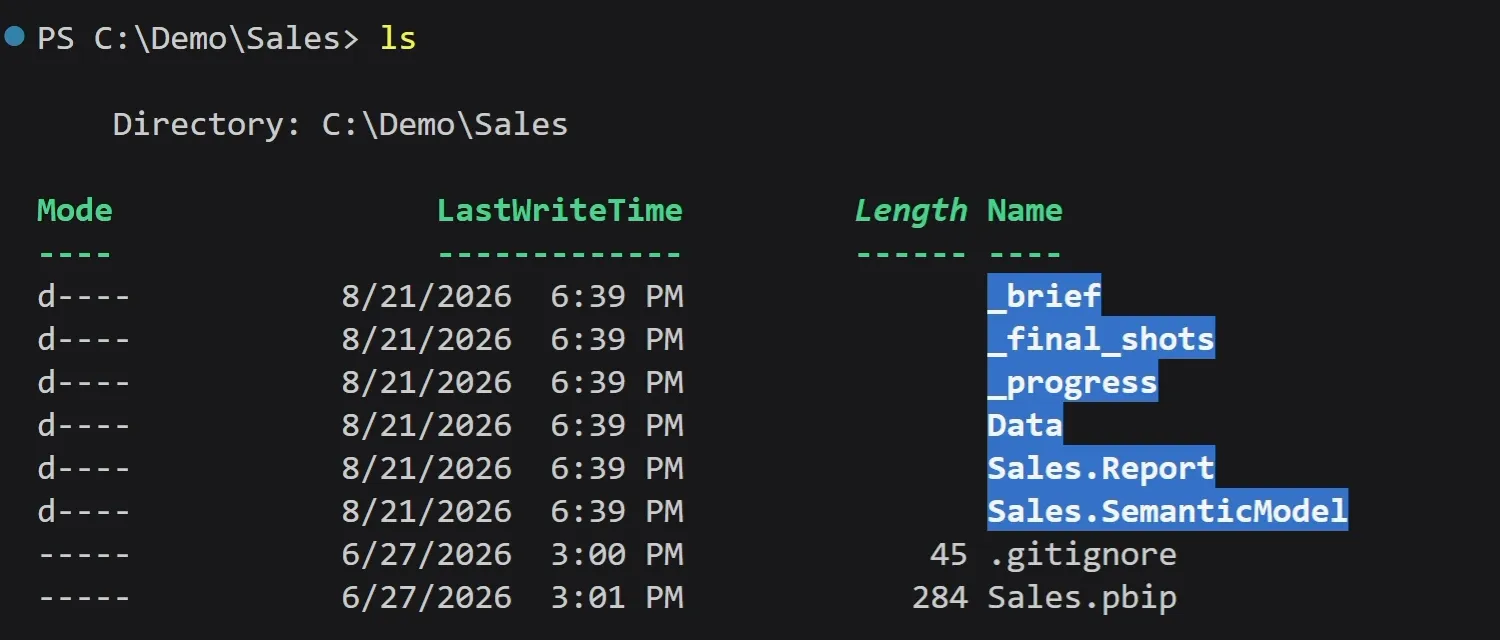
ls lists one level of the project folder: the folders and files directly inside it.
You could ask a chat bot how to write a command and paste its answer into the terminal. Or you can let the AI write the commands and run them itself.
The program that lets an AI model act on your machine, running commands and reading and editing files, is called a harness. Anthropic’s is Claude Code, and OpenAI’s is Codex. Claude Code most naturally uses Anthropic’s Claude models, and Codex most naturally uses OpenAI’s.
| Company | Chat window | Agent (harness) |
|---|---|---|
| Anthropic | Claude | Claude Code |
| OpenAI | ChatGPT | Codex |
This guide follows my setup: Claude Code, running Claude. Chat answers. Agents act. recaps the difference between the two columns on one page.
You install Claude Code once, from a terminal. Anthropic’s setup page gives these commands:
# Windows PowerShell
irm https://claude.ai/install.ps1 | iex
# macOS, Linux or WSL
curl -fsSL https://claude.ai/install.sh | bashYou can also install it with winget install Anthropic.ClaudeCode on Windows or brew install --cask claude-code on a Mac. When the installer finishes, open a new terminal and run claude --version. A working install prints a version number; the demo ran 2.1.247.
Claude Code needs a Claude Pro, Max, Team or Enterprise plan, or a Console account. The free Claude plan doesn’t include it. On Windows, Git for Windows is optional: without it, Claude Code runs its commands in PowerShell.
To start a session, open the project folder in VS Code with File > Open Folder, open the terminal, and type claude. The first time, it signs you in through your browser. When I typed claude, the terminal suggested adding --permission-mode bypassPermissions. I left it off, and the permission modes section below explains why.
Add Microsoft’s Skills for Fabric
Microsoft’s Skills for Fabric are a critical part of my setup. Microsoft released them at Build in June 2026 as an open-source collection of skills for AI agents, installed as plug-ins from Microsoft’s marketplace. With Claude Code running, type these at its prompt:
/plugin marketplace add microsoft/skills-for-fabric
/plugin install fabric-skills@fabric-collection
/plugin install powerbi-authoring@fabric-collection
The first command adds Microsoft’s marketplace. The other two install the plug-ins: fabric-skills, the main bundle for Fabric, and powerbi-authoring, the Power BI one. Then quit Claude Code and start a new session, so it loads the skills. The demo ran version 0.3.4 of powerbi-authoring.
Besides skills, powerbi-authoring includes the Power BI Modeling MCP server, a program that gives the agent actions it can run against a semantic model. The measure later in this guide was written through it. How to Install Microsoft’s Fabric Skills tours the whole repository, and How To Use Microsoft’s Fabric Skills To Build a Power BI Report builds a full report with the Power BI plug-in.
The first prompt
The first prompt in the demo was a question about the folder:
Please tell me about the contents of this folder.It’s the question ls answers, and the answer went much further. Claude Code wrote a PowerShell command to list every file, asked my permission to run it (the next section reads that command), and in all “searched for 1 pattern, read 7 files, ran 3 shell commands”. Then it described the project: “a demo “Sales Performance” report built from CSV data”. Its summary included:
Data/: seven source CSV files forming a star schema, withSales.csvas the fact table (2,000 rows, January 2024 to December 2025) and six dimensions: Date, Customer, Product, Store, Employee and Promotion.Sales.SemanticModel/: the data model in TMDL, with relationships from Sales to all six dimensions and 16 measures intables/Sales.tmdl.Sales.Report/: the report definition in PBIR format, with four pages.
Before Claude Code runs a command, it shows you what it’s about to do and waits. This is the command it wrote to list the folder:
Get-ChildItem -Recurse -Force | Where-Object { -not $_.PSIsContainer } | Select-Object @{n='Path';e={$_.FullName.Replace('C:\Demo\Sales\','')}}, Length | Format-Table -AutoSizeRead it left to right, one step at each pipe (|):
Get-ChildItem -Recurse -Forcelists everything in the folder and all its subfolders, hidden items included.Where-Object { -not $_.PSIsContainer }keeps the files and drops the folders.Select-Objectkeeps two columns: each file’s path withC:\Demo\Sales\taken off the front, and its size (Length).Format-Table -AutoSizeprints the result as a table.
It’s a specific script that I wouldn’t want to write myself, and you don’t have to. You need to read it well enough to see that it only lists files. Claude Code also flagged it: “Command contains script block that may execute arbitrary code”. A script block in PowerShell is code inside braces, and this command has two.
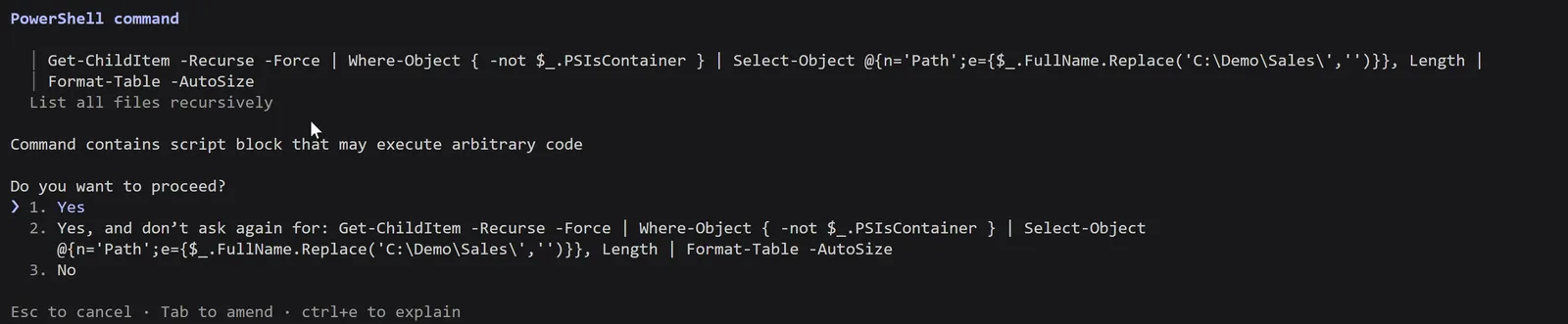
The permission prompt for the folder listing: the command, a warning, and three answers.
You have three answers:
- Yes runs it this once.
- Yes, and don’t ask again runs it and remembers the approval. Anthropic’s permissions page says that for a shell command the approval is permanent, for that repository and that exact command. For a file edit, it lasts until the session ends.
- No doesn’t run it.
The line underneath offers three more keys: Esc to cancel, Tab to amend, and Ctrl+E to explain. I rarely choose the second answer, because the agent seldom asks to run exactly the same command twice.
Not everything prompts. Claude Code reads files in the folder you started it in without asking, and a built-in set of read-only commands runs without a prompt too. File edits and other commands ask.
Once you answer yes, the command runs, its result goes back to the model on Anthropic’s servers, and the model reads it. It may run more commands before it writes up what it found.
Then the real job, in one prompt:
Add a measure called New Customer Revenue: revenue from customers whose first-ever purchase happened in the selected period. Put it in the Sales table and format it as currency.It names the measure, states the business rule, says which table the measure goes in, and sets the format.
Claude Code worked for about a minute and 50 seconds (“Cogitated for 1m 50s”), asking permission as it went. Then it reported that “the only change across all 16 TMDL files is the new measure block in Sales.tmdl”. It named the measure, Sales[New Customer Revenue], and its format, $#,##0 (“matches Revenue and the other currency measures”), and saved it at line 88 of Sales.tmdl, the Sales table’s file in Sales.SemanticModel\definition\tables, with nothing copied or pasted. This is the DAX it wrote:
VAR _PeriodStart = MIN ( 'Date'[Date] )
VAR _PeriodEnd = MAX ( 'Date'[Date] )
VAR _NewCustomers =
    FILTER (
        VALUES ( 'Sales'[Customer ID] ),
        VAR _FirstPurchase =
            CALCULATE (
                MIN ( 'Sales'[Sale Date] ),
                ALLEXCEPT ( 'Sales', 'Sales'[Customer ID] )
            )
        RETURN
            _FirstPurchase >= _PeriodStart
                && _FirstPurchase < _PeriodEnd + 1
    )
RETURN
    CALCULATE ( [Revenue], KEEPFILTERS ( _NewCustomers ) )
The measure it matched the format to is the first one in the same file:
	/// Net sales revenue after discounts. Primary measure of the report.
	measure Revenue = SUM(Sales[Net Amount])
		formatString: $#,##0
		lineageTag: c1c52f36-46b8-4d95-944b-14c50e42cb3a
Review it like a colleague’s work
The agent wrote the measure, and deciding whether it’s right is still your job. Its summary listed the design decisions behind it, which makes the review easier:
![The end of Claude Code's summary. Under Design decisions worth knowing: First-ever is derived from the Sales fact, not Customer[Join Date], because a join date isn't necessarily a purchase date. ALLEXCEPT on Sales and Sales[Customer ID] strips every filter when finding each customer's earliest purchase, so a product or region slicer doesn't turn an existing customer into a new one. Selected period is the min and max of Date[Date] in the current filter context, so it works at any grain. Less than PeriodEnd plus 1 rather than less than or equal to PeriodEnd makes the end-of-period check safe if Sale Date ever carries a time. Revenue for the new customers is then filtered to the selected period through the Sales to Date relationship. Under Caveats: the model was authored via the MCP against the PBIP folder offline, with no Power BI Desktop instance running, so the measure could not be executed against data; open Sales.pbip in Desktop to see values.](/_astro/agent-decisions.lZWkIdpc_Z5pw3h.webp)
The agent’s design decisions and its first caveat, from the end of its summary.
- The model has a
Customer[Join Date]column, and the agent didn’t use it: “a join date isn’t necessarily a purchase date”. “First-ever” comes from the Sales fact instead, as each customer’s earliestSale Date. ALLEXCEPT ( 'Sales', 'Sales'[Customer ID] )strips every filter except the customer when it looks for that first purchase, so a product or region slicer can’t turn an existing customer into a new one.- “Selected period” is the earliest and latest
'Date'[Date]in the current filter context, so the measure works by year, quarter, month or a custom range. With no date filter, every customer counts as new for the full calendar. < _PeriodEnd + 1rather than<= _PeriodEndkeeps the end-of-period check right ifSale Dateever carries a time.- Revenue for the new customers is then filtered to the selected period through the relationship from Sales to Date.
Microsoft Learn’s pages on ALLEXCEPT and KEEPFILTERS explain the two functions in full.
The caveat matters most. The agent “could not execute the measure against data”, because no Power BI Desktop instance was running. The DAX refers only to columns and measures it checked exist, but at that point the measure had never returned a number. Its suggested next step was to open Sales.pbip in Desktop and check the values, and that’s the step to take before you trust the measure.
The caveat also says how the agent edited the file: “The model was authored via the MCP against the PBIP folder offline”. It used the Power BI Modeling MCP server from the powerbi-authoring plug-in and worked on the project’s files with Desktop closed. With the project in Git, the change is also a diff you can read and revert; Get Your Power BI Reports AI-Ready with GitHub sets that up.
Claude Code asked before almost every step of that job. That’s safe, but it doesn’t save much time if you have to sit and watch it. The permission mode sets what it may do without asking. The status bar under the prompt shows the current mode, and Shift+Tab cycles through them. The demo’s session was in Manual mode (“manual mode on”), and each press of Shift+Tab moved it to accept edits, then plan, then auto, then back to Manual.
| Mode | Status bar | What runs without asking |
|---|---|---|
Manual (default) | manual mode on | Reads only |
Accept edits (acceptEdits) | accept edits on | Reads, file edits, and common filesystem commands such as mkdir, mv and cp |
Plan (plan) | plan mode on | Reads. Claude explores and writes a plan, and doesn’t edit until you approve the plan |
Auto (auto) | auto mode on | Everything, with a second model, a classifier, reviewing actions in the background |
Bypass permissions (bypassPermissions) | bypass permissions on | Everything. Anthropic’s docs say it’s for isolated containers and VMs only |

Shift+Tab moves through the modes, and the status bar names the current one.
Accept edits approves edits to files in the project folder. I like plan mode for larger projects, where you work through a whole strategy before anything changes. It isn’t needed for a small edit like one measure, but it suits planning something like a whole new Power BI project. Auto mode tries to strike a balance between reducing risk and keeping interruptions to a minimum.
Bypass permissions stays out of reach unless you allow it
Bypass permissions isn’t in the Shift+Tab cycle unless you start Claude Code in a way that allows it. Starting with --allow-dangerously-skip-permissions adds it to the cycle without turning it on. Starting with --permission-mode bypassPermissions puts the session in it from the start, and that’s the option Claude Code suggested when I typed claude. Without either one, the mode isn’t there to pick.
Administrators can block it in managed settings, by setting disableBypassPermissionsMode under permissions to "disable". I expect most enterprises will disable it in most cases. If it’s available to you, make a conscious decision about whether it’s right for your work.
You’re responsible for what your AI does and the impact it has. The more tools you connect it to and the more permissions you give it, the more destructive its actions can be.
How did the agent know where to add the measure? The prompt named the Sales table, and Claude Code was working in the project folder: the folder open in VS Code, which was also the terminal’s location when I typed claude.
Claude Code works in the folder where you start it. Anthropic’s permissions page says it has access to the files in that directory by default, and reading them doesn’t need your approval. It doesn’t read everything up front, because that would fill and clutter its context window; it reads what it needs as it works. You can give it access to other folders, with --add-dir <path> when you start or /add-dir during a session, but the project folder is where it does most of its work.
The context window is the model’s working memory for the session. Everything it reads and writes takes up room in it, and /context shows what’s using that room. Managing the context window is a topic of its own, outside this guide.
Even with the whole project in reach, you can give the agent a hint. Type @ and a path, and that file comes into your message. The suggestion menu lists paths from the open folder, so for a file a few folders down, type into the path, such as @Sales.SemanticModel\definition\, and pick the file from the list.
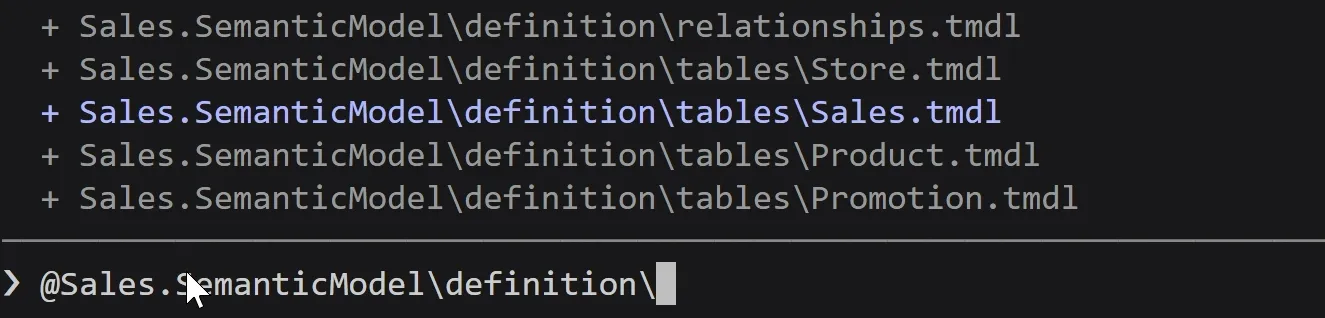
Typing into the path narrows the @ menu to the model’s TMDL files.
Anthropic’s docs say an @ file reference includes the file’s content in the conversation, up to the Read tool’s limit of 25,000 tokens by default. An @ folder reference shows the folder’s file listing, not the files’ contents. With Sales.tmdl tagged that way in a prompt that asks to update one of its measures, the agent looks in that file.
Think of it as instructions to someone who works for you. You can say “go update this measure”, or “go update this measure, and here’s where to start”. They might succeed either way, but the second makes it easier.
A skill is a reusable prompt: it tells Claude Code how to do a job, with the steps to take, the guidelines to follow, and anti-patterns, the things to avoid. In Claude Code, a skill is a folder with a SKILL.md file of instructions, plus any supporting files. Type / and the skill’s name to run it; Claude can also use a skill on its own when your request matches it. Typing / opens a menu of what you have, and plug-in skills show the plug-in’s name first, such as /powerbi-authoring:powerbi-report-authoring in my setup.
The status line is a fun one to try, although it’s a built-in command rather than a skill. /statusline sets up a line under your prompt that shows what you choose, such as how full your context window is or which model you’re running. It takes a description in plain English, writes the script for you, and updates your settings. Mine shows the Git branch, the session name, the model and its context size, a 10-block bar with the percentage of context used and the tokens used out of the total, the effort level, and my 5-hour and weekly usage limits with their reset times. To build one like it:
/statusline show the git branch, the session name, the model with its context window size, a 10-block bar with the percentage of context used and tokens used out of the total, the effort level, and my 5-hour and weekly usage limits with their reset times/skills lists every skill you have. In the demo it listed 56, each with a token count. The ones on screen all come from the fabric-skills plug-in.
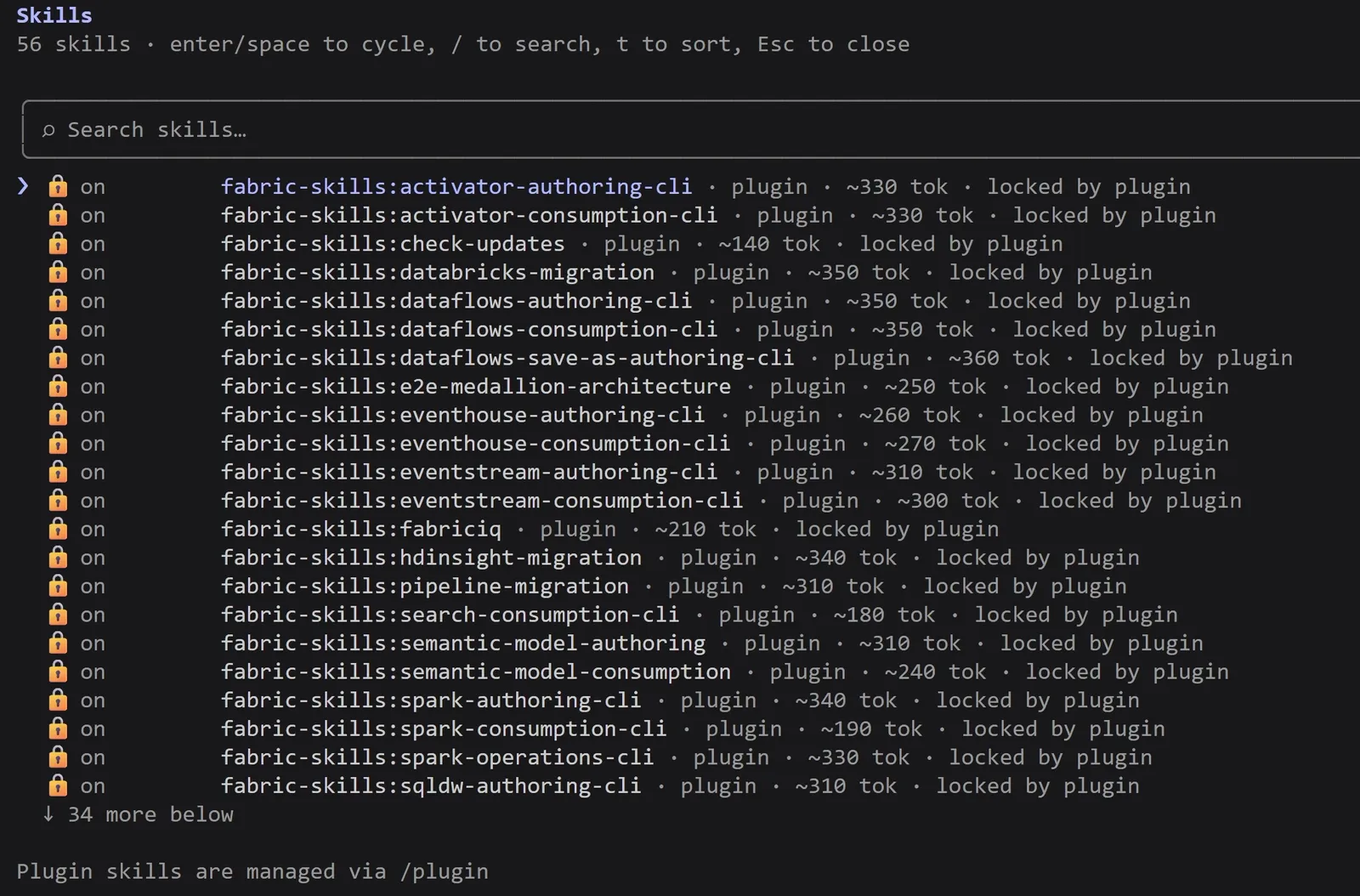
/skills lists every skill you have, with a token count for each.
Skills you add yourself come in two kinds:
- A project skill lives in the project’s
.claude/skills/folder. If the folder is a Git repository, the skill is part of the repository, so everyone on your team can use the same one. Switch to another project, and the skill isn’t there unless that project has its own copy. - A personal skill lives in
.claude/skills/in your home folder and works in every project on your machine, but it isn’t on anyone else’s.
Claude Code loads every skill’s description into each session, so it knows what’s available, and a skill’s full instructions only when the skill is used. The descriptions still add up, which is why not every skill should be a personal one. With lots of skills, your context window gets crowded and harder to manage, and you get less effective results, more slowly. Don’t turn on skills for the sake of having them.
Some skills ship with Claude Code, plug-ins add more, and you can write your own. I don’t really write mine: I have Claude write them, with the writing-skills skill from the Superpowers plug-in (/superpowers:writing-skills). When I get to the end of something I’ve worked out for the first time, I ask Claude to write a skill that captures it and documents it, anti-patterns included. Superpowers is in Anthropic’s official plug-in marketplace:
/plugin install superpowers@claude-plugins-officialIts README describes writing-skills as “Create new skills following best practices (includes testing methodology)”.
Skills are written in prose, so you can read them. Some come with reference files, such as Python scripts, that are harder to read if you’re not a coder, and you can ask Claude to review those.
I’d caution you against skills from third parties. If you use one, investigate it first: read it, understand what’s in it, and be careful of anything that refers to an external resource. Stick to skills from publishers you trust. Anthropic’s skills page adds one thing to check: a skill can grant itself broad tool access through its allowed-tools field, so review that field in any skill checked into a repository before you run Claude Code there.
Microsoft’s Skills for Fabric is the kind of trusted source I mean: Microsoft released it at Build, with a few dozen skills for Fabric development and about six for Power BI.
For your first session, start in plan mode, and start with something basic. Learn the mechanics of how the harness works, and read every step it takes. As you get comfortable, give it more autonomy.
My setup might be different from yours, and I’d like to hear what yours looks like: leave a note in the video’s comments. To take the Power BI skills further, How To Use Microsoft’s Fabric Skills To Build a Power BI Report builds a full report with them. To hand Claude Code admin chores in the service, such as checking who has access or which refreshes failed, Automate Fabric and Power BI Admin with Claude Code sets it up with the Fabric CLI.
Tools
- Claude Code (Anthropic), run from the VS Code terminal; the demo ran version 2.1.247
- Visual Studio Code
- Power BI Desktop, with the report saved as a Power BI project (PBIP)
- PowerShell on Windows, or Terminal on Mac
- Microsoft's Skills for Fabric: the fabric-skills and powerbi-authoring plug-ins
Prerequisites
- A Power BI report saved as a Power BI project (PBIP), so the semantic model and report exist on disk as text files
- VS Code, and a Claude Pro, Max, Team or Enterprise plan or a Console account (the free plan doesn't include Claude Code)
- Enough DAX knowledge to read a measure the agent writes and judge whether it is right; no terminal or coding experience needed
Resources
- Claude Code docs and install
- Advanced setup, Claude Code docs
- Configure permissions, Claude Code docs
- Choose a permission mode, Claude Code docs
- Common workflows (reference files with @), Claude Code docs
- Extend Claude with skills, Claude Code docs
- Customize your status line, Claude Code docs
- Commands, Claude Code docs
- Install and manage plugins, Claude Code docs
- Superpowers (obra/superpowers on GitHub)
- Skills for Fabric (Microsoft)
- Codex CLI
- Codex on GitHub
- Get-ChildItem, Microsoft Learn
- About script blocks, Microsoft Learn
- ALLEXCEPT, Microsoft Learn
- KEEPFILTERS, Microsoft Learn
- Visual Studio Code keyboard shortcuts for Windows
- Terminal basics, Visual Studio Code docs
- Chat answers. Agents act. (The Data Practitioner one-pager)
Related articles



Transcript
The copy-paste loop with ChatGPT or Claude
Is this how you use AI in your Power BI work? You go into ChatGPT or Claude, ask it for a DAX measure, copy and paste it into Power BI Desktop, check to make sure that it works, and then go back and ask it for different iterations or for new DAX measures? Well, I've got a trick for you that's going to help you speed up your work. This is my AI-powered Power BI setup, and it starts in the terminal.
What a terminal is, and where to find one
So what even is a terminal? Well, a terminal is just a text box where you type in an instruction and your computer does something. So where would you even find a terminal? Well, if you're on Windows, you've got a great terminal called PowerShell, and in Mac you've got one called Terminal. And actually, I tell you, the place where I really like to use the terminal is in an application called Visual Studio Code. VS Code is a great text editor, but it's also got a really strong terminal in it as well, and you can access that by holding down Control and hitting J in Windows, or Command J on a Mac. So we can just type commands in here. So, for example, let's say I type in LS and hit enter. So LS just stands for list, which is basically saying list all of the contents that are in this C colon backslash demo backslash sales folder. And so you see all of the folders and and contents of that sales folder. It only goes one level deep, so it's not recursive. So it doesn't tell me anything else that is in here. Another command I might say is clear, which will simply clear the terminal. So you can certainly get help from your AI chatbot of choice, Claude or ChatGPT, and you can ask it for how to write a command in terminal.
Claude Code and Codex: agents that run the commands
Or we can just let the AI write those commands for us, rather than round tripping those and copying, pasting errors and commands back and forth. And so the way that we're going to do that is by using a tool known as a harness. There are multiple different harnesses out there. Anthropic has one called Claude Code. OpenAI has one called Codex. Claude Code sort of most naturally uses Claude, and OpenAI and Codex most naturally uses ChatGPT. But you can actually use any AI model that you want. That's really outside the scope of this conversation, so for today's video, we're going to focus on what is in my setup, which is Claude Code using the Claude LLM. So the way that you access that is we're simply going to run a command here
Starting Claude Code and the first prompt
called Claude, and you'll notice here that it gives me a suggestion to enter a parameter called permission mode and enter the value bypass permissions. I'm going to leave that out, but just remember that we'll come back to that in a moment. And I'm just going to to hit enter here. And so now we are going to run in the terminal a command, an application called Claude. So let's say I want to learn more about what's in this folder. Essentially, that would be that ls command we ran a minute ago. So let's see how quad might handle this. So I can just simply say, please tell me about the contents of this folder, and I fire off that request to Anthropic's quad services, and then it will write a PowerShell script that it can run on our behalf. And so you see here it's written this PowerShell command, get children dash recursive. So this is how it finds all of the child items. You can see this is a pretty complex and specific script for us that I certainly wouldn't want to have to write myself. You can read this and kind of get a sense of what it's doing.
Permission prompts: yes, always, or no
It's asking me for permission whether or not this is okay to run. So I can say yes. I can also say yes and don't ask me for this specific prompt again. I'll be honest, I don't find a lot of value in that because it seldom asks me the exact same prompt very often. So I don't find a lot of value here. Or I can simply say no, I don't want to run that. But so I'm just going to to say yes for this, and so it's going to run this command. The terminal will return a result set. That result set gets sent back up to Anthropic's cloud services. That will read over that. It might iterate with some more commands as well, and then it's going to interpret that result set and then ultimately send us an analysis of what is in this folder. And so we see here not just the contents of of the root directory, but actually an assessment of what is in this. So this is a Power BI project called Sales Demo, and it tells you everything that is in here. It's actually got some of the data files in here. It's in a Power BI project format, so this is the Sales.semantic model and the Sales.Report folders. If you want to know more about the Power BI project format, I've got a link in the description down below.
One prompt adds the DAX measure to the model
So let's say I want to go back to my earlier example that you saw in the opening montage about new customer revenue. So I can just simply say, add a measure called new customer revenue, revenue from customers whose first ever purchase happened in the select period, put it in the sales table, and format it as a currency. All right, so you can see here that it is done. It took about a minute and 50 seconds. It gives you an example of what it did. It updated the Sales.tmdl file. Here is the DAX measure that it added. And then it also just gives you an explanation of what it did and some caveats along the way. So no more copying, pasting one prompt, and the AI just writes it into the model
Permission modes: manual, accept edits, plan, auto, bypassPermissions
itself. Now, you may have noticed that it kept prompting me over and over again, and that's kind of annoying, and you know, it's also not a huge time gain if I got to sit here and monitor the thing myself. So what can we do about that? So in In order to give the AI a bit more autonomy and let us have some of our time back, I want to tell you about the mode in which Claude is operating. You can see down here that it is currently set to manual mode. If I hold down Shift and hit Tab, we can cycle through some of the other modes that are available. So, for example, the accept edits mode is on. So that will accept edits to files that are in this folder. Another one is plan mode. I really like using this one for really larger projects. We can kind of go through an entire plan strategy for how we want to do something. It's really not necessary for a small edit like adding a DAX measure to a file, but if you wanted to plan, say, a whole new Power BI project, that might be a more appropriate mode. We've also got auto mode. This tries to find a nice balance between reducing risk and also minimizing interruptions, and then we'll cycle back to the manual mode. There's another one that doesn't show up here. If you remember back to when I ran Claude Code, and there was that permissions mode parameter that I could have entered, and then you could say bypass permissions. That does not put Claude into the bypass permissions mode, but it does make that as a selectable mode. It does say that it is kind of a dangerous mode to be in because it does bypass permissions. permissions, and so not setting that parameter means that that mode isn't even allowed for me to pick it. I'm going to imagine most enterprises will disable that in most instances, but if it's an option, then it's something that you at least need to be aware of so that you can make a conscious decision whether or not using it is the right choice for you. You've got to be responsible for what your AI is doing and the impact that that might have. The more tooling that you hook your your AI model up to, and the more permissions that you give it, the more destructive that its actions might be.
Folder context and the context window
So you might ask yourself, how did it even know where to go add that DAX measure to? I did say to add it to the sales table, but the other thing is it has this folder open here. This is our sales Power BI project folder. And so if you go to file and open folder, so this is where it will open it over here, and it was also the address in the command prompt that was open when we ran Claude. And so Claude is operating within the context of that folder, and it automatically has, as part of its potential context window, the contents of that folder. It's not necessarily going to read everything from that folder instantly, because that would fill up and pollute the context window, but those are the things that it has access to. You can give it access to things throughout your entire hard drive if you want to do that, but this is kind of Claude Code's happy place and where it will be doing most of its work. By the way, if you want to know more about managing context windows, that's outside the scope of this conversation, but let me know down in the comments below if that's something you would like me to talk more about. So if it's got your entire project in the context, let's say we
@ tags: point it at one file
maybe want to give it a little bit of a hint. So what we can do is using at tags. So I can say at sales dot TMDL, for example, and we can come down here to this sales dot TMDL file, and simply we hit hit enter. And so now we are referencing that specific file. And now if I give it a prompt, I tell it to update a DAX measure that is in that Sales.tmdl file, it will look specifically in that file. Imagine it this way. Imagine you give an instruction to someone who works for you, and you say go update this DAX measure, and that's all that you tell them, or you tell them go update this this DAX measure, and by the way, here's where you want to start. They might be successful in either case, but it's certainly going to be easier for them with the more context that you give them. @ tags specifically brings certain files or folders into context.
Skills: reusable prompts you call with /
So if an @ tag is one shortcut, skills are an even more impressive shortcut. Skills are essentially reusable prompts where you can tell quad code how to do something, sort of the steps to take, the guidelines that it might have, anti -patterns, in other words, things that it should avoid doing, for example. Skills are a really useful tool. The way that you invoke a skill is you simply type in slash and then the name of the skill. This status line here, for example, this is a fun one. It gives you a little status line underneath your prompt, and it can just tell you things about your context window, for example, what model you're running, and so on. Give that one a try, and let me know what status line you use down in the comments below. Another one you can type in is slash skills, and so this will tell you all the skills that you currently have access to. These skills are going to be of two categories. One is called local, the other one is global. Local skills are going to exist in this folder that you currently have open right here. If your folder is set up in a git repo, that skill is going to reside with the folder and will be a part of your repo. That might be useful if other people on your team want to be able to leverage the same skill and you want to make sure that everyone's using the same skill set. However, it means that when you switch to another project, that skill won't be available unless you have have an identical copy of it in that project as well. You can have global skills. They are global in the sense that they're not specific to one project. You can access them for any project on your device, but they are localized to your device, so it's not going to be on anyone else's machine, for example. Not every skill should be a global skill, because every skill is going to be loaded into your context window. And if you just have tons and tons of skills, it can pollute your context window and make it harder to manage, and you're not going to get as effective results, or results as quickly as you would. So be careful just enabling lots of skills for the sake of having them.
Writing your own skills and vetting third-party ones
So where do you get new skills? Well, like I say, some skills are going to ship with the harness, but you can always write your own skills. And in fact, I don't really write my skills. What I do is I have Claude write them for me. One of the skills that your Claude Code harness will ship with is a skill writing skill. skill. And so one fun thing is you kind of get to the end of something that you've figured out for the first time. You can actually have Claude write a skill for you that codifies all of that and documents it. It will document all those anti-patterns, for example. The skills are written in prose, so you can read them. And sometimes they'll also have reference files, which might be Python scripts or other similarly difficult things to read if you're not a coder. So you can always send those through to Claude for review. I would caution you against using skills from third parties. If you're gonna use skills from a third party, be sure to investigate those skills, read them, understand what's in them, and be careful of anything that references an external asset, and you really want to focus on skills that come from trusted third parties. For example, Microsoft, a couple months ago at Build, dropped a bundle of skills called Skills for Fabric. It's got a few dozen skills in there that are specific for development in Fabric. And in particular, there's about six skills that are specific for Power BI development.
Wrap-up and what's next
So what I would love for you to do, leave me a note down in the comments below. What does your AI setup look like? It might be different from mine, and I'd love to hear from you. And if you want to know about those Power BI development skills that Microsoft dropped, I've got a great video on that right over here. And I will see you next time.
New articles and videos