· AI tooling, Fabric, Power BI as code
How To Use Microsoft's Fabric Skills To Build a Power BI Report
Microsoft's Power BI skills turned seven CSV files and one paragraph into a four-page report in about an hour, then published it. This guide walks through the run, from the design contract the agent writes first to the model and pages it builds, the year-over-year bug it caught on its own, and why the published report still had no data.
What you'll learn
- Install the powerbi-authoring plug-in in Claude Code, and what each part of it does
- Write a first prompt for a new report, and read the design contract the agent writes before it builds anything
- Review the semantic model and report pages the agent produces, with a checklist from a real run
- See how the agent caught a year-over-year card that read +90.8%, and what a reviewer adds to its fix
- Explain why a report the agent publishes arrives without data, and choose how to get data into it
Seven CSV files and one paragraph of instructions went in. A four-page Power BI report came out: a star-schema semantic model with 20 measures, 43 visuals across pages named Executive Overview, Geographic Performance, Product Performance, and Customers & Commercial, and a published copy in a Power BI workspace. Claude Code built it with Microsoft’s Power BI skills in about an hour, then took about 15 minutes more to publish it. This article follows the run from the first prompt to the publish, including the bug the agent caught by looking at its own screenshots and the problems it left for a person to find.
What the skills are, and what you install
A skill is a Markdown file, SKILL.md, that teaches an AI coding tool one job: which commands and APIs to use, and which rules to follow. A skill doesn’t run anything. The tool reads it and does the work. The other half is an MCP server, a program that gives the tool actions it can call, in this case against a Power BI semantic model. Microsoft Learn puts the split this way: skills teach the AI assistant what to do, and MCP servers do it.
Microsoft publishes its skills in the open-source microsoft/skills-for-fabric repository, under the MIT license, and released them publicly at Build, on June 2–3, 2026. The repository’s marketplace offers two plug-ins. The Power BI one, powerbi-authoring, isn’t part of the main fabric-skills bundle. Today it holds two skills and a server:
semantic-model-authoringbuilds and changes semantic models as TMDL.powerbi-report-cliplans, designs, writes and publishes reports. It has four modes (planning, design, authoring and management) and picks one from your request.- The local Power BI Authoring MCP server,
@microsoft/powerbi-modeling-mcp, runs throughnpx.
The run in this article is from June 2026, when those four modes were four separate skills: powerbi-report-planning, powerbi-report-design, powerbi-report-authoring and powerbi-report-management. On September 17, 2026, powerbi-report-cli replaced them, and the repository’s changelog says existing report prompts keep working. How to Install Microsoft’s Fabric Skills tours the whole repository; this article stays with the Power BI plug-in.
To install it in Claude Code, type these two commands at the prompt, then start a new session so the skills load:
/plugin marketplace add microsoft/skills-for-fabric
/plugin install powerbi-authoring@fabric-collection
The same commands work in GitHub Copilot CLI. You also need the Azure CLI, signed in with az login, because the publish step gets its token from it; Power BI Desktop, where the agent opens and checks the report; and a workspace you can publish to. Claude Code is an officially supported tool for these skills, and this run used Claude Opus 4.8 . If Claude Code is new to you, How To Use Claude Code for Power BI Development installs it and adds the same Skills for Fabric plug-ins.
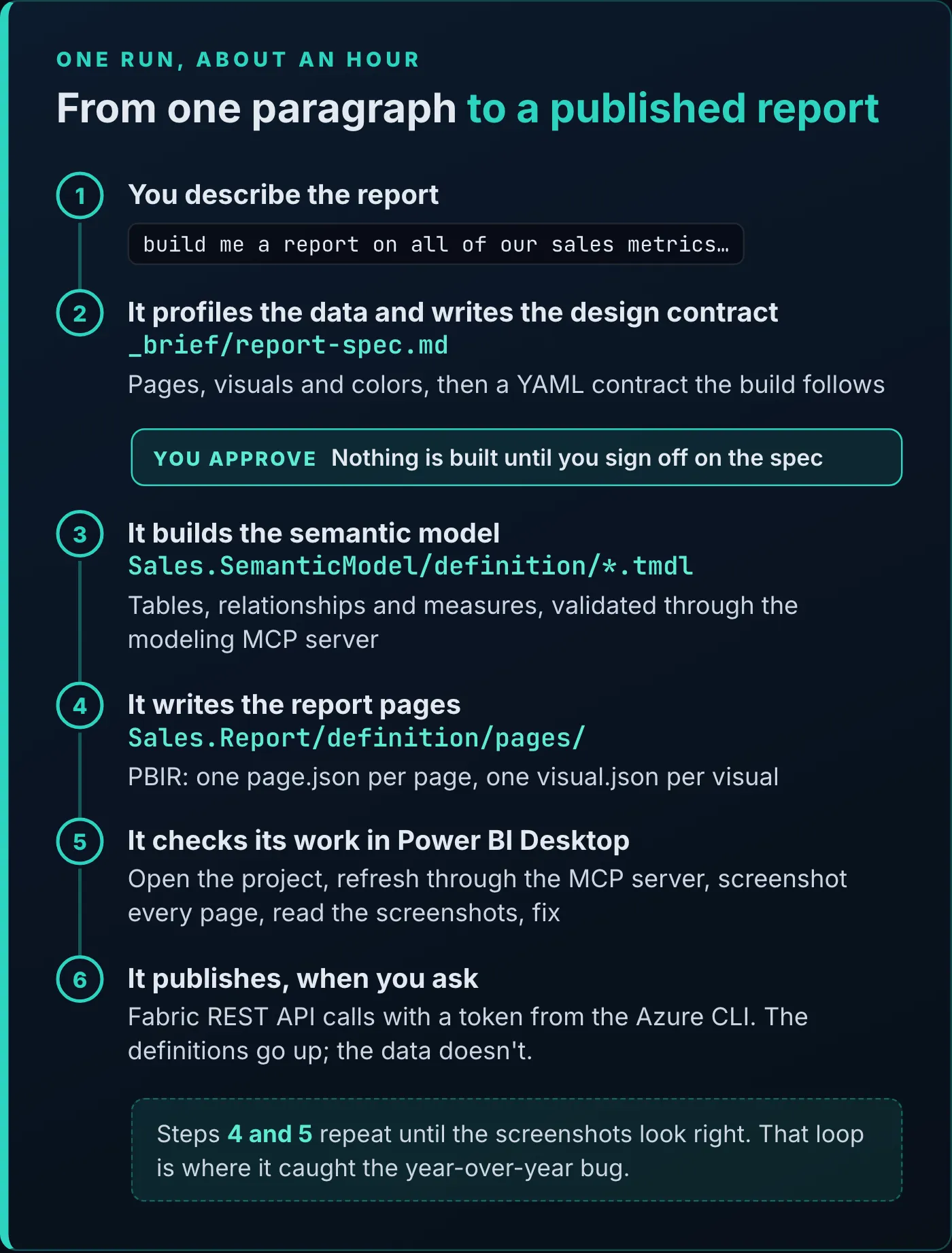
The whole run, from the prompt to the publish.
The starting point was a Demo folder with seven CSV files in Data: a Sales fact table and six dimensions, Date, Product, Customer, Store, Employee and Promotion . The data was already clean, on purpose. The run tests the skills, and messy source data would bring problems of its own. This article’s download has the same CSV files, the project the agent built, and its design contract.
The run started with /powerbi-report-design, followed by this prompt:
Please consume the data in the data folder and build me a report on all of our sales metrics. Make it executive facing, and make it about three or four pages. And in particular, I want some geographic analysis in there as well.With today’s plug-in, invoke powerbi-report-cli instead, or just ask, and it chooses the mode.
The planning step usually interviews you before anything else: who the report is for, what it should do, how many pages, and whether to publish it or only build the project. This prompt already named the audience, the subject, the size and one must-have, so the agent skipped the interview . Put the same things in your first prompt and the interview gets shorter.
Before it designed anything, the agent profiled the data. Its notes, saved at the top of the spec, record 2,000 sales rows from January 2024 to December 2025 and revenue down 9.2%, from $3.15M in 2024 to $2.86M in 2025.
Before any model or page existed, the agent wrote _brief/report-spec.md. The top half is for people: the audience (executive leadership), the purpose, the source files, the data profile, and the four pages. The bottom half is a “Canonical design contract” in YAML, which the later steps follow as the definition of what to build. YAML is a plain-text format in which indentation sets the structure, so the spacing matters . You don’t have to write it, but you can read it.
The contract gives each page a 12-by-12 grid with named regions. Page 1’s:
layout_contract:
  canvas: { width: 1920, height: 1080, margin: 32, gutter: 24, snap: 8 }
  grid:
    columns: 12
    rows: 12
    regions:
      header:  [1,  1,  10, 2]
      filters: [10, 1,  13, 2]
      kpis:    [1,  2,  13, 4]
      trend:   [1,  4,   9, 9]
      mix:     [9,  4,  13, 9]
      geo:     [1,  9,   7, 13]
      seg:     [7,  9,  13, 13]
Then it places every visual in a region, with the fields it shows and the question it answers. These are the Year slicer and the first of page 1’s five KPI cards, the one this article follows:
- { id: year_slicer, region: filters, kind: slicer, field_bindings: Date[Year], slicer_type: dropdown }
- { id: kpi_revenue,  region: kpis, kind: cardVisual, slot: 1, of: 5, purpose: "Total net revenue and YoY direction", field_bindings: Sales[Revenue], color_strategy: measure_match, insight_basis: "Revenue YoY % vs prior year (-9.2%)" }
Each page ends with a space_audit block that counts the grid cells in use; page 1 reports empty_cell_pct: 0. The full file, with all four pages, the color map and the accessibility notes, is in the download.
Read the contract before you approve it. Check the page list and the question each page answers, the measure named in every visual’s field_bindings, the color map, and the slicers on each page. Give the agent your guidance while it writes the spec and the contract, and iterate on it there . In this run the agent stopped for my approval before it built anything; the video doesn’t show that step. Today’s powerbi-report-cli requires it. Since release 0.3.19, on October 1, 2026, a request to build and publish a new report stops at the finished spec until you approve it in a later reply.
Come back to the contract once the report is built, because the two can drift. This contract asks for a filled map on page 2 and an Orders card on page 1. The finished report has an Azure Maps visual with a bubble layer on page 2, and a Revenue YoY card in place of Orders.
Commit the spec with the project. It can become part of the report’s design specifications .
Next, semantic-model-authoring turned the CSV files into a semantic model, written as TMDL inside the project in Sales.SemanticModel. From the files it left:
- Seven import tables, one per CSV file, with
Datemarked as the date table. - Six relationships, from
Salesto each dimension. - 20 measures, each with a
///description: 16 onSales, and a count measure on each ofCustomer,Product,StoreandEmployee.
If TMDL is new to you, Power BI as Code walks through the format. Once the files were written, the agent validated the model through the modeling MCP server , the one The Power BI Modeling MCP Server, Hands-On works with. Three of the measures, as the agent wrote them in Sales.tmdl:
	/// Cost of goods sold = unit cost x quantity, summed per line.
	measure COGS = SUMX(Sales, Sales[Unit Cost] * Sales[Quantity])
		formatString: $#,##0
		lineageTag: bb7c2512-b735-4f56-b723-bd80ddd187fc

	/// Gross profit = Revenue - COGS.
	measure 'Gross Profit' = [Revenue] - [COGS]
		formatString: $#,##0
		lineageTag: daaf3dbc-4a4b-4a4d-8baf-11fa01c79cbf

	/// Gross margin as a percent of revenue.
	measure 'Gross Margin %' = DIVIDE([Gross Profit], [Revenue])
		formatString: 0.0%
		lineageTag: 7361edb0-81fe-4e36-9b3c-2f9a6b5c65fb
And the three behind the card this article follows:
	/// Revenue for the same period in the prior year.
	measure 'Revenue PY' = CALCULATE([Revenue], SAMEPERIODLASTYEAR('Date'[Date]))
		formatString: $#,##0
		lineageTag: 46d8d1b9-9254-435b-b780-4c06a0d61995

	/// Year-over-year revenue change in dollars.
	measure 'Revenue YoY' = [Revenue] - [Revenue PY]
		formatString: $#,##0
		lineageTag: 84281bd8-928c-4a17-8efc-5dbd55cdf955

	/// Year-over-year revenue change as a percent.
	measure 'Revenue YoY %' = DIVIDE([Revenue] - [Revenue PY], [Revenue PY])
		formatString: 0.0%
lineageTag: 08529063-8378-4faa-8231-7a5a2d2a278bpowerbi-report-authoring (today, powerbi-report-cli in authoring mode) wrote the four pages as PBIR in Sales.Report/definition/pages/: a page.json for each page and a visual.json for each of the 43 visuals. In this run the agent wrote a generator script in a temporary folder and produced the files from it, so each fix was a change to the script and a rerun.
Next the agent checked its own work, in the loop of steps 4 and 5 in the diagram above . It fixed the errors it found in the first render , opened the project in Power BI Desktop , and captured a screenshot of every page . The model hadn’t fully refreshed, so it connected to the local model through the modeling MCP server, refreshed it, and captured the pages again . Microsoft Learn’s page on the report authoring skill describes the same loop, with the Power BI Desktop CLI opening, reloading and capturing the report; the Desktop bridge article covers that tool.
Reading the screenshots is how the agent finds problems. It reviews each page in turn:
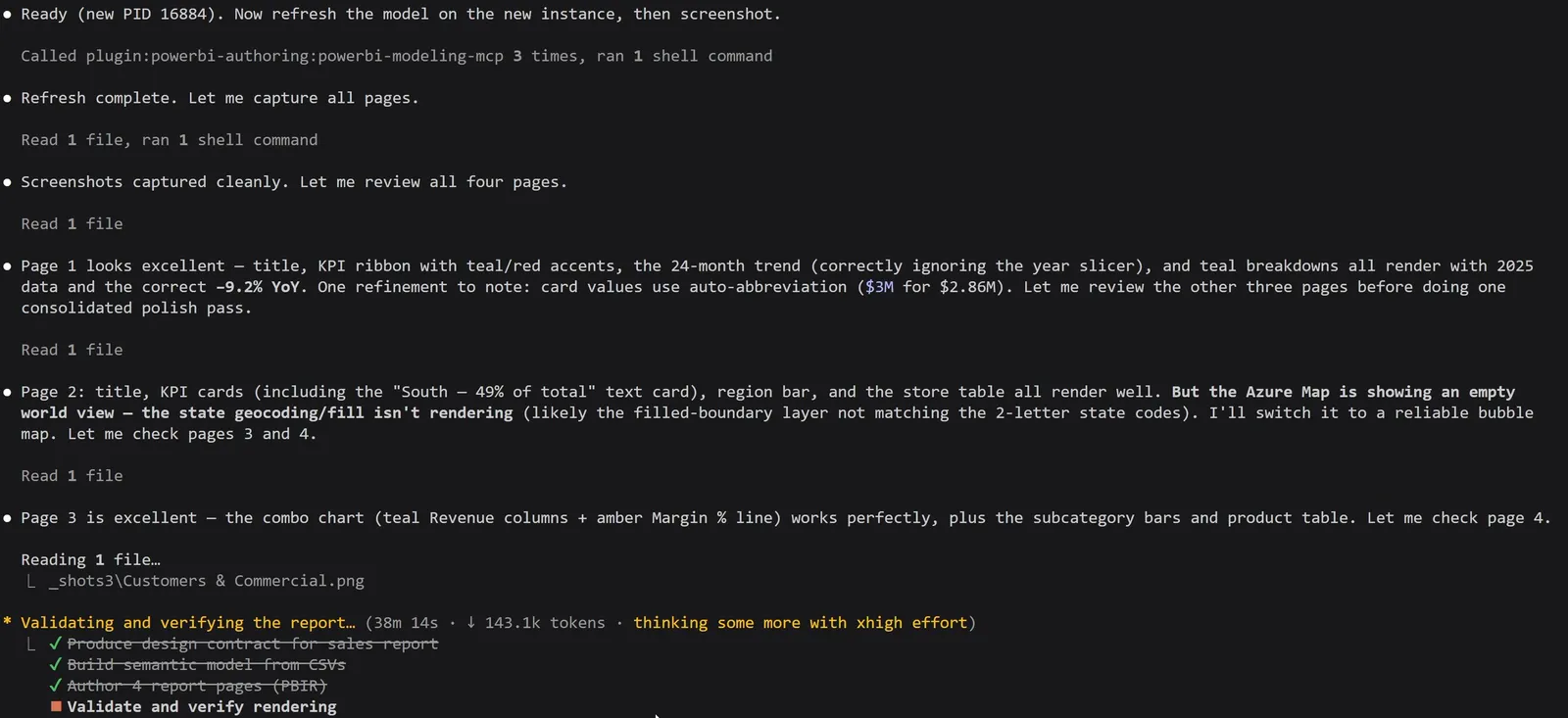
The agent read its own screenshot of each page and listed what to fix.
That review caught two problems besides the year-over-year card . On page 2 the Azure Maps visual showed an empty world view. The agent turned off the visual’s filled-map layer and turned on a bubble layer sized by revenue (bubbleLayer with sizeByValue on, filledMap off), and the map came back zoomed to the United States, with Florida as the largest bubble. On page 1 the KPI cards rounded $2.86M to “$3M”, so it set the cards’ display units to millions with one decimal place, and the revenue card read $2.9M.
The agent kept its screenshots in folders inside the project, ending with _final_shots, and you can reuse them in wireframes and design documents . Since release 0.3.19, the skill saves validation screenshots to a temporary folder unless you name a location. It also saved memories, notes for later sessions, about the mechanical problems it had worked through .
The first screenshot of the Executive Overview showed the Revenue YoY % card at +90.8%, for a business whose revenue fell 9.2%.
Before it raised the card, the agent queried the live model to check the numbers behind the page: revenue of $6.0M, gross profit of $2.32M, a 38.6% margin, 2,000 orders, and an average order value of $3,003, all matching its profile of the CSV files. Then it flagged the card and proposed a fix:

The agent checked the numbers against the live model, then explained the +90.8% and proposed a fix in the report.
The cause was the filter context. With the Year slicer on all years, Revenue adds up 2024 and 2025. SAMEPERIODLASTYEAR shifts those dates back one year, to 2023 and 2024 (Microsoft Learn: it returns the same dates as DATEADD(dates, -1, year)), and 2023 has no rows. So the card compared two years of revenue with one. As the agent put it, the number is “only meaningful for a single year”.
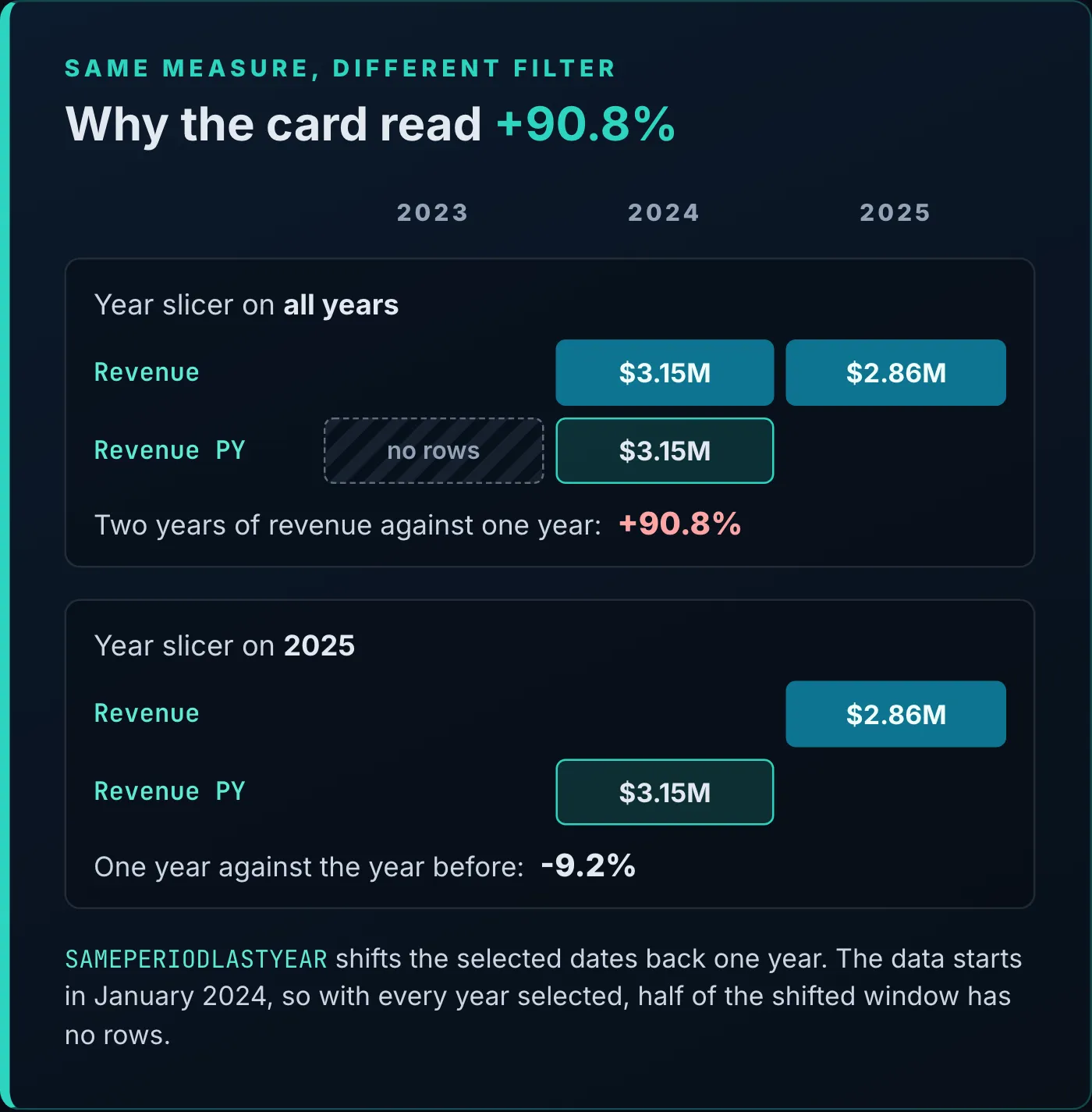
The same measure under two filters.
The agent’s fix was in the report, in two parts. Each page’s Year slicer now saves 2025 as its selection (the slicer’s filter holds the value 2025L), and the four slicers share a sync group, so a change on one page carries to the others:
"syncGroup": {
  "groupName": "YearSync",
  "fieldChanges": true,
  "filterChanges": true
}
And page 1’s page.json stops the Year slicer from filtering the monthly trend chart, so the line keeps all 24 months. The source is the slicer and the target is the line chart:
"visualInteractions": [
  {
    "source": "a4f0a509ad8152e6f4e7",
    "target": "cebbc5bab389e1f80db2",
    "type": "NoFilter"
  }
]
After the change, the card reads -9.2% and the trend shows the decline across both years:
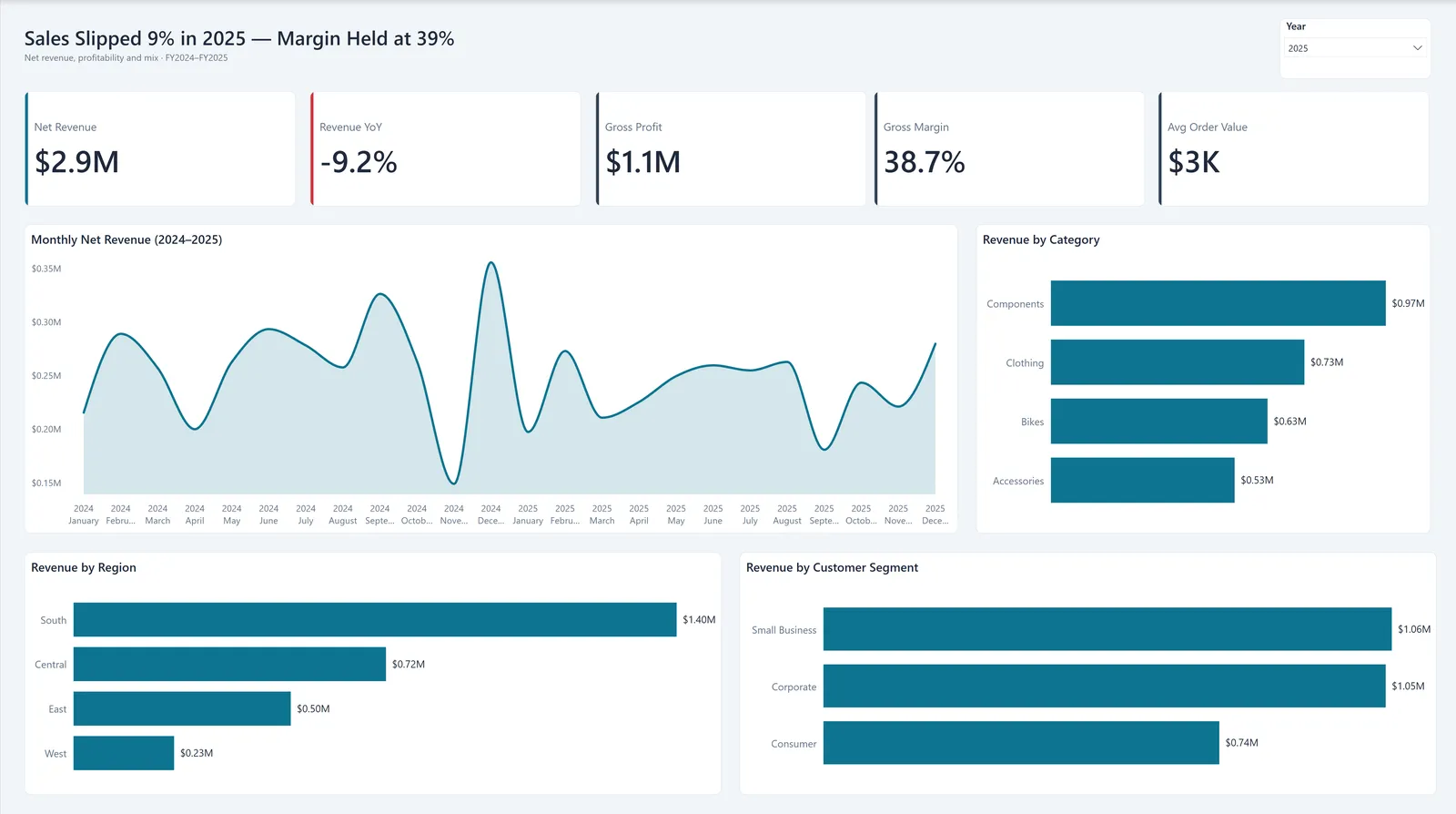
The finished Executive Overview, in the agent’s own final screenshot.
The agent caught the bug because it looked at a rendered page, the way a person would, so it can only catch what it renders, and you still have to look too.
A reviewer would also notice that a default slicer value is a choice the reader can undo: clear the slicer, and the card shows +90.8% again. One option is a measure that returns blank unless exactly one year is in the filter context:
Revenue YoY % =
IF (
    HASONEVALUE ( 'Date'[Year] ),
    DIVIDE ( [Revenue] - [Revenue PY], [Revenue PY] )
)
With one year selected, the card works as before. With every year selected, it’s blank instead of wrong.
There are two ways to get the report into the service. Power BI Desktop’s Publish button uploads the semantic model, the report, and the data cached in the model . Or you ask the agent, as this run did: “please publish this to the sales performance demo workspace” , which handed the job to the management skill.
The agent got a token for the Fabric API from the Azure CLI:
az account get-access-token --resource "https://api.fabric.microsoft.com" --query accessToken -o tsvIt passed the token to a Python script it wrote, which called the Fabric REST API twice: first to publish the Sales semantic model to the workspace, then to publish the Sales Performance report bound to it.
Two details came up that you’d also hit doing this by hand. The local definition.pbir points at the model by path:
"datasetReference": {
  "byPath": {
    "path": "../Sales.SemanticModel"
  }
}
A published report has to point at the published model instead, so the agent published it with a byConnection reference. And in this run, the service rejected the PBIR schema versions in the files, so the agent changed the $schema versions from 2.0.0 to 1.2.0 and added a layoutOptimization property to report.json before the report would publish :
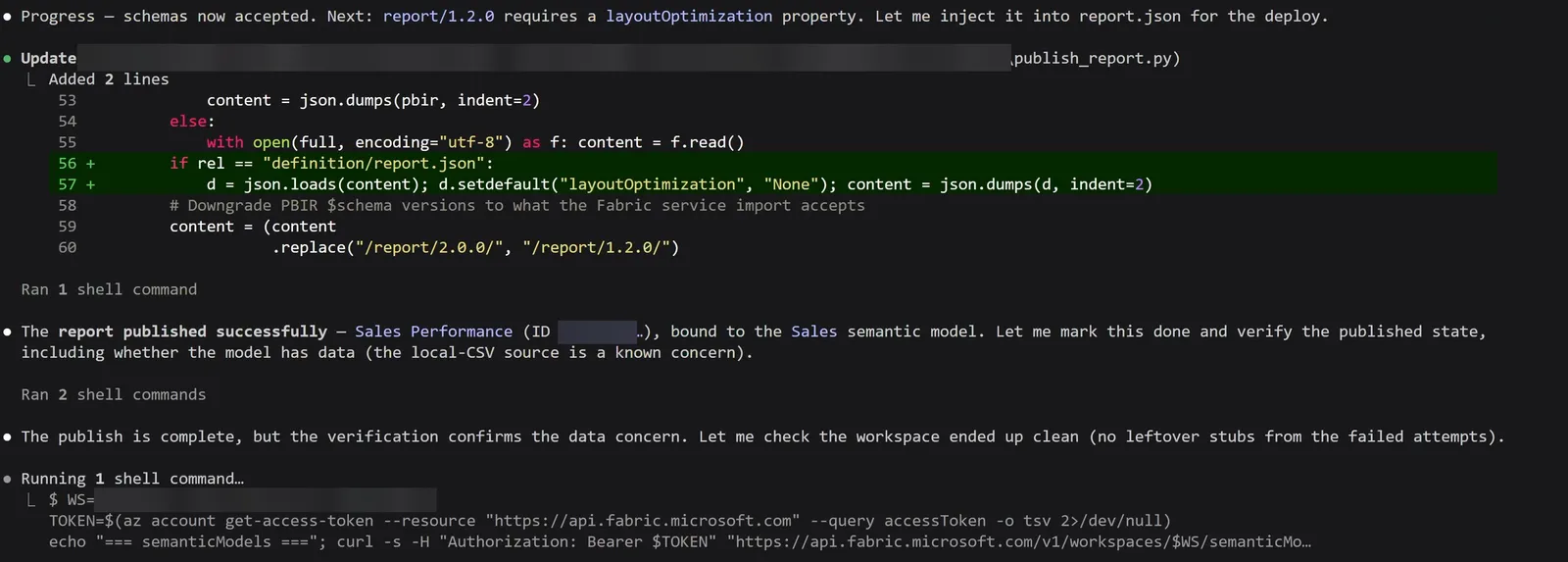
The report published after two changes for the service, and the agent went on to check whether the model had data.
The report opened in the service with errors where its visuals should be . A publish sends the semantic model’s definition, which for the Fabric REST API is its TMDL files and definition.pbism (Microsoft Learn). The imported data lives in cache.abf in the project’s .pbi folder, which isn’t part of the definition. So the service got the model’s metadata and schema, and no rows .
To fill the model you need a refresh, and a refresh needs a source the service can reach. This model reads files in C:\Demo\Data, so the service needs an on-premises data gateway, in standard or personal mode, with those files set up as its data sources (Microsoft Learn). A source the service can reach directly makes this smoother; the video’s example is an Azure SQL database . Or publish from Power BI Desktop, which takes the cached data along . Publishing took the agent about 15 more minutes .
My verdict is to treat these skills like a really fast junior developer. The agent isn’t entirely independent, but it did a good job of troubleshooting the problems it found, and in about an hour it did what would probably take a junior developer the better part of a week, or at least a few days .
Its work needs the review you’d give any new developer’s. A checklist from this run:
- Approve the design contract before the agent builds, and compare it with the finished report.
- Read every measure, and check two or three numbers against a source you trust.
- Look at every page with the slicers set, and again with them cleared.
- Plan the refresh, through a gateway or a source the service can reach, before you publish.
Point it at a new report you’ve been meaning to build, or at an existing one. Keep the project in source control, as Get Your Power BI Reports AI-Ready with GitHub sets up, so every change the agent makes is a diff you can read. Then review that diff before anyone else sees the report.
Tools
- Claude Code (GitHub Copilot CLI uses the same install commands)
- Skills for Fabric: the powerbi-authoring plug-in, with semantic-model-authoring and powerbi-report-cli
- The local Power BI Authoring MCP server, bundled with the plug-in
- Power BI Desktop
- Azure CLI
Prerequisites
- You build Power BI semantic models and reports by hand today
- Claude Code or GitHub Copilot CLI, and the Azure CLI signed in with az login
- Power BI Desktop, and a workspace you can publish to
Resources
- microsoft/skills-for-fabric, GitHub
- Skills for Fabric changelog, GitHub
- Skills for Fabric overview, Microsoft Learn
- Install Skills for Fabric, Microsoft Learn
- Power BI Report skill, Microsoft Learn
- Power BI Authoring MCP server, Microsoft Learn
- SemanticModel definition, Fabric REST API, Microsoft Learn
- Data refresh in Power BI, Microsoft Learn
- SAMEPERIODLASTYEAR, Microsoft Learn
Downloads
Related articles


Transcript
An AI built this whole report
It took about an hour, but my AI just wrote an entire four-page report from scratch with just a few simple sentences.
What Skills for Fabric is
So a few weeks ago at Build, Microsoft released a repository called Skills for Fabric, and in it they included a number of skills and tools that you can plug into your AI harness of choice and use it to create, consume, and manage content in Fabric and the Power BI service. So you can do things like SQL data warehouses, real-time intelligence, notebooks, and of course Power BI content. So that's what we're going to dive deep on today.
The five Power BI skills it uses
So we are going to cover five skills in particular. So Power BI report design, report planning, report authoring, report management, and also semantic model authoring. So in fact, the way that we're going to do it today is we will start with the Power BI report design, which will sort of design the overall lifecycle and then take us all the way through publishing to the Power BI service. It will invoke those other skills along the way as necessary, but you can also invoke those skills individually if you need to. So whenever we're working on a Power BI report, of course, one of the first things we want to think about is the data. What data do we need? Where are we going to get it from? What shape do we need it in? And what shape is it in now? So I've gone ahead and done some of that heavy lifting for us. You can see here that we've got a data folder with several CSVs. So these are already cleaned and ready for us. So we are starting from a pretty convenient place, but the The point is to demo these skills, not necessarily to troubleshoot dirty data. So just know that you might run into some other problems that I won't have today, because I just want to show you what these skills are and what they can do.
Giving it one vague ask
So the first thing I'm going to do is type slash Power BI report design. And then I'm just going to give it a command here. here. Please consume the data in the data folder and build me a report on all of our sales metrics. Make it executive facing, and make it about three or four pages. And in particular, I want some geographic analysis in there as well. So normally it will ask some follow up questions to get a bit more detail on what you want. The prompt I gave it answered some of those questions that it might normally ask, so it looks like it skipped thosethat interview this time around. And so you can see that it gave some high-level analysis of some of the data that it reviewed, and it has created
The design contract in YAML
a report design spec. And so in fact, we can click, we can open this guy and see. So this is in markdown. We can click in here, hold down Ctrl Shift and V, so this This is what the report looks like. And so it's just giving some of the details on the report. Here are the different pages, the four pages, and the visuals that are gonna be on each page. And one of the things that I wanna point out, this canonical design contract, so this is what it promises to deliver, and it is writing this out as a contract to you, if you will, in YAML. So YAML stands for Yet Another Markup Language. One nice thing is it is relatively human readable. It is tab conscious, so the tabbing does matter. Point is, you don't have to write it, but you can go through here and and read this, right? So these are just some of the design notes and just different details about the report, some of the color theming here, and then we go down into the individual pages and some of the the visuals on each page and so on. So what it had up above was in sort of human readable terms, but it needs that in a more concrete form that deterministic code can ingest, and so this is that deterministic contract of what it is going to build for you, laid out in YAML. So this is the definitive key of what it's going to lay out here. You don't necessarily need to read it, but it is there if you want to read it, and you can also change this, but you can, or you can have AI change it. Moreover, you can commit this to your code repository. You can make this part of your design specifications for the report. This can be the seed for your RDR. So what we see here is a list of the tasks that it has produced for itself. So the first thing is, is going to design, is going to build the
Building the semantic model
design contract. So that's what I just covered a moment ago. Now it is building the semantic models from the CSVs. You can see here it's building the customer.tmdl file, the store .tmdl file. If we come over here, we see thesales.semantic model and the various tmdl files in the tables. So you can see here that the semantic model tmdl is written, so now it's just going to run it through a validation step by utilizing the modelingMCP server, which comes as part of the Skills for Fabric. By the way, if you want to see more about the modelingMCP server, I did a video about that. You can see a link in the description. Also, you can see here that it is calling another one of the skills, the Power BI authoring skill, using this modeling MCP server here. Alright, as you can see now that the model is built
Authoring the report pages
and validated, and so now it's going to author the report. And so you can see that it is now loading the Power BI report authoring skill, and it, you can see it also down here in the steps. So it's now done building the semantic model, and it's going to start building the four report pages in Power BI report format. Okay, so you can see that it is writing our report PBIR here. It has several pages with some of the visuals on those pages, so it is working away. It
It checks and fixes its own work
has finally rendered all four report pages. It did render them with some errors, and then you can see from the notes before, it has gone ahead and fixed those. And so now what it is going to do is try to open those reports and this model in Power BI Desktop, and just confirm that it loads correctly and that everything looks right. So you can see here what it's done is it has literally captured snapshots of all four pages. So it's captured those snapshots. It found that the model hasn't fully refreshed, which we can come over to Power BI Desktop and we can certainly see that for ourselves. So now what it's going to do is use the modeling MCP server to connect to the local instance of this model and then perform a refresh. And then it will recapture those screenshots and reevaluate. So you will encounter some problems. Depending on the model that you use, I'm using Opus 4.8 here. It can be pretty robust and resilient at trying, trying, trying again, trying again. And if not, sometimes you might need to sort of point it in the right direction. So it's saying that the refresh is complete. So let's come over to Power BI Desktop and check this out. So you can see here that now the refresh is complete. I mean, this looks pretty good. We can certainly review this, criticize it, provide some feedback. But I think just for this demo, this is a pretty good looking first start.
Catching its own year-over-year bug
So you can see here that in its visual check, it noticed a problem with the revenue year over year measure, and so it has figured out how to resolve that problem. So it's actually going to go ahead and implement a fix for that on its own. So while this is continuing to load, I want to point out over here that it stores the screenshots that it has taken. You can actually look at these, and you can include these in your wireframes and your RDRs if you want to do that. So there were a number of problems that we encountered. So there was a problem with the Azure Mass Visual. There were just some mechanical problems that the tool encountered. It was able to work through all of those, and you'll see that it actually recorded some memories. Okay, so we've got a fully working Power BI report. And so we can come here and see what it has built for us. And you know, I mean, for an AI generated report, I think this is pretty good. If there are certain things that you don't like, you can certainly provide it feedback and offer suggestions on what to change, how to improve it, right? You can also offer more guidance upfront on the exact nature of the different pages that you want, the different visuals that you want, and how you want that broken out. You just want to do that iteratively as it is writing out that design spec and that canonical contract that we talked about earlier.
Publishing, and why it lands empty
You can also publish this to the service. Now, you can obviously just come here and hit the publish button. This will publish both their semantic model and the report and the data that is cached in the semantic model currently along with it. Or what we can do is I can come here and say, please publish this to the sales performance demo workspace. And so this will invoke the Power BI report management tool to publish the report and the semantic model to the Power BI service for us. The caveat is that it will publish it through the Azure CLI. So it will not publish the cache.abf, meaning it won't publish any of the data. So it will push up a dehydrated report for us with none of the data included in that. So what that means is that you would have to perform a refresh after you get the report into the service. If these are pointing at CSV files on a local machine, as is my case here, you need to create some data gateways to point to those. If it were pointing at an Azure SQL database, for example, that might be a little bit more fluid. Okay, so our AI has wrapped up. It took about another 15 more minutes for it to get published. So let's go to the Power BI service and check this out. So here is our sales model, and then here is our sales performance report. If we open this up, you will see that the data in the model is not there. The reason that we're getting these errors is because it published just the metadataand the schema for the sales model and not the data in that cache.abf file, as I pointed out. So you would need to come into the sales model and set up some data gateways to be able to point at those CSV files, or you could just publish from Power BI Desktop. And just to show you what that looks like, here is one that I did previously.
The verdict: a fast junior developer
So where does that leave us? Well, I think the verdict is that you should treat this like a really fast junior developer. It's not entirely independent, but it did do a good job at troubleshooting the problems that it found. And it did in about an hour what it would take a junior developer probably the better part of a week, or at least a few days, to do. So to me, I feel like this is a tool that we can use to become much more efficient at what we do. So go download the Skills for Fabric repo, check out the Power BI bundle, point it at an existing report, or have it author a new report that you've been meaning to tackle. And let me know how you get along down in the comments. And also, if there's another one of the bundles in the Skills for Fabric repo you want me to check out, just let me know. And if you wanna know more about the Skills for Fabric overall, there is a video right here, and I'll see you next time.
New articles and videos