· AI tooling, Power BI as code, Power BI Desktop
AI Can Now Check Its Edits in Power BI
The Power BI Desktop Bridge lets an AI agent reload the report it just edited and screenshot the result, so it can grade its own work before you look. This guide sets it up, explains each call, and walks through an agent that rebuilt a table as a formatted matrix in 11 graded rounds.
What you'll learn
- Explain what the Power BI Desktop Bridge is and how an agent reaches it
- Check the setting and install the Desktop Bridge CLI
- Have the agent read the manifest before it calls anything else
- Check for unsaved changes in Desktop before the agent reloads
- Write a prompt with criteria an agent can grade from a screenshot, and read the agent's log of its rounds
An AI agent can write a Power BI report’s files, but it couldn’t see what Power BI Desktop made of them. The Power BI Desktop Bridge, released in preview in June 2026, gives the agent a way in: it can reload the report it just edited, screenshot the page, and grade the picture before you look. This article sets the bridge up, explains each call, and follows one agent through 11 rounds of turning a plain table into a formatted matrix.
Save a report as a Power BI project (PBIP) and Desktop writes it to disk as text: the report as PBIR, with one JSON file per page and per visual, and the semantic model as TMDL. Power BI as Code walks through those files. An agent such as Claude Code can edit them directly.
Seeing the result was the hard part. Open an agent-edited project in Desktop and, half the time, it wouldn’t open correctly. You got a nondescript error message, copied it back to the agent, let it edit the files, closed and reopened Desktop, and maybe got a different error . Once the report opened, every change to a visual went around the same loop: the agent tried, you gave feedback, and you closed and reopened Desktop to see the next attempt . The agent wrote the files, and you did the reloading and the looking.
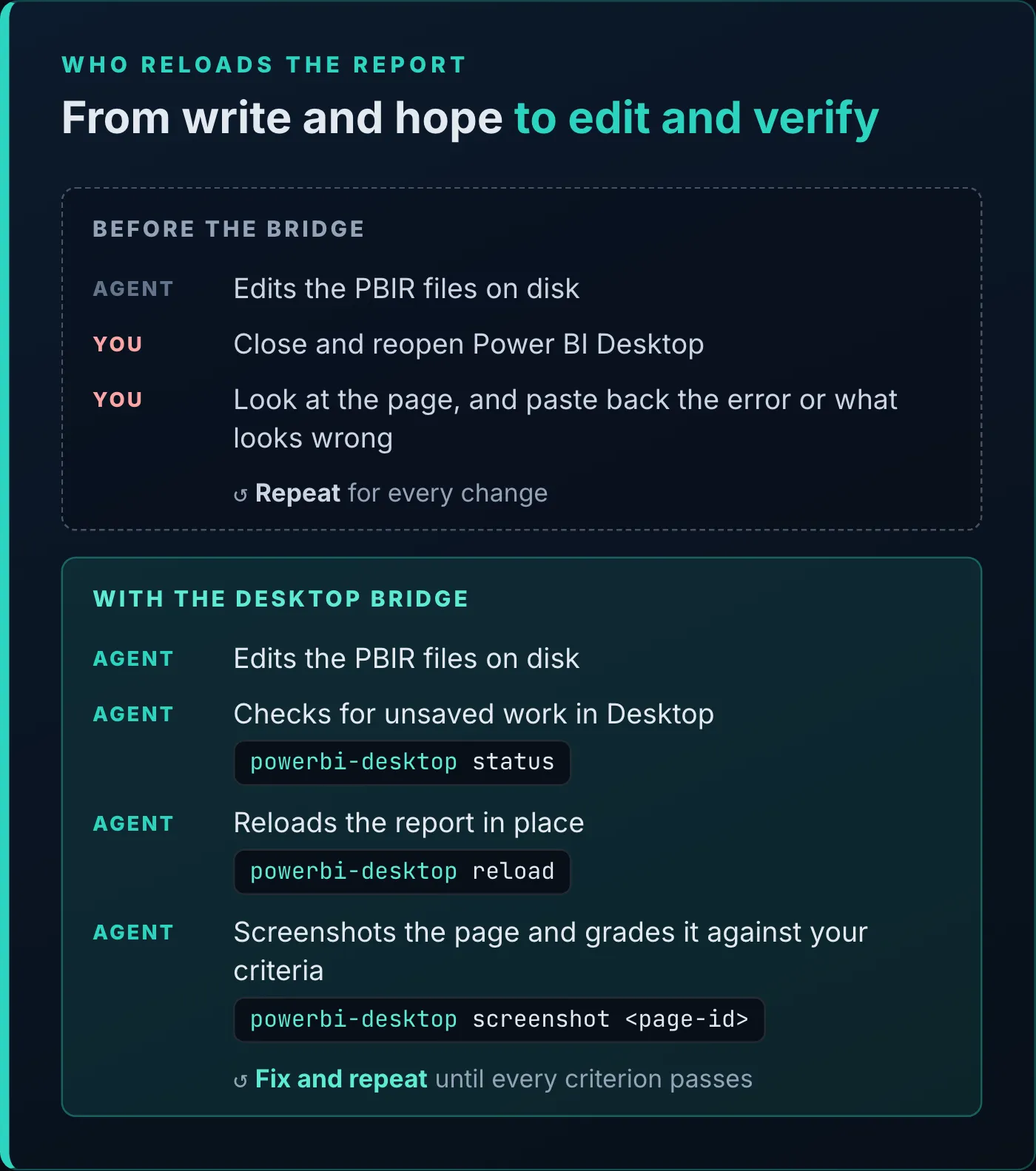
The loop before the bridge, and the loop with it.
The Desktop Bridge is a small local server that runs inside the Power BI Desktop process, and it lets your AI agent of choice operate Desktop for you .
The model side already works this way. When you open Desktop, it starts a local Analysis Services engine for the semantic model, and tools such as Tabular Editor or the Power BI Modeling MCP server connect to it . The MCP server article works with that engine. The bridge gives the report side the same kind of entry point. You reach it through a command-line tool, the Power BI Desktop Bridge CLI, and your agent runs the CLI for you.
Microsoft Learn’s overview of the bridge lists how it works:
| Fact | Detail |
|---|---|
| Transport | A named pipe on the local machine, pbi-desktop-bridge-{processId} |
| Protocol | JSON-RPC 2.0, with a Content-Length header before each message body |
| Remote access | Not supported |
| Several Desktop windows | Each window has its own pipe |
| Concurrency | Several clients can connect, but only one operation runs at a time; a request sent while another is running gets an error |
Desktop runs only on Windows, so the bridge does too.
The bridge answers four methods . The CLI wraps each one in a command, and every command prints JSON to standard output, with progress messages on standard error, so an agent can read the result directly.
| Bridge method | CLI command | What it does |
|---|---|---|
bridge.manifest | powerbi-desktop manifest --pid <pid> | Lists the methods this Desktop build supports, each with its parameters and result schema |
file.reload/ | powerbi-desktop reload --pid <pid> | Rereads the open report from disk, without closing Desktop |
application.state.get/ | powerbi-desktop status | Returns the open file’s path (currentFilePath) and whether it has unsaved changes (hasUnsavedChanges) |
report.snapshot.capture/ | powerbi-desktop screenshot <page-id> --pid <pid> | Captures one report page as a PNG, found by its PBIR page ID |
Manifest works like a ship’s manifest: it says what’s on board . The methods depend on the version of Desktop, and future versions may add more, so the agent reads the manifest to learn which ones it can call . Calling a method the build doesn’t have fails with a -32601 MethodNotFound error.
Reload short-circuits the close-and-reopen loop. Desktop rereads the project files from disk, and you don’t have to restart it . The bridge’s file.reload/v1 takes a reloadModelDefinition flag. The CLI’s reload sets it to false, so it rereads the report and leaves the semantic model alone; for model changes, the CLI’s README says to reopen the PBIP if they don’t show.
Status lets the agent see whether the report has changes in Desktop that haven’t been written to disk, so it doesn’t overwrite them . The section below on reading the state covers how to use it.
Screenshot is my favorite. As the agent builds or changes a report, it captures a page, looks at the image with its vision, and checks whether it’s getting the result it wants . The agent in the Fabric skills report article caught a year-over-year bug this way. The scale runs from 1.0 to 3.0; the bridge defaults to 1.0 and the CLI to 2. powerbi-desktop screenshot-all captures every page listed in the report’s pages.json.
The CLI adds one more command, powerbi-desktop open <path>, which opens a PBIP or PBIX file in Desktop and waits for the bridge.
The bridge is a preview feature, and it ships turned on by default in the June 2026 release of Power BI Desktop . To check it, go to File > Options and settings > Options > Preview features. Toward the end of the list is a setting called “Enable external tool access to Power BI Desktop through secure local APIs” . The name doesn’t mention the bridge, but that’s the setting.
Then install two command-line tools with npm (you need Node.js):
npm install -g @microsoft/powerbi-desktop-bridge-cli
npm install -g @microsoft/powerbi-report-authoring-cli
The first gives you the powerbi-desktop command. The second gives you powerbi-report-author, which works on the files rather than on Desktop: it looks up visual types and formatting properties, encodes PBIR values, and checks a report against the PBIR rules with powerbi-report-author validate <path>. Your agent edits the files, the authoring CLI checks them, and the bridge shows them in Desktop.
If you use the Power BI Report Authoring skill from Microsoft’s Skills for Fabric repository, it installs both the first time you use it . How to Install Microsoft’s Fabric Skills covers that repository. Watch the names if you install by hand: an older package called powerbi-report-authoring, with no @microsoft/ scope, is a library for embedded reports and has nothing to do with these CLIs.
To confirm the bridge CLI can see Desktop, open a report and run:
powerbi-desktop statusThe first thing the agent does in a session is read the manifest . The prompt in the demo was one line:
Run the manifest command in the Power BI Desktop Bridge CLI to see what other commands are available.Claude Code ran the manifest against the running Desktop, process ID 11888, and reported three methods besides the manifest itself :
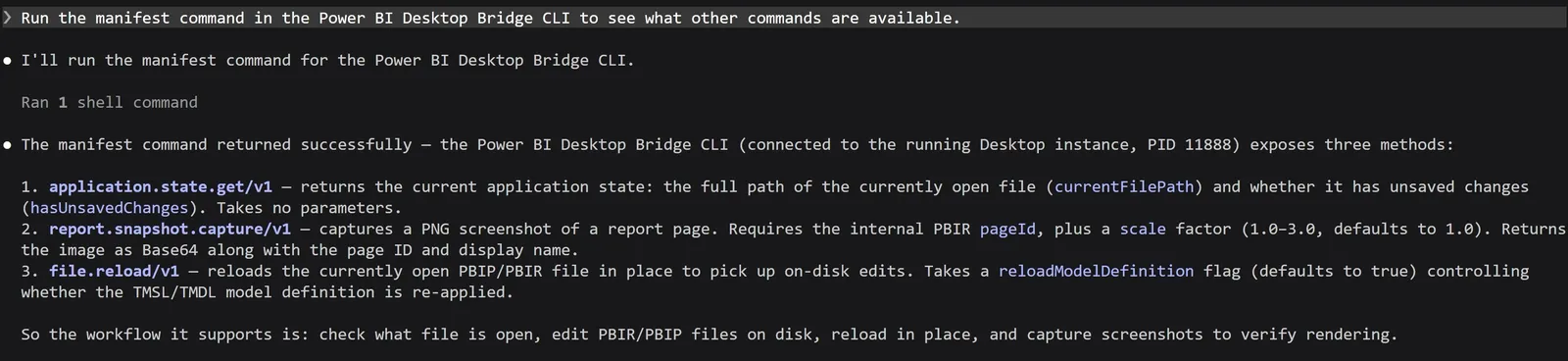
The manifest, as the agent read it back: three methods on this Desktop build.
Each method arrives with its parameters and result schema, so the agent learns both the call and its arguments in one step. Your Desktop version decides which methods the bridge has, so run the manifest first, every time, and the agent knows what’s available before it calls anything .
If more than one Desktop window is open, powerbi-desktop status lists each one with its process ID, its open file and its pages. Pass the ID to the other commands with --pid.
Read the state before you reload
Status protects work you’ve done in Desktop but haven’t saved , and it only helps if the agent reads it before it reloads. A reload rereads the files on disk, and unsaved changes in Desktop aren’t on disk. The CLI’s reload doesn’t check for them first: it reloads the report open in the selected window, whatever its state.
An agent that goes straight from editing to reloading looks like this:
edit the PBIR files
powerbi-desktop reload --pid <pid>
powerbi-desktop screenshot <page-id> --pid <pid>
Put the check in front of every reload instead:
powerbi-desktop status
  hasUnsavedChanges is true: stop and ask me to save in Desktop
edit the PBIR files
powerbi-desktop reload --pid <pid>
powerbi-desktop screenshot <page-id> --pid <pid>
Add one line to your prompt: “Before every reload, run powerbi-desktop status, and if hasUnsavedChanges is true, stop and ask me to save.” The simplest habit is to save in Desktop before you hand the report to the agent.
The demo report is the Sales report an agent built in the Fabric skills report article. Its Product Performance page ends in a Top Products table, one row per product, and to me it looked a little bare .
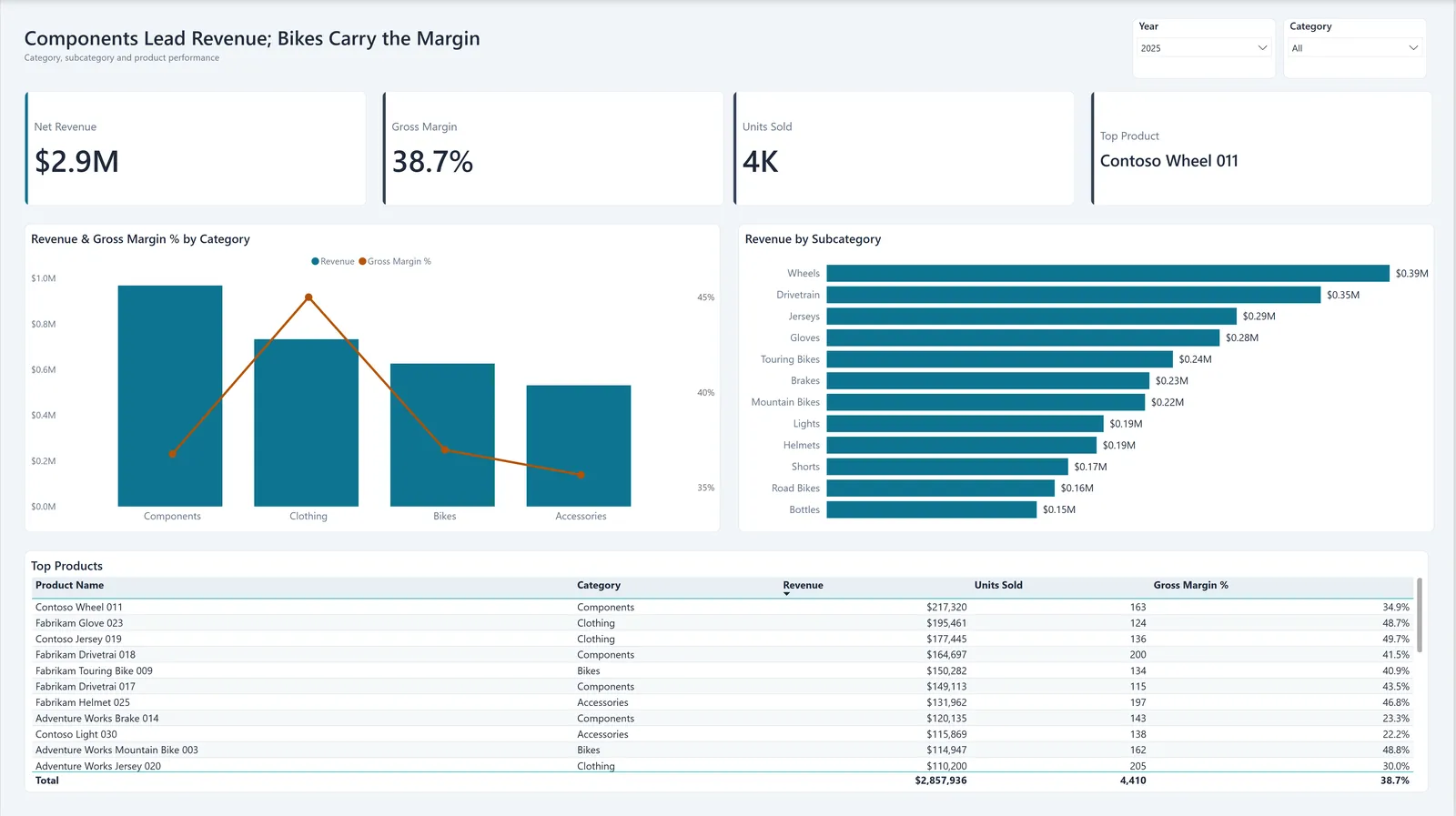
Product Performance before the run, with the Top Products table at the bottom.
The task was to replace the table with a matrix carrying four kinds of conditional formatting. I wanted something hard that needs a lot of visual inspection, and conditional formatting does . A criterion such as “no data bar clipped or covering its number” can only be graded on the rendered page. I pasted this prompt into Claude Code :
Replace the "Top Products" table at the bottom of the Product Performance report page with a matrix. Same position, same footprint.

Matrix:
- Rows: Category, with Subcategory nested under it
- Values: Revenue, Units Sold, Gross Margin %, plus a sparkline of monthly Revenue (find the right date field in the model)

Format the columns as follows:
- Revenue: data bars
- Gross Margin %: red-yellow-green background gradient
- Units Sold: up / flat / down icons, thresholds picked from the actual data
- Keep the grand total row: bold, subtle fill, and conditional formatting on detail rows only (nothing bleeds into the totals)
- Match the fonts and header styling of the other visuals on the page

When you think you're done, verify your own work through the Desktop Bridge CLI: reload the report, take a screenshot, and grade it against these criteria:
1. Gradient readable against the light theme
2. No data bar clipped or covering its number
3. Icons aligned and pointing the right way
4. Sparklines show real variation, not flat lines
5. Totals row visually distinct, no formatting spill

If any criterion fails, fix it and screenshot again. Only report back when all five pass.

As you work, show your progress: after every Desktop reload, save the screenshot to C:\Demo\_progress (numbered), and maintain a single progress Artifact; publish it after the first screenshot and republish it after every iteration with a short caption of what changed, ending with the graded checklist.
The last paragraph asks for evidence: a numbered screenshot after every reload, and a progress page with a short summary of each round . The agent grades the screenshots; the progress page is for you.
The run took 11 rounds and about 27 minutes, with a screenshot in the progress folder for each round . The progress page tells the story in the agent’s words :
![The agent's build log in a browser, titled Top Products table to conditional-formatted matrix. It says the flat table at the bottom of the Product Performance page was replaced in place by a Category and Subcategory matrix with the same 1856 by 320 footprint, carrying data bars, a red-yellow-green margin gradient, trend icons with data-derived thresholds and monthly revenue sparklines, in eleven edit, validate, reload and screenshot rounds graded against five pass criteria. Four cards: rows Category and Subcategory; values Revenue, Units Sold, Gross Margin % and a sparkline of Revenue by Date[Month]; icon thresholds from 2025 data, up at 420 or more, right at 320 to 419, down below 320 units; gradient anchors at 28%, 38% and 49% gross margin, from the 27.7 to 48.7% actual spread. Under Iterations, round 01, First render, 3 defects found: rows stayed collapsed at Category level, Revenue had no data bars (wrong host object), and the icon thresholds came from a silently truncated, unfiltered query while the page carries a saved Year = 2025 slicer.](/_astro/build-log.I-uS-ckE_Zg81dO.webp)
The progress page the agent kept, at its first round.
Round 1: three defects. The matrix replaced the table, and the sparklines, gradient and icons rendered. But the rows stayed collapsed at the Category level, Revenue had no data bars (“wrong host object”), and the icon thresholds came from “a silently truncated, unfiltered query”, while the page carries a saved Year = 2025 slicer.
Rounds 2 to 4: still collapsed. The data bars moved to columnFormatting, with a selector that names only the Revenue column, and rendered. The agent recomputed the icon thresholds on the full 2025 data, all 12 subcategories. To expand the rows, it rewrote the expansion state and gave the visual a new ID, so the reload couldn’t reuse the old drill state. The expand buttons appeared, and the subcategories still didn’t.
Round 5: one property. The agent found that matrices mark each Rows field "active": true, and without it only the first level takes part. Here is the Subcategory field in the finished visual.json:
{
  "field": {
    "Column": {
      "Expression": {
        "SourceRef": {
          "Entity": "Product"
        }
      },
      "Property": "Subcategory"
    }
  },
  "queryRef": "Product.Subcategory",
  "nativeQueryRef": "Subcategory",
  "active": true
}
The subcategories appeared, and the totals stayed clean: subtotal rows and the grand total carried no bars, icons or gradient. The agent credits its wildcard selectors for that. The gradient’s selector, for one:
"selector": {
  "data": [
    {
      "dataViewWildcard": {
        "matchingOption": 1
      }
    }
  ],
  "metadata": "Sales.Gross Margin %"
}
With every subcategory showing, the three rows under Accessories no longer fit in the visual’s 320 pixels.
Rounds 6 to 10: making it fit. The agent set row padding to zero, the text to 9 points and the sparklines to 12 pixels high, then trimmed the container padding from 8 to 0 and turned off the horizontal gridlines. Round 9 left Bottles clipped mid-bar, a criterion 2 failure, and the agent caught it in the screenshot. After round 10, all 17 rows and the header fit the original footprint with no scrollbar.
Round 11: the total row. The matrix ignored the formatting in the older total object. Styling rowTotal and columnTotal instead gave the Total row its bold text and its #E8EEF4 fill, which the agent checked by sampling the pixels in the screenshot.

The matrix after round 11, from the agent’s last screenshot.
Before rounds 5 and 11, Desktop loaded the files without an error. Only the rendered page showed that the subcategories were missing, and later that the total row’s formatting hadn’t applied.
I built the progress page mostly to show you the screenshots and the loop . You could also put the final screenshots into your change management or your requirements documentation .
A looping prompt needs goals that are specific, measurable, attainable and detailed. “Make it better” doesn’t work, because the AI doesn’t know what to do with it . Each of the demo’s five criteria can be checked by looking at one screenshot:
- Gradient readable against the light theme
- No data bar clipped or covering its number
- Icons aligned and pointing the right way
- Sparklines show real variation, not flat lines
- Totals row visually distinct, no formatting spill
Criterion 2 is the one that caught Bottles in round 9. Ask for the evidence as well, as this prompt did: numbered screenshots and a log of each round let you check the agent’s grading instead of taking its word for it.
The bridge is a preview feature, so I wouldn’t wire it into my CI/CD pipelines or anything load-bearing yet . Microsoft Learn notes that its features, behavior and API surface may change before general availability, which is one more reason for the agent to read the manifest every session.
It’s also local only. The bridge talks over a named pipe on your machine, with no remote access and no REST endpoint .
Install the Desktop Bridge CLI, make sure you’re on the June 2026 release of Desktop or newer, and point your agent at a project you’ve been meaning to work on . Save in Desktop first, have the agent read the manifest, and give it criteria it can grade from a screenshot. The download has the demo’s starting report, the prompt, and the agent’s finished matrix to compare with your run. To set up an agent first, How To Use Claude Code for Power BI Development installs Claude Code in the VS Code terminal and covers its permission prompts and modes.
Tools
- Power BI Desktop, June 2026 release or newer (the preview toggle is on by default)
- Power BI Desktop Bridge CLI (npm: @microsoft/powerbi-desktop-bridge-cli, the powerbi-desktop command)
- Power BI Report Authoring CLI (npm: @microsoft/powerbi-report-authoring-cli)
- Claude Code
- Visual Studio Code
Prerequisites
- Power BI Desktop on the June 2026 release or newer
- Node.js and npm, to install the two CLIs
- An AI coding agent such as Claude Code, and reports saved as PBIP so the report lands on disk as PBIR JSON the agent can edit
Resources
Downloads
Related articles


Transcript
The old write-and-hope editing loop
Your AI agent can now connect to Power BI Desktop to check its own work, which means you don't have to. So for a little while now, AI has been able to write your Power BI projects and Power BI report files. But when you go to open that project in Power BI Desktop, half the time it wouldn't even open correctly. It would give you some nondescript error message. You'd copy that back into your AI tool. It would make some edits to your project files. You'd close and reopen Power BI Desktop. Maybe it would give you a different error. After some struggles, hopefully you'd get the thing to actually open correctly. It was a really frustrating process, and also, once you got it to open, if you wanted to, say, edit a visual, for example, you had a similar process where it would try, you would provide feedback, you'd close and reopen Power BI Desktop.
Meet the Power BI Desktop Bridge
So Microsoft just released something it calls the Power BI Desktop Bridge, which allows your AI agent of choice to operate Power BI Desktop for you. So just as when you open Power BI Desktop and it spins up a mini analysis services engine on your local device, and you can connect to that via tools likeTabular Editor or the modelingMCP server, now Power BI Desktop will also spin up a mini server called Power BI Desktop Bridge, and you can access that via a CLI called the Power BI Desktop Bridge CLI, and your AI agent can operate that for you and thereby control Power BI Desktop.
What the bridge can do: manifest, reload, status, screenshot
So right now, there are four things that this tool can do. First of all is manifest. So think of this like a ship's manifest: who and what are on board the ship. So the manifest command will tell you all the other functionality that your CLI can do. And this is important, because the version of the bridge that you are operating depends on the version of Power BI Desktop. Future versions may include additional functionality, and so to know what is available to your AI agent, it needs to run that manifest command, and that will tell it the other functionalities that are available. Another functionality is reload, so short-circuiting that close and reopen Power BI Desktop loop I was talking about a moment ago. This can now just reread your Power BI project files from disk, and you don't have to close and reopen Desktop anymore. Status allows your AI agent to see if there are any in-flight changes to the reporting that has not been written out to disk, so that it won't write something else to disk and then overwrite those changes. And my favorite, screenshot. We saw this in my last video, where as it's building out a report or making changes to a report, it can take screenshots of that reporting and then use visual modality to actually analyze that screenshot and see if it's achieving the results that it wants. So what we're going to do in a moment is we will put that to the test. We'll give it a visual enhancement to make, and then it will iteratively make changes, take screenshots, see how it's achieving that that change, and then iterate over that process in a loop. Okay, so there are
Turn it on and install the two CLIs
are three things that you want to do. First of all, this is a preview feature, but it is shipped on by default with the June 2026 release. So the first thing you want to do is you want to come to your preview features. And then toward the end of the list, you will see a new setting called enable external tool access to Power BI Desktop through secure local APIs. And it was a strange name, and it doesn't even say Power BI Desktop Bridge, but that's the feature that you want to to check. The other two things that you want are the Power BI Desktop Bridge CLI and the Power BI Report Authoring CLI. Both of these are automatically installed the first time you use the Power BI Report Authoring skill that comes in the Skills for Fabric repo.
Run the manifest command first
The first thing that you want to do is run the manifest command so that you can see what other functionality is available to you. Run the manifest command in the Power BI Desktop Bridge CLI to see what other commands are available. The version of the Desktop Bridge that you have will depend on the version of Power BI Desktop that you have, so you always want to run this manifest command first so that your AI will know what functions are available to it. So as of right now, we have three functions that are available. state.git, so that tells us if there's anything in flight. The report snapshot capture, self-evident, and the file reload, which simply rereads from disk the latest pbir. So
The demo: a plain table that needs work
I've got a report here, and we've got a a matrix down here called top products, and frankly, to me, this is looking a little bit bare. I think that we can improve upon this. So what I'm going to do is come over to visual Visual Studio Code. I've gotClaude Code running here, and I've got a prompt that will instruct it to add some conditional formatting. I'll go ahead and fire that off. And so I'll put this prompt in the description so that you can read it. Basically, what I want to do is give it something really hard to work on that requires a lot of visual inspection. So I thought conditional formatting would be a good way to do that. And what this is going to do is it will write the updates to the visual. It will create those screenshots, use visual modality to look at the screenshots, and see if it's achieving those results. I've also asked it to put those screenshots in a folder over here for us, so we can see those screenshots as we go along. One more thing is I've also asked it to create an HTML page that will give us each of those screenshots and a little bit of summary about what it's doing. And so we'll check that out in a little bit as we see progress.
The results: 11 screenshots in one loop
Okay, so you can see here in the progress folder the 11 screenshots that it took for the 11 different iterations and loops. It took about 27 minutes in total. We can go through these screenshots, but also I asked it to put these together in a little artifact for us. We can actually hold down Control and click on this and open this up in a browser. And so it gives us a little preamble about what it did for each version and some screenshots there. And so it took about three versions to add these data bars here under the revenue column, then it added in some subcategories, so on and so forth. I built this largely just to show you guys these images, to show you the snapshots that it takes, and the iterative looping fashion where it will do some work, visually inspect its work, and then figure out what it needs to change to better achieve the desired outcome. But also, I did this because you can imagine that you could take some of these and possibly incorporate it into your change management, or at least the final screenshots anyways. You might wanna put that into your requirements documentation, for example.
Writing prompts the agent can grade
One note on the prompt. If you're going to use a looping prompt, you do wanna be mindful about goals that are very specific, measurable, attainable, detailed. Saying make it better doesn't really work. The AI doesn't know what to do with that. So make the prompts very specific, and the more measurable and attainable that it can be, the better.
It's preview, and it's local only
All right, so two things to point out. First of all, this is a preview feature. So I wouldn't necessarily wire this into my CICD pipelines or load-bearing features right now. And also, it is local only, which means that it is local named pipe IPC, so no remote access and no REST endpoint, so nothing leaves your machine.
Try it on your own report
All right, so download and install the Power BI Desktop Bridge CLI. Make sure you're on the June 2026 version or newer, and point it at a project that you've been meaning to work on, and let me know how you get along in the comments down below. And if you you want to know more about the Skills for Fabric repo and the Power BI authoring skills in particular, you can check out this video right over here, and I'll see you next time.
New articles and videos