· Fabric, AI tooling
Automate Fabric and Power BI Admin with Claude Code
The Fabric CLI lets you browse your tenant like folders on disk, copy reports, check who has access, and pull refresh history from the terminal. This guide runs one workspace through those chores and shows how the same commands go to a pipeline or your AI agent.
What you'll learn
- Install the Fabric CLI, sign in with fab auth login, and know which sign-in options are for automation
- Move around your tenant like folders on disk: ls to list workspaces, cd into one, open a report in the browser
- Copy a report to another workspace with cp, and rebind it to a different semantic model
- List who has access to a workspace with acl ls, and grant or remove access with acl set and acl rm
- Read a semantic model's refresh history through fab api, since refreshes have no built-in command
- Hand the same commands to a CI/CD pipeline or to an AI agent such as Claude Code
A week of Fabric and Power BI admin work is a lot of clicking through the portal: workspace settings, then Manage access, then the Refresh history panel, then over to the pipeline monitor. The Fabric CLI turns those trips into commands you type in a terminal.
The Fabric CLI, fab, is Microsoft’s command-line tool for Fabric and Power BI. A CLI (command-line interface) is a program you drive by typing commands instead of clicking, and fab is built on Fabric’s public REST APIs. This guide follows one workspace, Sales Performance Demo, through four chores: look around, copy a report to a second workspace called Sales Demo 2, check who has access, and read a semantic model’s refresh history. Every command is here as text you can copy, and the download is a one-page command sheet.
If you’re a tenant or workspace admin, work in a support role, or look after a lot of Data Factory pipelines and notebook jobs, this tool is going to be a big help . It’s also a natural tool for AI agents that build Power BI and Fabric content , because an agent can run the same commands you type. The last section covers that.
The CLI is a Python package. It needs Python 3.10, 3.11, 3.12 or 3.13, with python on your PATH, so check your version first:
python --versionThen install the CLI and confirm it runs:
pip install ms-fabric-cli
fab --version
pip install --upgrade ms-fabric-cli updates it later. This guide uses version 1.7.0, released August 18, 2026.
How the install goes depends on your machine and the security profile your company puts on it . Try the command. If you get an error, paste it into your chatbot, and you may need your IT team to unlock installs on your machine. The Fabric CLI is a Microsoft product, created and supported by Microsoft, so hopefully your company will allow it .
Sign in as yourself, or as a service principal
Run fab auth login, and the CLI asks how you want to authenticate:

fab auth login offers five ways to sign in. Interactive with a web browser signs you in as yourself.
I sign in with Interactive with a web browser. Pick it, click your account in the browser tab that opens, and the page tells you to close the tab and return to the terminal . fab auth status shows who you’re signed in as, and fab auth logout signs you out.
Interactive sign-in suits short, hands-on work, where the CLI should act with your own permissions. A service principal, an identity for an app instead of a person, suits headless work: CI/CD pipelines, and automated jobs such as pipelines or notebooks. Deploying to Production is another case for one: the Fabric CLI signs in as the service principal, in a pipeline or run by hand, and deploys the code, so no person needs access to the Production environment.
The service principal options sign in with flags instead of the menu:
# With a client secret
fab auth login -u <client-id> -p <client-secret> --tenant <tenant-id>

# With a federated credential, as in a CI/CD pipeline
fab auth login -u <client-id> --federated-token <token> --tenant <tenant-id>
The certificate and managed identity versions are in the CLI’s auth examples.
Type fab with nothing after it, and the CLI opens its own prompt:
Welcome to the Fabric CLI ⚡
Type 'help' for help.

fab:/$
At this prompt you type commands without fab in front, and quit or exit leaves. From your normal shell the same commands run one at a time with fab in front, so ls at the prompt is fab ls in the shell . The prompt is a little easier while you work, since you don’t type fab every time . Scripts and agents use the one-at-a-time form. The CLI picks the mode from how you call it, so you can ignore the line in its help text about fab config set mode interactive.
The mental model is a file system . Your tenant is the root folder, /, and from there everything is folders and the items inside them:
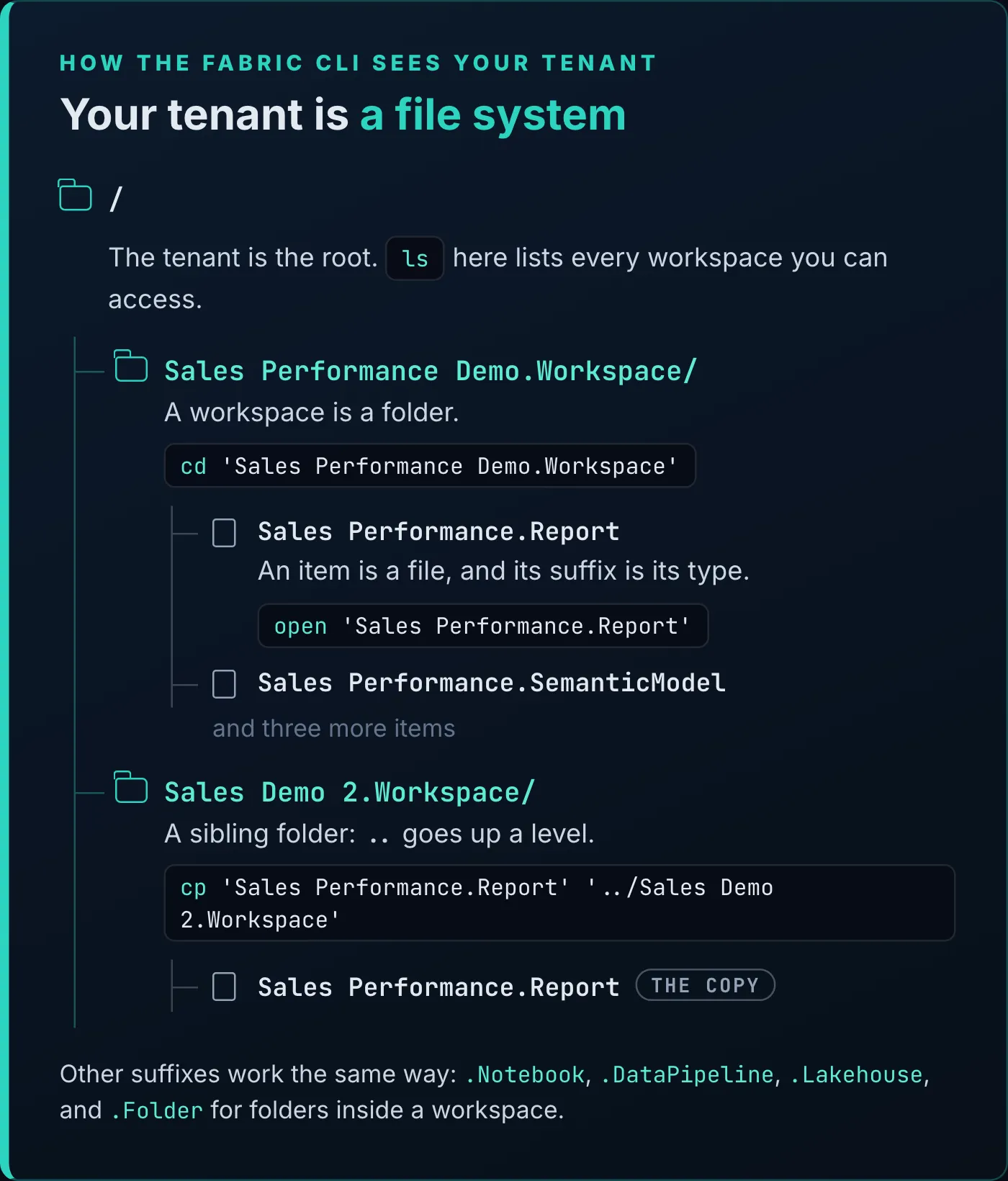
Workspaces are folders, and an item’s suffix is its type.
At the root, ls (short for list) lists every workspace you have access to . cd (change directory) moves into one; put quotes around any name with spaces. ls again lists the items inside, and open opens an item in your browser :
fab:/$ cd 'Sales Performance Demo.Workspace'

* Switched to 'Sales Performance Demo.Workspace'

fab:/Sales Performance Demo.Workspace$ ls
Sales.SemanticModel
Sales Performance.Report
Sales Performance.SemanticModel
SalesExecutiveSummary.Report
SalesExecutiveSummary.SemanticModel
fab:/Sales Performance Demo.Workspace$ open 'Sales Performance.Report'
Opening 'Sales Performance.Report' in the web browser...

* https://app.powerbi.com/groups/<workspace-id>/reports/<report-id>/?experience=fabric-developer
When you forget a command, help lists them all with some guidance on each , and fab <command> --help shows one command’s flags. pwd prints where you are.
To find an item without knowing its workspace, fab find searches the OneLake catalog across all your workspaces, matching names, descriptions and workspace names. -P type= narrows it to one item type, and -l adds the IDs:
fab find 'sales' -P type=Report -lcp takes two parameters: the item to copy, then where it goes . .. means go up one level, so '../Sales Demo 2.Workspace' is the workspace next door :
fab:/Sales Performance Demo.Workspace$ cp 'Sales Performance.Report' '../Sales Demo 2.Workspace'
? Item definition is copied without its sensitivity label. Are you sure? Yes
Copying '/Sales Performance Demo.Workspace/Sales Performance.Report' → '/Sales Demo 2.Workspace'...

* Copy completed

fab:/Sales Performance Demo.Workspace$ cd '../Sales Demo 2.Workspace'

* Switched to 'Sales Demo 2.Workspace'

fab:/Sales Demo 2.Workspace$ ls
Sales Performance.Report
Read the question before you answer it. The copy doesn’t carry the report’s sensitivity label, so if your organization uses labels, apply it again on the copy. -f copies without asking.
Sales Demo 2 now holds only the report. The copy uses the same semantic model as the original report, back in Sales Performance Demo. To point it at a different model, rebind it with fab set. This report is in PBIR definition version 2, which names its model in a connection string, so you set the whole string with the new model’s workspace, name and ID:
fab set 'Sales Demo 2.Workspace/Sales Performance.Report' -q 'definition.parts[0].payload.datasetReference.byConnection.connectionString' -i 'Data Source="powerbi://api.powerbi.com/v1.0/myorg/<workspace>";initial catalog=<model>;integrated security=ClaimsToken;semanticmodelid=<model-id>'Keep the single quotes around the -q path: without them, zsh (the default shell on a Mac) reads the square brackets as a file pattern. To see the current string first, run fab get on the report with the same -q path and -f. Type connectionString with a lowercase c: the CLI’s item examples capitalize it, and the service rejects that. A report in PBIR definition version 1 takes the shorter -q semanticModelId -i <model-id>.
Copying into the same workspace adds _copy to the name. -r copies a folder with its subfolders, skipping any items that don’t support copying. A whole workspace copies only at the fab:/$ prompt, where the CLI asks which items to take; from your shell, version 1.7.0 refuses it. To move content between environments, export writes an item’s definition to disk, import brings it back, and fab deploy runs a fabric-cicd deployment from a config file.
acl stands for access control list: who has access to a workspace or an item . Type acl on its own to list its subcommands: ls, get, set and rm.
acl ls lists the access for a path. ./ means the folder you’re in, so in Sales Demo 2 this lists everyone with access to that workspace :
fab:/Sales Demo 2.Workspace$ acl ls ./
acl     identity           type
-------------------------------------
Admin   <your sign-in>     User
Here is the whole session so far, from the first cd to the access list:
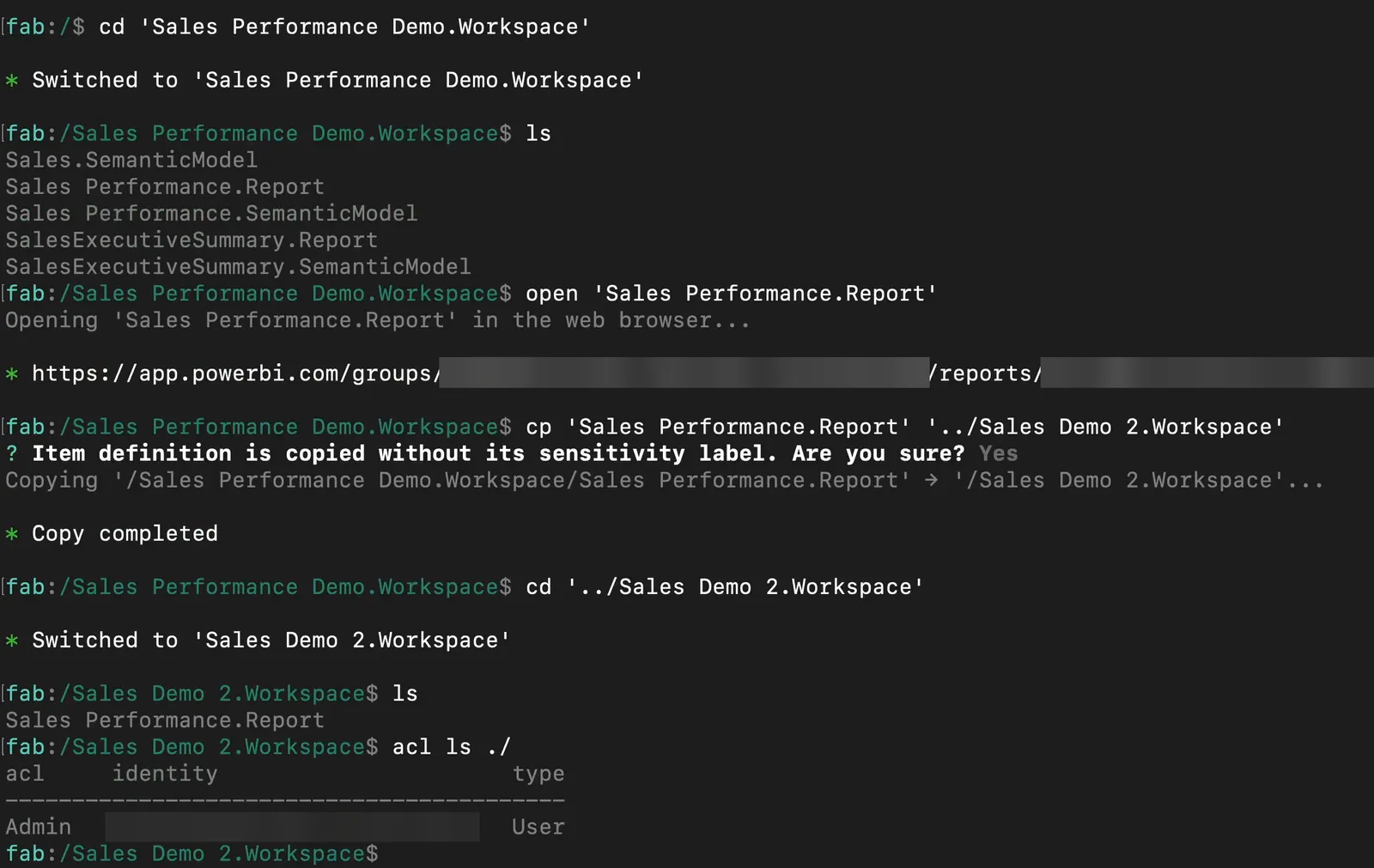
The running example in one session: look around, open the report, copy it, then check who has access to the copy’s workspace.
acl set adds people to a workspace’s access list , and acl rm removes them . Both take the identity’s Microsoft Entra object ID, and set takes a role: admin, member, contributor or viewer:
fab acl set 'Sales Demo 2.Workspace' -I <object-id> -R viewer
fab acl rm 'Sales Demo 2.Workspace' -I <object-id>
Both ask you to confirm, and -f skips that. Know the limits before you script them. acl set and acl rm work on workspaces, gateways and connections, so they can’t grant access to a single report or model. acl ls and acl get can read an item’s access, but only with the tenant-level Fabric Administrator role, and the CLI’s help marks the whole acl command [admin]. In version 1.7.0 they read Fabric items such as a pipeline or a lakehouse, but a report returns NotFound and a semantic model isn’t supported. For those, call the admin API with the item’s type:
fab api 'admin/workspaces/<workspace-id>/items/<report-id>/users?type=Report'type=SemanticModel does the same for a model, and it needs the same Fabric Administrator role.
fab job manages runs of notebooks, data pipelines, Spark job definitions and lakehouse table maintenance. If you look after Data Factory pipelines, notebooks or PySpark jobs, it lists their runs, shows how each one is doing, and cancels the ones that are hung up :
fab job run-list 'ws1.Workspace/pipeline1.DataPipeline'
fab job run-status 'ws1.Workspace/pipeline1.DataPipeline' --id <job-id>
fab job run-cancel 'ws1.Workspace/pipeline1.DataPipeline' --id <job-id>
job start kicks off a run and returns, job run waits for it to finish, and job run-sch schedules one. With a lot of jobs feeding OneLake, these commands monitor them, find the ones that hung, and start new runs from a script . You can even have an agent read the results and decide whether to restart a job that failed .
Semantic model refreshes go through fab api
Semantic models aren’t a fab job type, so their refreshes have no built-in command . The way in is fab api, which makes an authenticated call to a REST endpoint. -A powerbi points it at the Power BI REST API, where refresh history is the Get Refresh History In Group endpoint: groups/<workspace-id>/datasets/<model-id>/refreshes.
Get the two IDs first. The workspace ID is the GUID after /groups/ in the URL that open printed, or fab get returns each one:
fab get 'Sales Performance Demo.Workspace' -q id
fab get 'Sales Performance Demo.Workspace/Sales Performance.SemanticModel' -q id
Then call the endpoint:
fab api -A powerbi 'groups/<workspace-id>/datasets/<model-id>/refreshes?$top=5'The single quotes stop your shell from reading $top as a variable. The call returns the same history you see in the portal when you select the model’s ellipsis (…) and choose Refresh history . Without $top you get up to the last 60 entries. You need Write permission on the semantic model, and OneDrive refresh history isn’t returned.
Each entry is one refresh: how it was triggered (refreshType, such as Scheduled, OnDemand or ViaApi), startTime, endTime, and status, which is Completed, Failed, Disabled, or Unknown while the refresh is still running. A failed refresh carries its error code in serviceExceptionJson. This is Microsoft Learn’s example of a failed refresh:
{
  "value": [
    {
      "refreshType": "ViaApi",
      "startTime": "2017-06-13T09:25:43.153Z",
      "endTime": "2017-06-13T09:31:43.153Z",
      "serviceExceptionJson": "{\"errorCode\":\"ModelRefreshFailed_CredentialsNotSpecified\"}",
      "status": "Failed",
      "requestId": "11bf290a-346b-48b7-8973-c5df149337ff",
      "refreshAttempts": [
        {
          "attemptId": 1,
          "startTime": "2017-06-13T09:25:43.153Z",
          "endTime": "2017-06-13T09:31:43.153Z",
          "serviceExceptionJson": "{\"errorCode\":\"ModelRefreshFailed_CredentialsNotSpecified\"}",
          "type": "Data"
        }
      ]
    }
  ]
}
fab api wraps what the API returns: the HTTP status goes in status_code, and the body, like the example above, goes in text. To keep only what you need, add a JMESPath query with -q, starting from text:
fab api -A powerbi 'groups/<workspace-id>/datasets/<model-id>/refreshes?$top=5' -q "text.value[].{status: status, start: startTime, error: serviceExceptionJson}"The same endpoint with -X post starts a refresh, and the CLI’s refresh guide shows how to poll it until it finishes:
fab api -A powerbi -X post 'groups/<workspace-id>/datasets/<model-id>/refreshes'Why fab api is easier than calling the API yourself
You’ve been able to call these APIs for a long time, but by hand it’s frustrating . You authenticate, get a bearer token and store it, pass it in the headers of every call, and form a JSON body . fab api handles that part for you . -A picks the API: fabric (the default), powerbi, storage or azure.
There’s a second reason to go through the CLI . Your AI agent can work with either the raw API or the CLI, but it’s much more effective and token-efficient with a CLI, so you’re likely to get an answer faster and use fewer tokens .
Which command for which chore
Some chores have built-in commands, and some go through fab api:
| Chore | Command | Notes |
|---|---|---|
| List the workspaces you can access | fab ls | Run at the root, / |
| Find an item across workspaces | fab find '<text>' -P type=<type> | Searches the OneLake catalog |
| Copy an item to another workspace | fab cp <item> <workspace> | Copied without its sensitivity label |
| See who has access to a workspace | fab acl ls <workspace> | Role, identity and type for each entry |
| Grant or remove workspace access | fab acl set, fab acl rm | Needs an Entra object ID; workspaces, gateways and connections only |
| See who has access to a pipeline or lakehouse | fab acl ls <workspace>/ | Needs the Fabric Administrator role |
| See who has access to a report or model | fab api 'admin/ | Fabric Administrator; type=SemanticModel for a model |
| Check pipeline and notebook runs | fab job run-list <item> | Also Spark job definitions and table maintenance |
| Read a model’s refresh history | fab api -A powerbi groups/ | Needs Write permission on the model |
| Refresh a model now | fab api -A powerbi -X post groups/ | Poll it at .../ |
The download has these commands, and the rest of this guide’s, on one printable page.
For one change, such as adding one person to one workspace, the browser is probably faster than the CLI . I think there are three cases where the Fabric CLI comes in handy .
Repeated admin and support work. If you’re a tenant or workspace admin, or in a support role, and you do the same things over and over, you can script them .
Headless runs. Headless means no one is sitting at a terminal . I don’t mean an AI agent here, but a deterministic pipeline such as CI/CD . If your Power BI content goes through a deployment pipeline in Azure DevOps, the Fabric CLI can be part of that deployment, or of tests that look at permissions . The pipeline signs in as a service principal. The CLI’s repository has an Azure Pipelines example and a GitHub Actions workflow, and both sign in with a federated credential instead of a client secret. The workflow’s sign-in step:
fab config set encryption_fallback_enabled true
FED_TOKEN=$(curl -H "Authorization: bearer $ACTIONS_ID_TOKEN_REQUEST_TOKEN" "$ACTIONS_ID_TOKEN_REQUEST_URL&audience=api://AzureADTokenExchange" | jq -r '.value')
fab auth login -t $FAB_TENANT_ID -u $FAB_CLIENT_ID --federated-token $FED_TOKEN
Agentic development. The third case is the most interesting one , and it has its own section.
Hand it to your agent
Your agent is going to love the Fabric CLI . Agents gravitate toward CLIs: an agent understands a CLI much more easily than an API, let alone a browser, and makes short work of the job .
The setup is the same as yours. Install the CLI and sign in once, and an agent such as Claude Code runs fab commands in your terminal as you. How To Use Claude Code for Power BI Development installs Claude Code and covers the permission prompts it shows before it runs a command.
Microsoft also writes instructions for agents that use the CLI. The .ai-assets folder in the fabric-cli repository has:
context/CLAUDE.md, project instructions for Claude Code. Copy it toCLAUDE.mdor.claude/CLAUDE.mdin your project, and Claude Code loads it when a session starts.- Two skills.
fabric-cli-corecovers paths, sign-in, safety rules and item types, and loads first.fabric-cli-powerbicovers semantic models, reports, refresh and DAX, with scripts such aslist_refresh_history.pyandrebind_report.py. In Claude Code, a skill folder goes in.claude/skills/in your project, or in~/.claude/skills/for every project.
Then give the agent a task in plain English:
Audit every workspace I admin. Who has access, and did any refresh fail in the last 24 hours? Give me a summary.That task breaks down into the commands in this guide: fab ls for the workspaces, fab acl ls on each one for who has access and where you’re an admin, fab ls inside each workspace for its semantic models, fab get -q id for their IDs, and fab api -A powerbi on each model’s refreshes, filtered to failures in the last day. That’s a sketch of how the work divides, not a recorded run; your agent picks its own route.
You stay in charge. Have the agent report before it changes anything, and read every acl set, acl rm, cp or job start it proposes before you approve it.
Install the CLI, run this guide’s commands against one workspace you own, then hand the chore you repeat most to your agent. To build Power BI content with an agent instead, How To Use Microsoft’s Fabric Skills To Build a Power BI Report takes one paragraph of instructions to a published report.
Tools
- Fabric CLI (ms-fabric-cli); this guide uses version 1.7.0
- Python 3.10, 3.11, 3.12 or 3.13
- Microsoft Fabric and the Power BI service
- A terminal (PowerShell or Bash)
Prerequisites
- Comfort in a terminal, or willingness to let your AI agent drive it for you
- A Fabric or Power BI tenant with workspaces you can access
- Permission to install Python packages on your machine (your IT team may need to help)
- Write permission on a semantic model, to read its refresh history
Resources
- Fabric CLI docs
- Fabric CLI on GitHub, with CI examples
- Refresh a semantic model with the Fabric CLI
- Fabric command line interface, Microsoft Learn
- CLI modes, Fabric CLI docs
- Hierarchy, Fabric CLI docs
- cp command, Fabric CLI docs
- find command, Fabric CLI docs
- ACL commands, Fabric CLI docs
- Job commands, Fabric CLI docs
- api command, Fabric CLI docs
- Auth examples, Fabric CLI docs
- Item examples, including rebinding a report, Fabric CLI docs
- Release notes, Fabric CLI docs
- ms-fabric-cli on PyPI
- Datasets - Get Refresh History In Group, Microsoft Learn
- AI assets for agents (CLAUDE.md and skills), Fabric CLI repository
- GitHub Actions sign-in example, Fabric CLI repository
- Azure Pipelines example, Fabric CLI repository
- fabric-cicd docs
Downloads
Related articles



Transcript
Who the Fabric CLI is for
Hey everybody, I've got a great one for you today. I'm going to tell you all about the Fabric CLI. If you are a tenant or a workspace admin, if you have any sort of support role in your job, or if you have a lot of pipelines that might be Data Factory pipelines or notebook jobs that you support, this tool is going to be a big help for you. But also, a real key thing is this is going to really leverage agentic development of Power BI and Fabric assets. So the first thing you want to do is install the Fabric
Install and log in
CLI. There's a command for that, pip install ms-fabric-cli. But I'll be honest, depending on your exact environment and the security profile that your company has installed on your machine, your experience may differ a little bit. So rather than getting into the weeds of that, what I'll say is just try that command. And if you get an error message, you can copy and paste that back into your chatbot. And you also might have to ask your IT team for help for unlocking the ability to install that on your machine. The Fabric CLI is a Microsoft product. It's created and supported by them. So hopefully your company will allow you to use this tool. So once we have the Fabric CLI installed, all we're going to do is log in. And so then we can type in fab auth login, and you'll see that it gives us the option to use a web browser, or we can use a service principal or a managed identity. So I'm going to use the service principal because this will respect my SSO. I simply click on my account here, and this tells me that I can close this tab and return to the terminal. Once we do that, I just simply type in fab to run the Fabric CLI, and you'll notice that my prompt is now different. And so all my commands I can run inside of here. You can also run it straight from the terminal, and you just preface every command that you would run with the command fab. And so, for example, a command that I can run is ls. So this will list everything for me. I'll tell you more about this in a second. Or outside of the Fabric application, I could just type in fab ls, for example, and that would do the same thing. So just, it's a little bit easier being inside the application. You don't need to preface everything with fab. So here's the mental model.
Look around
Just as when you're at your terminal on your local machine, everything is folders and assets inside of those folders. It's a very similar model when you're working with the Fabric CLI. Your entire Power BI tenant is sort of broken into folders and assets inside of those folders. So, for example, right now we're at the root directory, which is kind of like the homepage for the Fabric portal. And what I can do is I can type in the command ls. So if you're familiar at all with PowerShell or Bash commands, this should look pretty familiar. And so this ls command, which is short for list, will list everything in my current directory. So if I hit enter, what this is going to do is give me a list of all of the folders that are in this root directory. Well, those folders are all workspaces. So really what this is doing is giving me a list of all of the workspaces that I currently have access to in my tenant. So if you ever forget the commands that you can run or how to use them, one command that you should keep in mind is the help command, and this will give you a list of all the commands that you can run, and it will give you some guidance on each of those. So one thing I want to do is the cd command. So this is for change directory, and so I can just type in the sales performance demo workspace. And so, a sales performance demo dot workspace, and so this will change directory. And I can go into that workspace, I can type ls again, and I can see all of the assets that are inside of that workspace. So something else that you can do is you can type open, and then the asset you wanna open, so for example, the sales performance report, and this will simply open this report in a browser, for example.
Copy a report
Another thing that you can do is you can copy assets. So for example, let's say I wanna copy that report. So the copy command takes two parameters. First of all, the asset that you want to copy. So let's copy the sales performance report. And the second parameter is where you want to copy it to. So I'm going to say dot dot. So that means go back up a directory and slash. Now go down into another, into a subdirectory, and we're going to put this in the sales demo 2 workspace. I can change directories into that workspace. So I'm going to say dot dot again to go back up a level and then slash to go down to the sales Demo 2 workspace. And I can type in ls, and we can see that that report has been copied to the Sales Demo 2 workspace. All right, so let's do something that's a little bit more interesting.
Who has access
So one of the commands is ACL. This is for access control list. And so this will take a subcommand. And so, for example, I can type in ls. And so this will list the access control list. And then it also wants the workspace or the asset for which we're going to return the access control list. So we can say dot slash, and what this will do is this will give me all the access to the current workspace. So the dot slash just means this is the folder that I'm in right now, and so the ACL is the list of who has access to that folder, and the ls is just saying show me all the people who are in that ACL. So you could also say, for example, ACL set, and then you can add people to the ACL for this workspace, for example. And if you say ACL help, then this will give you those available sub commands. So, for example, you can say rm to remove somebody from that list. So that would be removing their access to that workspace. So another one that you can do is
Jobs and refresh history
job. So I'm going to type in help, and this will give you the sub commands that the job command will take. So for example, if you've got a Data Factory pipelines or notebooks or PySpark jobs, you can use this to list the status of those jobs, see how they're doing, cancel jobs that are hung up and so forth. If you have a lot of jobs that are feeding into OneLake, for example, you can imagine how this would be really useful to monitor those jobs, but then also maybe look for jobs that have gotten hung up and kick off new jobs programmatically. And you can even have an agent look at this and make a judgment about possibly kicking off jobs that have failed, for example. One thing this does not cover is the semantic model. So let's say that you want to do that. Well, unfortunately, there's not a command for that to cover semantic models, but what you can do there is a general purpose API call. And so you've been able to make API calls for a long time. They're a little bit frustrating. You've got to go authenticate, get a bearer access token, and then store that, and then you've got to hand that off in all the headers and then form a JSON body, and it's just kind of a pain in the butt, right? So the Fabric CLI can obfuscate a lot of that frustrating part for you. So we're going to type in API dash A Power BI. And then, for example, if we want to see how a semantic model is doing, if you've ever run the API for that, so you're going to type in groups slash and then the GUID for that workspace, then slash data set, and then the GUID for that semantic model, and then slash refreshes. And that this will return the refresh history. So, for example, if you hit the ellipsis for that semantic model and then go to refresh history, this is pulling the exact same thing, except it's pulling it via the API via the CLI rather than through the GUI or rather than running a script that calls the REST API directly. So why might you want to call the Fabric API via the Fabric CLI rather than just hitting it via the URL, for example? Well, as you can imagine, if you've ever done that with the URL via like a Python script, for example, you know that that can be a little bit convoluted, as I was alluding to earlier. So certainly this is a lot easier. But something else is that while your AI agent can certainly navigate both of those options, your AI agent is going to be much more effective and token efficient at navigating a CLI. So it just says this is easier for you to do this way via the Fabric CLI. It's also a lot easier for your AI agent to do it via the CLI and also token efficient. So you're probably going to get an answer both faster and using fewer tokens.
Why use the CLI
So I can imagine what you're probably thinking to yourself, Michael, this is great, but look, I can go into the browser and do a lot of these things in the browser faster than I can type them into a command line interface tool. And I get it. That's perfectly true that you probably can do it faster in the browser. If you only want to do like one thing, you need to add one person to a workspace, that probably is easier and faster to do it via the browser than through the CLI. I think that there are three use cases where the Fabric CLI really comes in handy. If you are an admin, a tenant admin, or a workspace admin, if you are in a support role and you wind up doing a lot of the same things over and over and over again, you might want to script out a lot of the things that you're doing. And I think that this is a really good use case for that. So that's one reason why you might want to use the CLI. A second reason where the CLI is going to come in handy is when you're using it, quote-unquote headlessly. So that's when you're not sitting in front of a terminal. I'm not talking about an AI agent using it, but really say a more deterministic pipeline, like, for example, a CI CD pipeline. So if you have your Power BI content in a deployment pipeline in Azure DevOps, for example, you can integrate the Fabric CLI to do things like part of that deployment process or various testing techniques that you might want to do, looking at permissioning and so on. You can really dream up a lot of different scenarios that you might want to have in a headless CICD type of operation. And the third, and what I think is probably the most interesting thing that you can use the Fabric CLI for, is in agentic development. So your agent is going to love the Fabric CLI. It really gravitates towards using CLIs. It's very efficient for it, and it can make short work of the work that it needs to do using a command line interface tool. It just sort of understands how to use a CLI tool much more easily than an API or certainly via browser use. Do two things for me. First of all, I want to hear what are the things that you're using the Fabric CLI for right now. Let me know down in the comments. Or if you just have a wild idea, maybe I just inspired you to try something new with the Fabric CLI that you've been wanting to do, let me know. I would love to hear from you. The second thing is I was talking about how the Fabric CLI is great for agentic development. Well, I've got another tool that's coming up in the next video, and this is actually a tool that I built myself. I've been working really hard on this. I can't wait to show you guys all about it. So I would love for you to get subscribed so you won't miss that video. And if you want to know more about agentic Power BI development, I've got a great video for you right up here, and I will see you next time.
New articles and videos