· Power BI as code, Modeling
How to Fix Your Live Power BI Model Straight from the Browser
TMDL view in the Power BI service lets you script, preview, and apply a change to a published semantic model without opening Desktop or republishing. This guide fixes a wrong measure on a live model, adds security roles and a bulk rename the same way, and covers what apply doesn't do: refresh data, update report visuals, or keep your scripts.
What you'll learn
- Fix a measure on a published semantic model from the browser: script it, preview the diff, and apply it in Editing mode
- Add row-level security roles to a published model with one TMDL script
- Rename a column across the model with find and replace, and know which matches to leave alone
- Tell the changes that take effect at once from the ones that wait for a refresh
- Restore an earlier version of the model with version history when a change goes wrong
The Revenue measure on a published sales model is supposed to return net revenue, after discounts. It sums Sales[Total Amount] instead, which is gross revenue, and the business wants it fixed now. TMDL view on the web lets you make that fix in the Power BI service, on the published model, without opening Power BI Desktop or republishing. This article fixes the measure, then uses the same model to add security roles, rename a column across the model, and recover from a rename that broke the report.
The usual way to change a published model is to open the .pbix in Desktop, make the change, publish it again, and refresh the semantic model in the service. A one-word fix still pays for all of that:
- The refresh after a republish can take a while, and until it finishes, people see old data.
- You can skip the republish by editing the published model through the XMLA endpoint, with a tool like Tabular Editor. But Microsoft Learn warns that a write operation on a model authored in Desktop prevents downloading it back as a
.pbix. If the way you back up your Power BI files depends on that download, it matters. - A measure that’s wrong right now can’t always wait for the next refresh window.
A model with incremental refresh has the download limit from the start: the service won’t give you a copy of it with its data, only a report with a live connection to the model.
TMDL view on the web is the TMDL code editor inside the Power BI service, working directly on the published model. TMDL view has been in Power BI Desktop since January 2025, and it has been available in the service, in preview, since July 2026.
Open the semantic model in the service: in the workspace, select More options (…) next to the model, then Open semantic model. It opens in Model view, and the buttons at the bottom left switch between Model view, DAX query view and TMDL View (Preview).
TMDL view is a large text editor for TMDL scripts. The Data pane on the right lists the model’s tables on its Tables tab, and everything else, such as relationships and measures, on its Model tab.
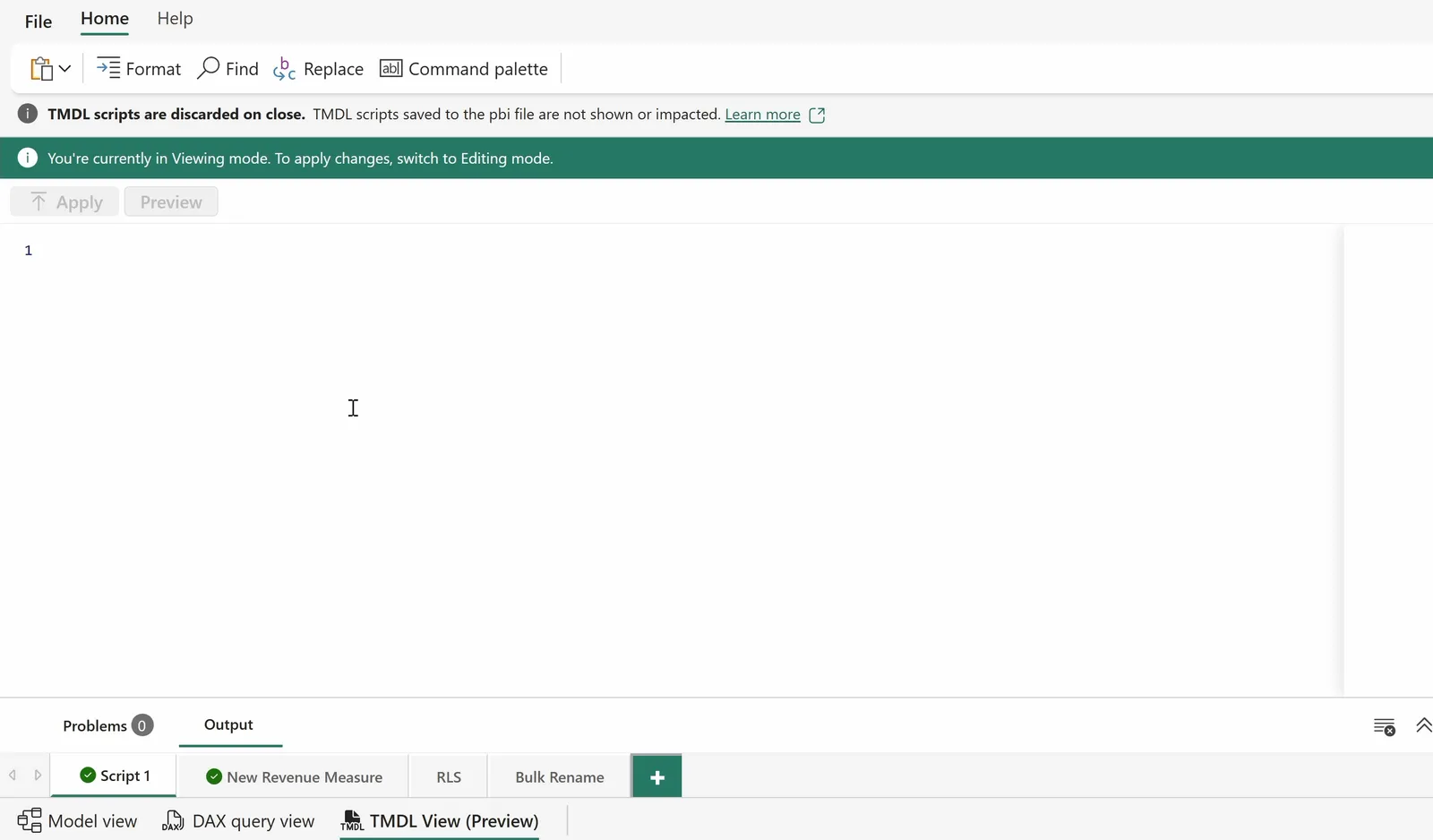
TMDL view on a published model, in Viewing mode. The view switcher is at the bottom left.
To use it, you need:
- Write permission on the semantic model.
- Semantic model editing in the service turned on for you. A Power BI administrator controls it in the admin portal, for the whole organization or for specific security groups.
- A model the service can open for editing. Models with a live connection, models with automatic aggregations, and models not yet upgraded to the enhanced metadata format can’t be opened.
The model opens in Viewing mode. You can script objects and preview changes, but Apply stays greyed out until you switch to Editing with the mode toggle at the top right. TMDL view in Desktop has no modes: you can apply a change at any time.
To script an object, drag it from the Data pane into the editor, or right-click it and select Script TMDL to, then Script tab or Clipboard. You can also drag a whole section, such as all the measures, or the whole model. Either way you get a createOrReplace script of everything the object defines.
![Diagram titled One hotfix, from script to apply, kicker TMDL view on the web. In Viewing mode: 1, script the measure by dragging it from the Data pane or right-clicking it and choosing Script TMDL to, giving a script that starts with createOrReplace and, on an indented line below it, ref table Sales; 2, edit the script, one word, the column the measure sums, SUM(Sales[Total Amount]) becoming SUM(Sales[Net Amount]); 3, Preview, a side-by-side diff of the model before and after the script. In Editing mode: 4, switch to Editing with the mode toggle at the top right, since Apply is greyed out until you do; 5, Apply, which writes the metadata, and the measure is live on the next query. A dashed box, The way back: File, Version history keeps up to five versions of the model; restore one from its menu.](/_astro/hotfix-loop.CAxeaVt5_2fCaoM.webp)
The hotfix loop: script and preview in Viewing mode, apply in Editing mode, with version history as the way back.
In the Data pane’s Model tab, search for “revenue”. The measure is called Revenue. Right-click it and script it to a tab:
createOrReplace

	ref table Sales

		/// Net sales revenue after discounts. Primary measure of the report.
		measure Revenue = SUM(Sales[Total Amount])
			formatString: $#,##0
			lineageTag: c1c52f36-46b8-4d95-944b-14c50e42cb3a
ref table Sales refers to the existing table without redefining it, so applying this script replaces the Revenue measure and leaves the rest of the table alone. Without ref, table Sales would be the table’s full definition, and createOrReplace would replace the whole table with only what the script holds. Microsoft Learn’s page on TMDL scripts shows both forms. The measure comes with everything it defines: its description (the /// line), its format string and its lineage tag.
The expression is the problem. The description says net sales revenue after discounts, but Sales[Total Amount] is the amount before discounts, so the measure returns gross revenue. The model already has a Gross Sales measure for that. The fix is one word, Total Amount to Net Amount:
measure Revenue = SUM(Sales[Net Amount])Select Preview. A side-by-side diff opens, with the model before the script on the left and after it on the right. Red marks removed or changed lines, and green marks new ones. Here the only change is the measure’s expression.
![The hotfix script beside its preview in TMDL view, in Viewing mode with Apply greyed out. On the left, the script: createOrReplace, ref table Sales, the description comment, and measure Revenue = SUM(Sales[Net Amount]) with its formatString and lineageTag. On the right, the diff of the model: line 14 reads measure Revenue = SUM(Sales[Total Amount]) in red on the before side and measure Revenue = SUM(Sales[Net Amount]) in green on the after side.](/_astro/hotfix-diff.B02RlUiL_ZlubAJ.webp)
Preview compares the model before and after the script. The one change is Total Amount to Net Amount.
The preview compares the whole model before and after the script runs, not your script’s text. Microsoft Learn points out what that means: properties can appear in TMDL’s default order rather than the order you typed them in.
When the diff looks right, close the preview, switch from Viewing to Editing at the top right, and select Apply. Its tooltip reads: “Apply your changes to the model. This can’t be undone.” A moment later, a banner reads “Changes applied to the model.”
Back on the report, the revenue card still shows $3.1 million. Refresh the page, and it shows $2.9 million.
Apply changes the model’s metadata, its definitions. It doesn’t refresh any data. For a measure, that’s all you need: a measure is calculated when a visual asks for it, so the fix shows up the next time the report queries it. That’s why the card changed on a page refresh.
A calculated column or a Power Query step takes one more step. Change a calculated column’s DAX or a table’s Power Query, and the new code is in the model as soon as you apply it, but the column’s values and the table’s data are only updated when that table is refreshed. After a change like that, refresh the table, or the whole model, before you check the result.
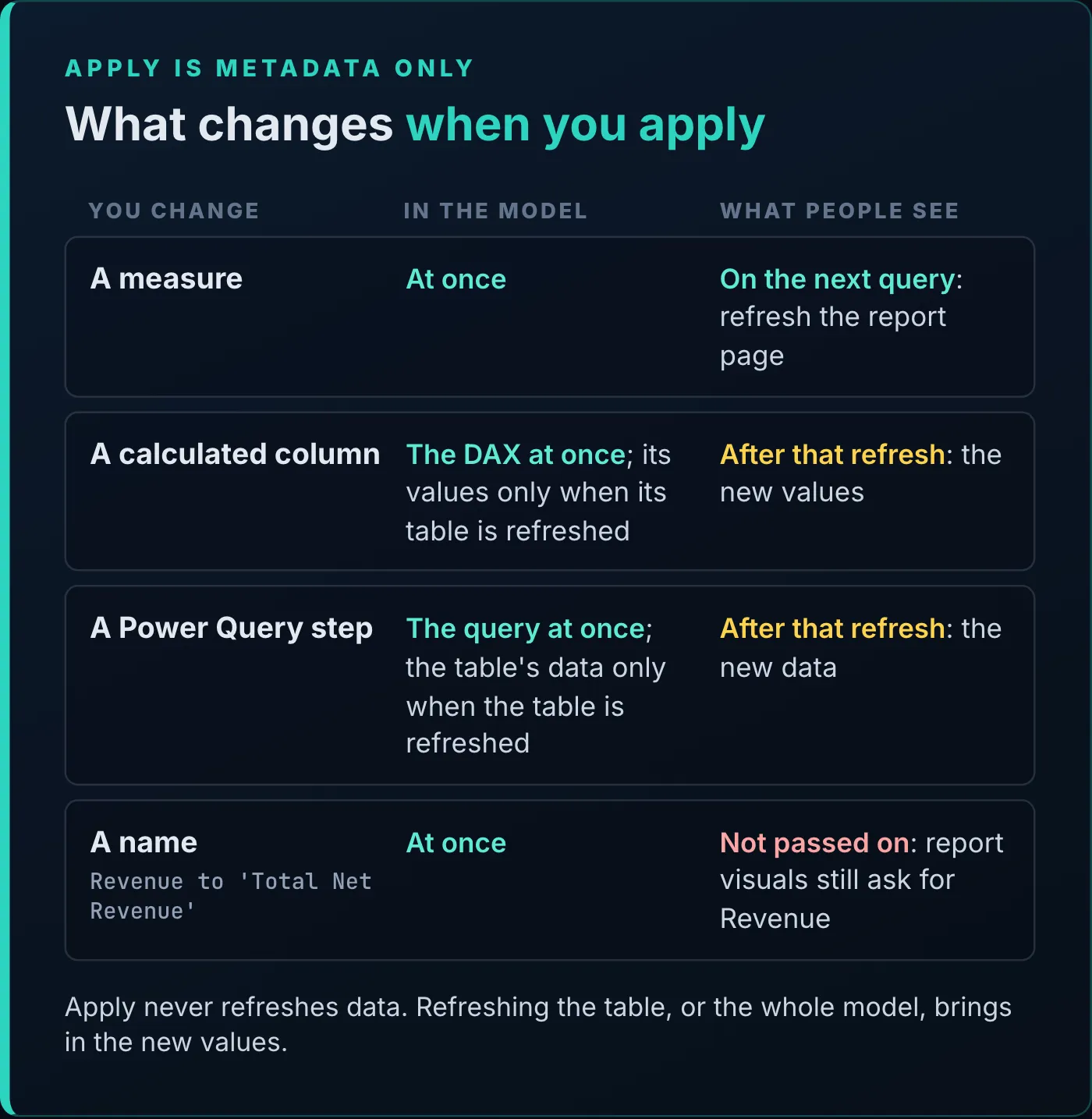
What apply changes at once, and what waits for a refresh.
The business also wants row-level security. The company has stores in six states and wants a role for each one. The model has no roles yet: its security page in the service lists none, and the Data pane counts zero.
One script creates all six:
createOrReplace

	role 'FL Sales'
		modelPermission: read

		tablePermission Store = Store[State] = "FL"

	role 'IL Sales'
		modelPermission: read

		tablePermission Store = Store[State] = "IL"

	role 'MA Sales'
		modelPermission: read

		tablePermission Store = Store[State] = "MA"

	role 'NY Sales'
		modelPermission: read

		tablePermission Store = Store[State] = "NY"

	role 'TX Sales'
		modelPermission: read

		tablePermission Store = Store[State] = "TX"

	role 'WA Sales'
		modelPermission: read

		tablePermission Store = Store[State] = "WA"
Each role can read the model (modelPermission: read) and has a table permission on Store that keeps only the rows where the State column equals its state. Paste the script into a tab and apply it in Editing mode.
![The roles script in TMDL view: createOrReplace, then role 'FL Sales', 'IL Sales', 'MA Sales' and 'NY Sales', each with modelPermission: read and a tablePermission on Store that filters Store[State] to its state code. The pointer is on the Apply button, and its tooltip reads: Apply your changes to the model. This can't be undone.](/_astro/roles-script.BoP9O_gU_ZglSK3.webp)
One script creates the six roles. Apply’s tooltip warns that the change can’t be undone.
Refresh the model’s security page, and it lists all six roles. The script creates the roles without putting anyone in them. To assign users and groups, open the semantic model in the service, select Manage roles in the ribbon, and use the Assign tab.
Say you’d rather call the Net Amount column Net Revenue. To rename an object in TMDL view, you script its parent: the table for a column, the whole model for a table. Open a clean script tab and drag the entire semantic model into it. This one comes to about 1,500 lines of TMDL.
Press Ctrl+F (Cmd+F on a Mac, where TMDL view on the web works too), search for net amount, and expand the box to show the replace field. Enter Net Revenue. There are four matches, and only two of them should change:
- The reference in the
Revenuemeasure,SUM(Sales[Net Amount]): replace it. - The column definition,
column 'Net Amount': replace it. sourceColumn: Net Amount: skip it.{"Net Amount", type number}in the Power Query step of theSalespartition: skip it.
sourceColumn is the name of the column as it comes out of Power Query, and the model’s column is bound to it. Rename it, and the model looks for a Net Revenue column that Power Query doesn’t produce, unless you also add a rename step to the query. Microsoft Learn describes the two names as independent: the model’s column can be called Net Revenue while Power Query, and its editor, still call it Net Amount. The fourth match is that Power Query name itself, in the step that sets the column types.
That’s why Replace All is the wrong button here: it would change all four. Replace the first two one at a time, and move past the other two with the next-match arrow.
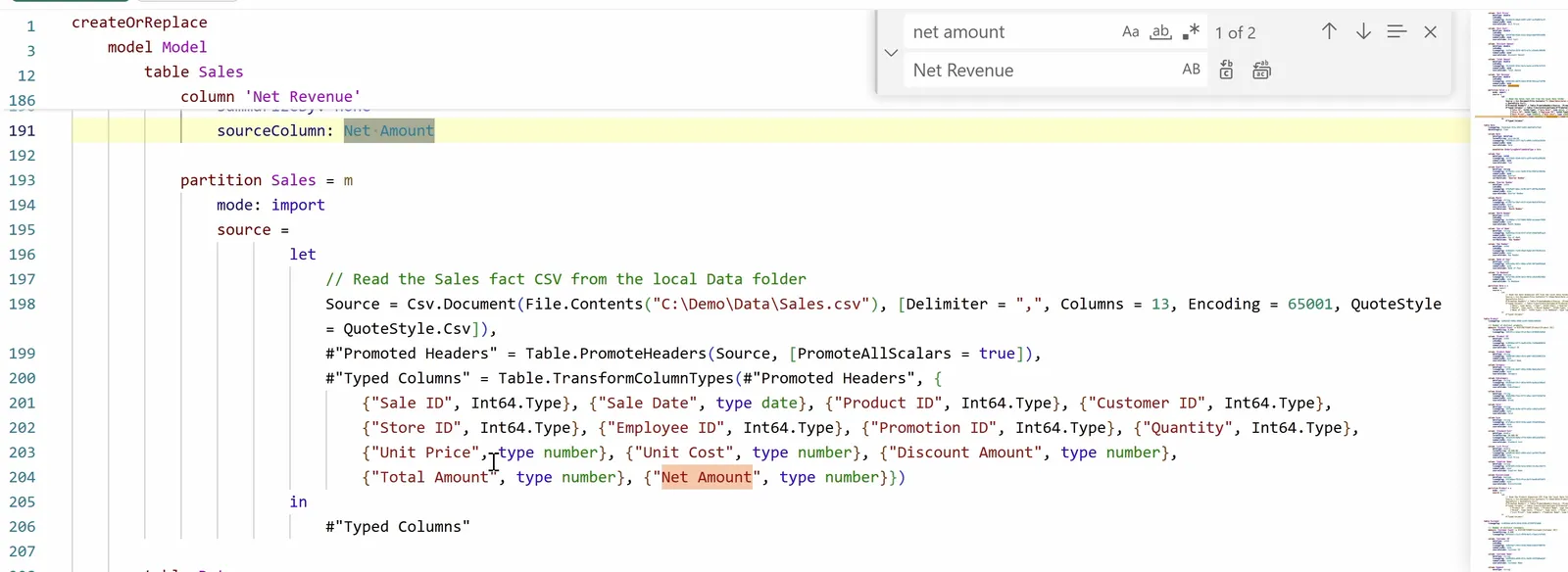
The two matches left stay as they are: sourceColumn and the Power Query step both use the name Power Query produces.
After the two replacements, the measure reads SUM(Sales[Net Revenue]), and the column reads:
	column 'Net Revenue'
		dataType: double
		isHidden
		lineageTag: b0401191-b079-4de3-9f30-88ecaa718708
		summarizeBy: none
		sourceColumn: Net Amount
Apply it, and the column is renamed in the model and in the measure that uses it, while Power Query keeps producing Net Amount, and everything still works.
The same box takes regular expressions, for renames by pattern. Microsoft Learn’s example lowercases every column name in a scripted table: turn on the regular expression option (the .* button at the right end of the find field), enter these patterns, and select Replace All.
| Find | Replace |
|---|---|
(^\s+column\s+)(.+) | $1\L$2 |
Here Replace All is the right button: the pattern matches only lines that start with column, so the sourceColumn lines keep the names Power Query produces.
One more edit: rename the Revenue measure to Total Net Revenue. Typed as is, the new name gets an error in the editor, because a name with spaces needs single quotes:
measure 'Total Net Revenue' = SUM(Sales[Net Revenue])Apply it, go to the report, and refresh the browser. Many of the visuals now show “Something’s wrong with one or more fields.”
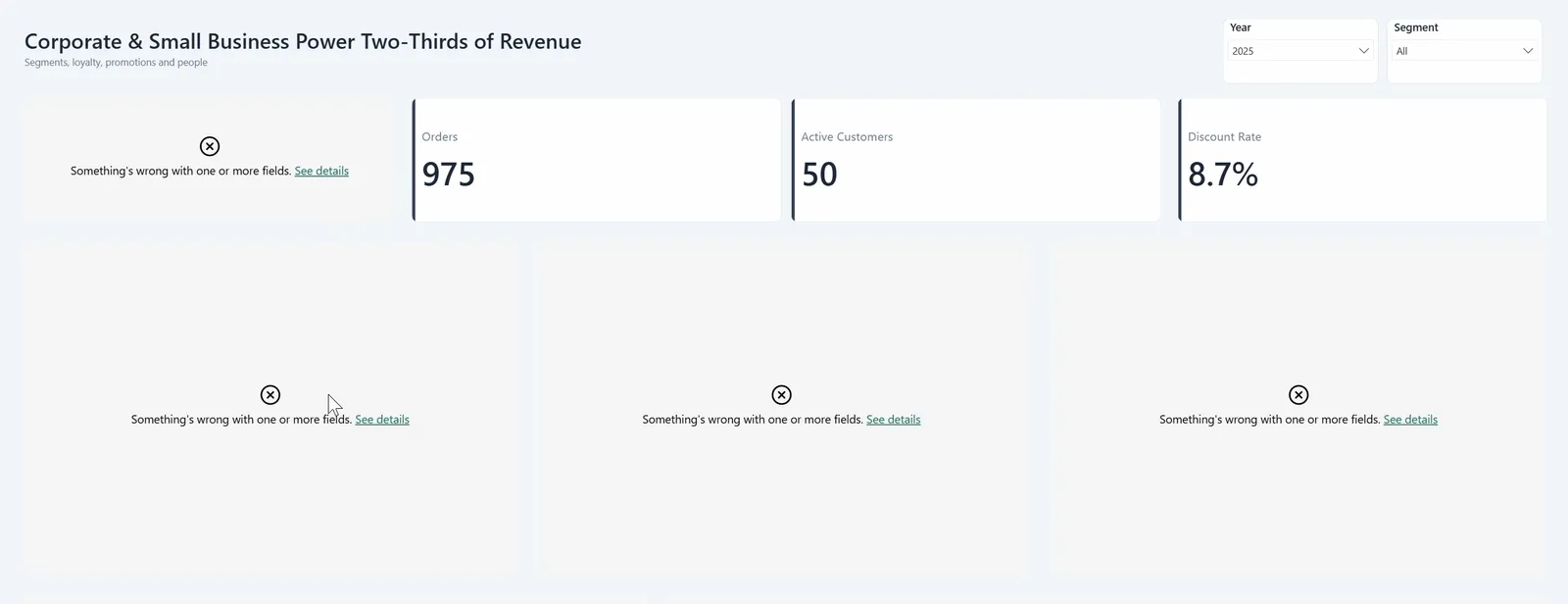
The report after the measure rename: the visuals bound to the old name show errors.
The rename is code only. When you rename a field in Power BI Desktop’s interface, the change carries through the model and into the report’s visuals. A rename in a script doesn’t carry through: the visuals still ask for Revenue, which no longer exists. Microsoft Learn warns about this in both places: renaming a field in TMDL view may break visuals that use it, and when you edit a model in the service, renamed fields don’t update in existing visuals in the reports built on it.
So before you rename a field that reports use, find those reports, or keep the old name. If a rename has already broken a report, rename the field back, or restore the version from before the change.
In TMDL view, switch to Editing mode, then select File, then Version history. The same pane opens from the workspace (More options (…) next to the model) and from the model’s details page (File).
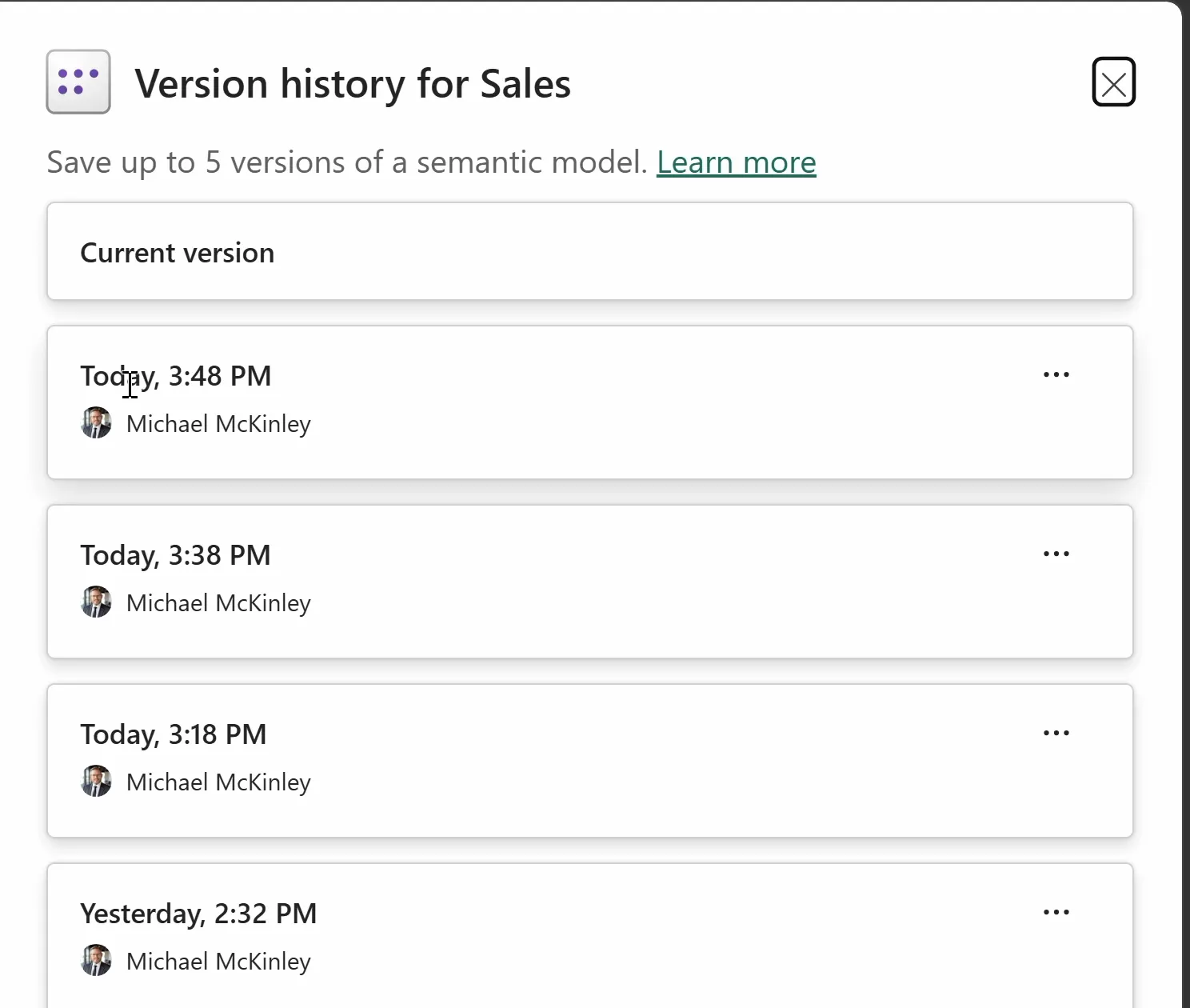
Version history for the model. Each saved version’s menu (…) has Restore.
Each version shows when it was last changed and who changed it. To roll back, open the menu (…) on the version you want and select Restore.
Versions aren’t necessarily saved at the moments you’d pick. Microsoft Learn lists when one is saved:
- When you open the model on the web in Editing mode.
- When someone publishes a
.pbixover the model from Desktop, or uploads one on the web. The version saved is the one from before the publish. - When you restore a version. The version saved is the one from before the restore.
- When you select File, then Save to version history, in Editing mode. You can add a description, which appears with the version in the pane.
So before a change you might want to undo, save a version yourself, with a description that says what’s about to change.
The limits, also from Learn:
- Up to five versions per model. Saving another once there are five overwrites the oldest.
- Restoring a version older than 14 days isn’t supported.
- Each version holds the model’s metadata and data, so the data can be out of date after a restore. Refresh the model afterward.
- You need Write and Build permission on the model, and version history isn’t available with a free license.
Learn’s comparison of the two TMDL views lists this version history as not available in Desktop. A .pbix saved to OneDrive or SharePoint keeps file versions instead, which Easy Version History Comes to Power BI Desktop covers.
The script tabs at the bottom of TMDL view on the web don’t last. Close the browser tab, or the model, and they’re gone, as the banner at the top of the editor warns: “TMDL scripts are discarded on close.” They aren’t written to the workspace, and they aren’t written to a Git repository either, even when the workspace is synced to one. Scripts saved in the model from Desktop don’t show up on the web.
Desktop keeps its script tabs, in the .pbix, or as .tmdl files in the TMDLScripts folder of a Power BI project. Learn adds one caveat for Git: setting up a workspace’s Git integration for the first time doesn’t include TMDL view scripts saved in a published model.
I like that the web scripts go away, because saved scripts tend to clutter my code repository. If you want to keep one, such as the role script or a fix you’ll use again, save it to a file before you close the tab.
I don’t think Power BI Desktop is going anywhere soon. But TMDL view on the web closes a gap in web-first development for Power BI: it gives you nearly everything you need to develop in the browser, and to work much more code forward. Here’s how the two TMDL views compare:
| TMDL view in Power BI Desktop | TMDL view on the web | |
|---|---|---|
| Status | Generally available | Preview |
| Modes | None: apply a change at any time | Viewing mode to script and preview, Editing mode to apply |
| Script tabs | Saved in the .pbix, or as .tmdl files in a project | Discarded when the model or the browser closes |
| Version history | Not in TMDL view; a .pbix saved to OneDrive or SharePoint keeps file versions | Up to five versions of the model |
| Permissions | No workspace permission involved | Write permission on the semantic model |
| Where it runs | Power BI Desktop on Windows | A browser, including on a Mac |
If you’re serious about building in Power BI, get familiar with TMDL. Reading your model as TMDL speeds up the work you already do, and it shows you how to do things you might not have known how to do before. You can do that in Desktop’s TMDL view, and now you can do it in a browser too.
Pick an edit you’ve been meaning to make. Open the model in the service, open TMDL view, save a version, and make the change. Version history is your friend, so save versions often.
To treat your reports as code too, Power BI as Code: The Setup AI Needs for Your Reports follows one report saved as a Power BI project, where every page, visual and measure becomes a text file.
Tools
- Power BI service, TMDL view (preview since the July 2026 update)
- Any modern browser, including on a Mac (no Power BI Desktop required)
Prerequisites
- Comfort reading and editing TMDL; this is not a TMDL introduction
- Write permission on a published semantic model to follow along
- Working knowledge of measures and row-level security in Power BI
Resources
- Use Tabular Model Definition Language (TMDL) view in Power BI, Microsoft Learn
- Use semantic model version history, Microsoft Learn
- TMDL scripts, Microsoft Learn
- Edit semantic models in the Power BI service, Microsoft Learn
- Semantic model connectivity and management with the XMLA endpoint, Microsoft Learn
- Download a report from the Power BI service to Power BI Desktop, Microsoft Learn
- TMDL View on the Web (Preview), Power BI Updates Blog
- TMDL View on the web: Edit semantic models as code in your browser (Preview), Power BI Updates Blog
- Power BI July 2026 Feature Summary, Power BI Updates Blog
Related articles


Transcript
A live model with a wrong measure
We just got a call, and this net revenue measure is actually measuring gross revenue, and the business wants it fixed right now. I'm going to show you how you can do that in record time without even opening Power BI Desktop.
The republish tax
Well, we've all been there. You want to make one small enhancement to a model in the Power BI Service. And the next thing you know, you've got to open Desktop, make that one small enhancement, then publish, refresh a semantic model. And that kind of comes with some challenges. Number one, it might take you a while to refresh that semantic model, and meanwhile you're serving up old data. If you try to edit that with the xml a write endpoint, for example, with a tool like Tabular Editor, then you may not be able to re-download that file from the Power BI service, and depending on how you back up your Power BI files, that might be important to you. And you might have a measure that is just simply wrong, and you need it fixed right now, and you don't have the time to wait for another refresh window. So the way that we're going to make that change that the business was requesting
TMDL view in the Power BI service
is by using TMDL View for the web in the Power BI service. TMDL View has been available in Power BI Desktop since January 2025, and as of July 2026, it is also available in the Power BI service in preview. So when we open our semantic model in the the service, this is what you will see. You'll see the model view, which down here on the bottom left, you will see buttons for model view, DAX query view, and TMDL view in preview. If we open up the TMDL view, you're going to see a large text editor window where we can edit and review our TMDL scripts for our model. On the right, you see all the tables in the model, and you can also click on the model tab, and you can see, for example, the relationships in your model or the measures that are in the model.
The hotfix: script it, diff it, apply it
If I want to look at a specific measure, I can come here and search for that measure. I happen to know that it is simply called revenue, and we can either drag this measure out into our text canvas, or we can also select Script TMDL To the script tab, and that will draft the TMDL definition for that measure in this text window here. And so you see is create or replace statement, and defining a measure called revenue, and then giving this as the DAX measure, so sum the total amount column in the sales amount table. The problem is this is gross revenue rather than net revenue. We've got a different measure for that. So the way that we're going to make this change is we're just going to simply swap out this total amount column for net amount. And you'll notice that the the apply button is grayed out, and that is because we are in the viewing mode. And what I can do is click on the preview button, and that will give us a side -by-side diff of what this TMDL script will change. So you can see here the old version on the left, the new version on the right, and we are simply swapping out the total amount column for the net amount column. So when I'm ready to make this change, I can close this out, and I can come up here to the top right and switch this from viewing mode to editing mode, and we can simply hit apply, and it will apply this change in just a second. And now if I come back to the report, notice that this net revenue measure is 3 .1 million dollars, and when I refresh the page, it will show now that it is 2 .9 million dollars.
Apply is metadata only
So a really important thing to keep in mind is that these changes are metadata only. What that means is that something like a measure, which is computed when the measure is rendered on the screen, will take effect immediately. But if it were, say, a DAX calculated column or something in Power Query, the code change will be in place immediately; however, the data will only be refreshed when you refresh the model. So that DAX calculated column is only updated when you refresh the model, and so in order for that to take effect, you would need to process a full refresh after you make your code change. Just keep that in mind that this is metadata only.
Write RLS roles in TMDL
In addition, the business has also asked us to add row level security roles. In this particular example, we have stores in six different states, and so they want a different security role for each state. And you can see here, if I refresh this, this is the security page for this model, and we We don't have any roles in this semantic model right now. We come back over to our TMDL view. I've gone ahead and prepped up some more TMDL scripts that will create new roles. So for this one, this is a role called FL sales, and this will create a permission on the store table where the state column equals FL. We're following a similar role for the other five states as well. You can see down here in the bottom right that we currently have zero roles in this model. And so I can apply this. If I come back to the security page and refresh this, you will also see now we have six roles in our semantic model.
Bulk rename with find and replace
So let's say that I don't love that column being called net amount. I actually want it to be called net revenue. So another thing that the TMDL script is great for is bulk edits. So what we're gonna do is I've got a clean script open here. I'm going to drag the entire semantic model out here. So this is what my entire model looks like in code, about 1,500 lines long. And I can search for something by holding down Control and hitting F, or Command F on a Mac. This does work on a Mac, by the way. And I can simply search for net amount. And I can expand this guy here, and we can say I want to replace this with net revenue. I can hit enter or hit this button right here, and it will replace where I had net revenue before. You see we went from one of four to one of three, and I can also rename this column here in this column name in line 186. We can replace that as well. Notice that we've got another thing down here, line 191, so it'll skip to that next. This source column is actually the name of the column coming out of Power Query. I actually don't want to rename it here, because if I did, it's gonna be looking for a column coming out of Power Query called Net Revenue. It's not gonna find that unless I were to add a rename step in Power Query. So this will rename the column in the model and then rename the column in the measure that is sourcing that column. And so that way, everything will still work. So this is a great tool for making bulk updates as well. You want to rename a column, you can do it super fast using this technique.
When a rename breaks report visuals
Now let's say I want to make one more edit. I want to come up here and change this total revenue measure to total net revenue, and it's giving me an error message. That's because it, because there are spaces. It wants it inside of single quotation marks, and then we can run this as well. So now we've renamed the measure, but if we come over to the report and we refresh the browser, you'll notice now that all of these visuals are broken, or many of them are broken, and that is because the the name changes, they're code only, and whereas in Power BI Desktop those name changes would cascade throughout the model and into the reporting layer, here these are separate, and those cascades do not flow through. So let's say that I've I've made this mistake, and I want to revert this guy.
Roll back with version history
Well, what I can do is I can come back up here to my model and go to file and version history. And you can see some versions that I've made throughout the day today. Now, this might not necessarily save versions where you want them to, but what you can do is click on this ellipsis and hit the restore button here. If you're about to do a change that you think is maybe worth saving a version for, you can just come to File and click Save to Version History. This is a really nice feature, and actually something that you cannot do in Power BI Desktop.
Script tabs are ephemeral
One more thing to keep in mind is that these TMDL script tabs down here on the bottom are actually ephemeral, meaning that when you close your browser tab, these are going to go away. They are not written to the workspace, nor are they written to your Git repo, even if your workspace is synced to a Git repo. Whereas in Power BI Desktop, any TMDL script tabs will either be saved to the PBIX file or the PBIP project, even as TMDL files. I actually kind of like the fact that these scripts will go away, because they tend to just clutter up my code repository, but just know that if you like holding on to those TMDL scripts, you will want to save these out, because they're not going to be saved here in the Power BI service.
Where Power BI development is heading
So I don't think that Power BI Desktop is going going anywhere anytime soon, but I am really excited to see the new TMDL View for the web. I think this closes a gap on web-first development for Power BI. You can still use Power BI Desktop, and like I say, I think it's going to be around for a long time. But this gives you pretty much everything that you need now to do Power BI development in the web natively, and to be much more code forward in how you develop Power BI content. If you're at all serious about building in Power BI, I really encourage you to get more familiar with the TMDL language, and also how you can both speed up your work, but also do things that maybe you didn't know how to do before by exploring the TMDL language and how your model comes together in TMDL. You can of course do that in TMDL view in Power BI Desktop, but now you can do it in a browser natively.
Try a browser hotfix this week
So pick an edit that you've been meaning to make for a little while, open up your model in the browser, open up TMDL view, and let me know what edits that you wind up making down in the comments below. And keep in mind, version history is your friend, and save versions often. And if you want to know more about how you can treat your Power BI projects as code, I've got a great video for you right over here, and I will see you next time.
New articles and videos